
How do I add a team member to my workspace?
Method 1: Add a teammate to a specific board. The invited team member will only have access to the specific board they were invited to.
1. Ensure all collaborators already have a Luma app account (trial accounts are accepted).
2. Go to the board you wish to collaborate on.
3. In the upper right corner of the interface, please click 'Share'.

4. Add your team mates email addresses, and ensure they have Can Edit permissions.


Please note: All users will utilize the credits from the account that invites them to create on the shared board.
Method 2: Invite teammates from the Boards page.
1. Ensure all collaborators already have a Luma app account (trial accounts are accepted).
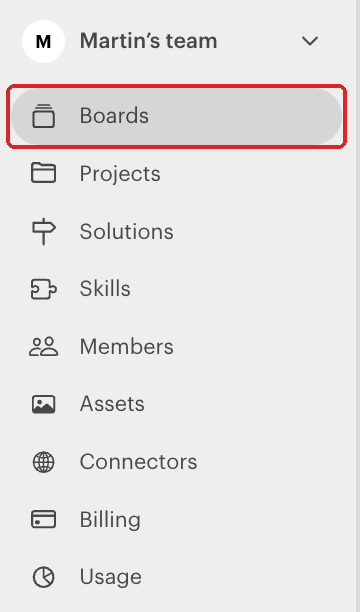
2. Log in to your Luma app account and select Boards from the left panel.
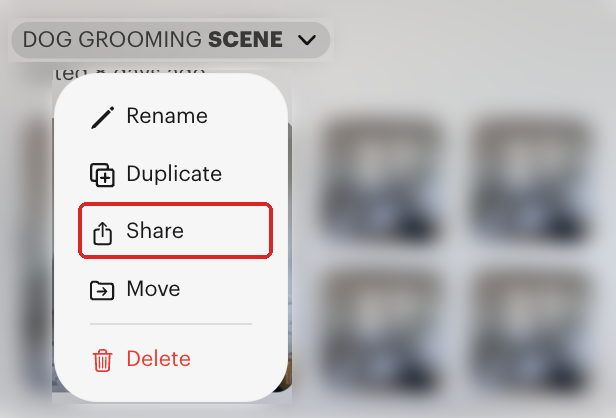
3. Hover your cursor over the board you want to share, click the dropdown arrow next to its name and select Share.
4. Follow the same sharing prompts as Method 1.
Method 3: Invite teammates to your entire workspace. This means that all boards available on the account will be visible for the invited team mate.
Inviting members to your whole workspace is available on the Team plan. On individual plans, share specific boards instead (Methods 1 and 2).
1. Ensure all collaborators already have a Luma app account (trial accounts are accepted).
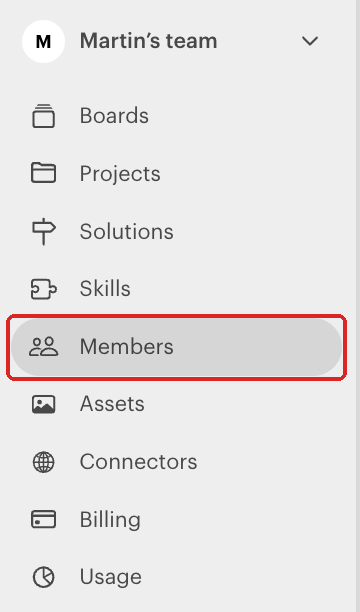
2. Log in to your Luma app account and select Members from the left panel.
3. Select Invite.
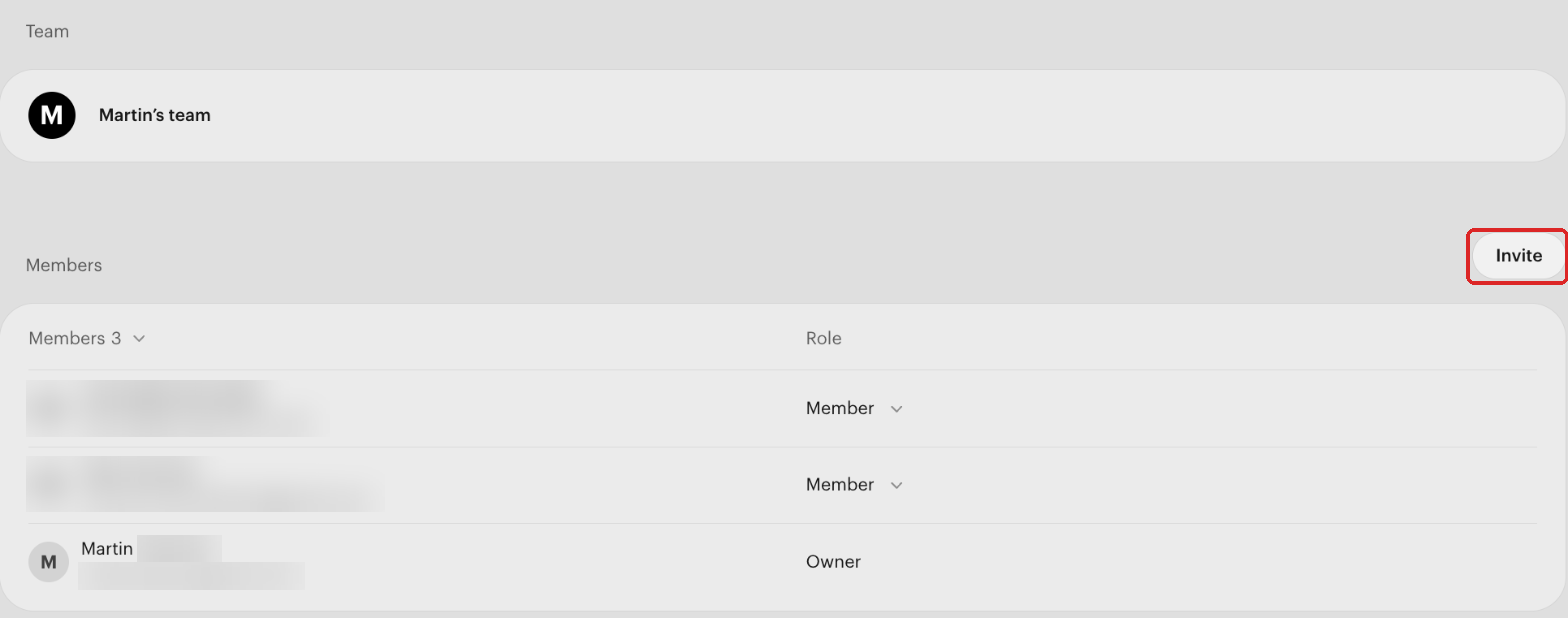
4. Enter your teammate’s email address and set their permission to either Member or Admin.
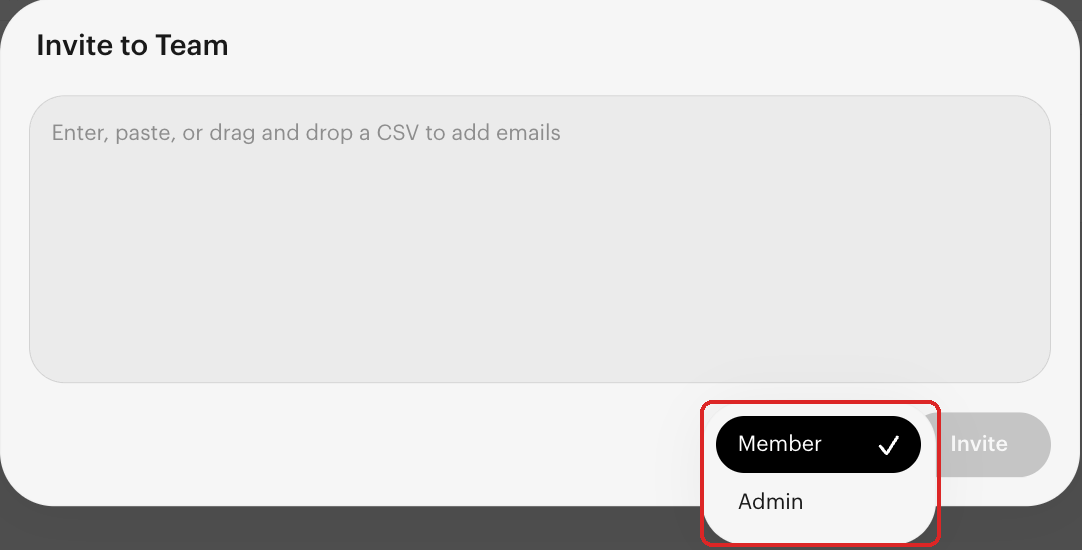
Please be aware that providing Admin to an external account means they will have full control over your workspace and credits. Proceed with caution.
Please note: All invited users will utilize the credits from the main account that sent the invitation.