
How to: Get Console Screenshots and Copy Console Logs
When something isn't working as expected, the browser's console often holds details that never show up in the UI: the exact error message, the failing network request, a stack trace. A console screenshot and a copy of the log let us diagnose the issue much faster, often without needing to reproduce it ourselves.
Two things together are most useful: a screenshot of the Console panel showing the error in context, and the full log text copied or saved as a file (a screenshot alone can crop out earlier lines that matter).
Windows: Chrome and Edge
Chrome and Edge share the same DevTools, so the steps are identical.
Reproduce the issue first, so the error lands in the log.
Open DevTools straight to the Console with Ctrl+Shift+J (or press F12, then click the Console tab).
Right-click anywhere inside the Console panel and choose Save as... to export the full log as a .log file. This is the most complete option.
To copy the text instead, click into the Console, press Ctrl+A to select all entries, then Ctrl+C to copy.
Take a screenshot of the panel too (see below) so we can see the error in its original layout.
[Console view] Chrome DevTools open to the Console tab, showing sample warnings and errors:
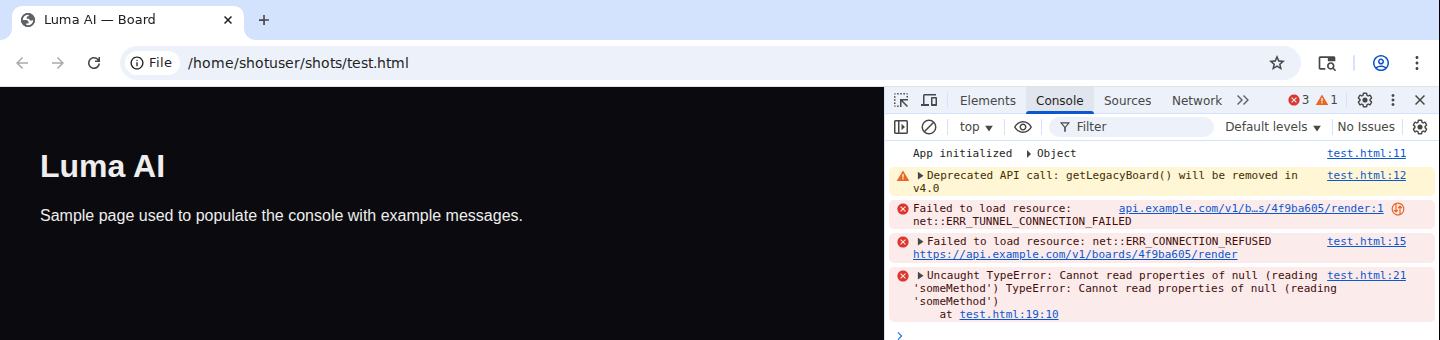
[Console context menu] The Console tab. The error/warning counts show in the DevTools tab bar even before you open it.
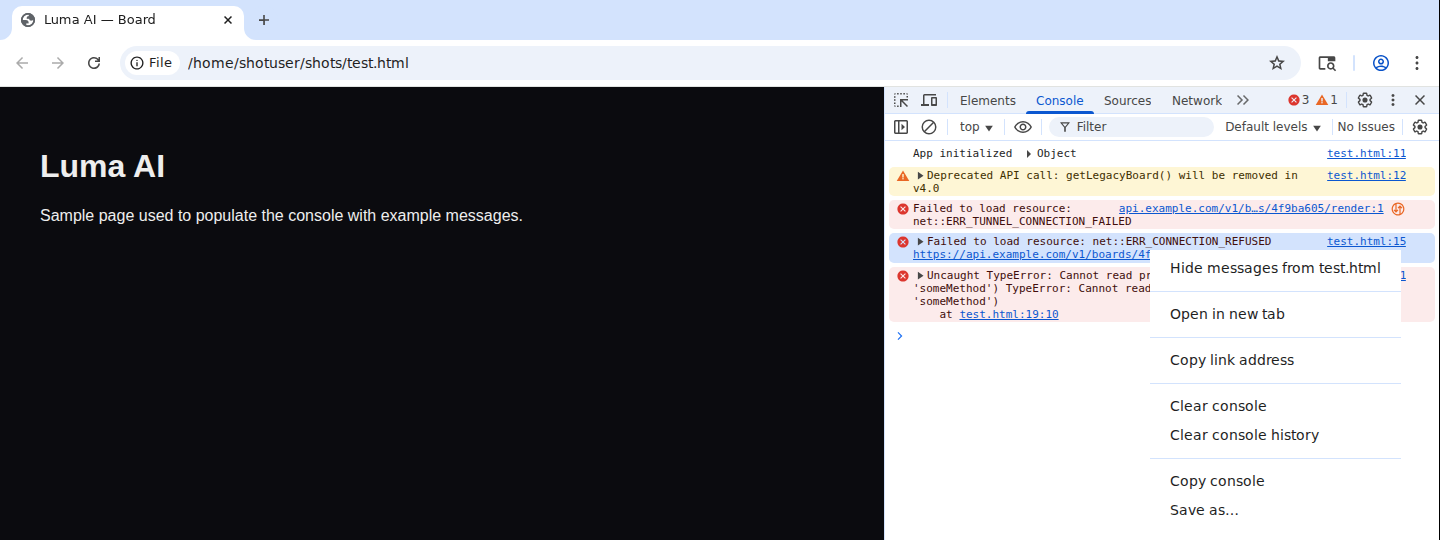
Right-click anywhere in the log for "Copy console" (clipboard) or "Save as..." (a .log file). This looks identical in Edge, and in Chrome on Mac.
Windows: Firefox, and taking a screenshot
Firefox: press Ctrl+Shift+K to jump straight to the Web Console. Right-click a message and choose Copy Message, or select entries and press Ctrl+C. Firefox has no one-click "save to file" like Chrome, so copy-and-paste into a text file works best for a full log.
Screenshot: press Win+Shift+S to open the Snipping Tool overlay, then drag a box around the console panel. It's copied to your clipboard automatically, ready to paste (Ctrl+V) into an email, doc, or chat. The classic Print Screen key also works for a full-screen shot, and Alt+Print Screen captures just the active window.
Mac: Chrome and Safari
Chrome: press Cmd+Option+J to open DevTools straight to the Console.
Safari needs one-time setup: go to Safari > Settings > Advanced and check "Show features for web developers." That adds a Develop menu to the menu bar. After that, press Cmd+Option+C to open the Web Inspector's Console tab directly (or use Develop > Show JavaScript Console).
In either browser, click into the console, press Cmd+A to select all entries, then Cmd+C to copy. Chrome also supports right-click > Save as... for a full log file, same as on Windows.
Mac: taking a screenshot
Press Cmd+Shift+4, then drag a box around the console panel. It saves to the desktop by default. Cmd+Shift+3 captures the whole screen instead. Cmd+Shift+5 opens a toolbar with more options, including "Capture Selected Window," which is handy for grabbing just the browser window cleanly.
Adding Ctrl to any of these (e.g., Cmd+Ctrl+Shift+4) copies the screenshot to the clipboard instead of saving a file, so it can be pasted directly.
Tips for a helpful bug report
Reproduce the issue with the console already open, so nothing gets missed before the error appears.
Include the full log rather than a single line, since earlier warnings or failed requests often explain the final error.
Leave timestamps and log levels (Errors/Warnings/Info) visible; don't filter anything out before capturing.
Check the log for anything sensitive (auth tokens, personal data, internal URLs) before sharing it, and redact if needed.
Note what you were doing right before the error appeared: the page, the action, and roughly when it happened.