
How to move your Dream Machine assets into the Luma app
You can bring the assets from your Dream Machine Boards into the Luma app by dragging them from one browser window to the other.
Please note: your Dream Machine account email and your Luma app account email must be the same in order for this process to work.
Migrating your Assets from Dream Machine to the Luma app
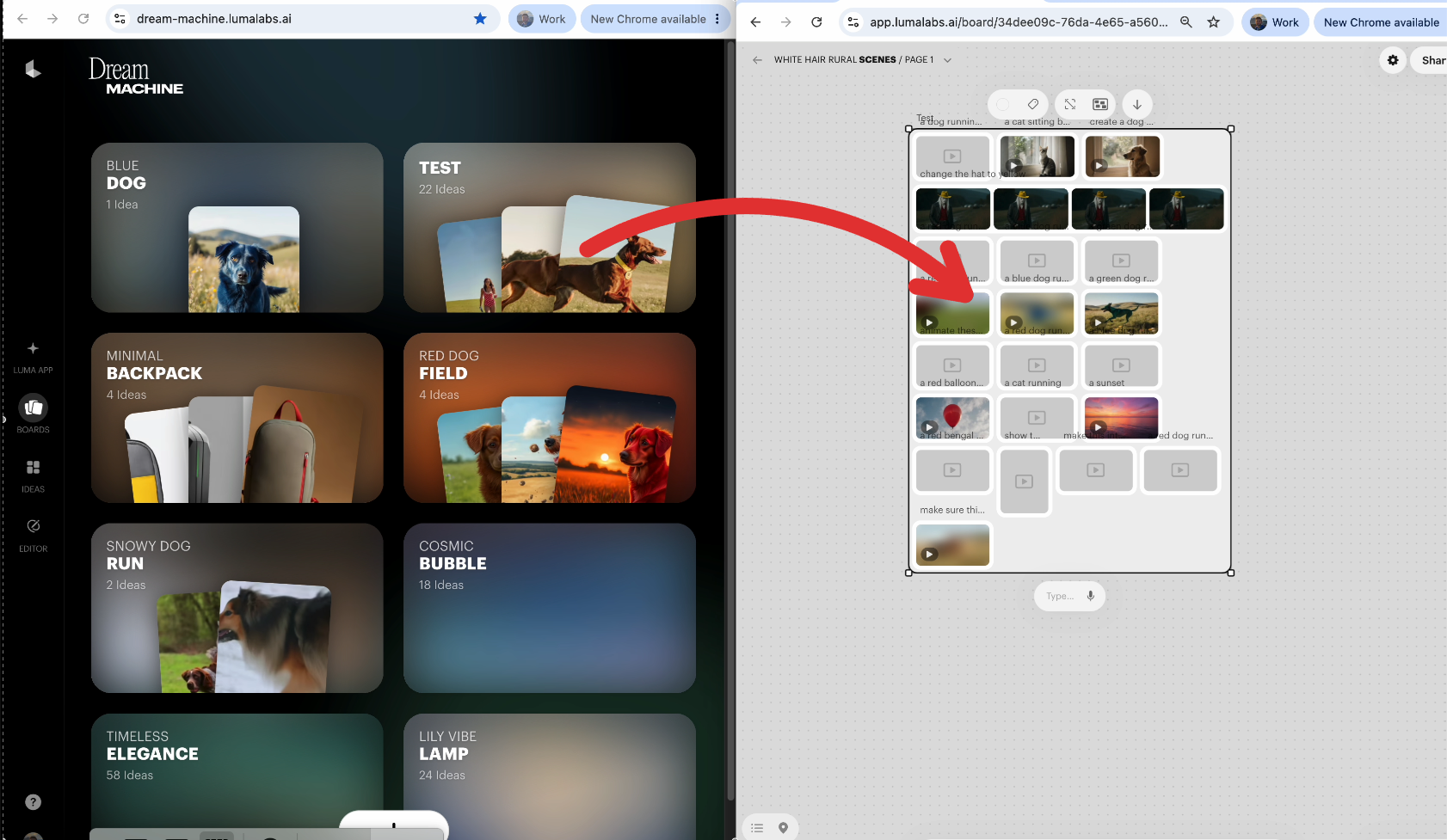
1. Open Dream Machine to your Boards page in a browser window. (on left)
2. Open the Luma app in another browser window (on right) and create a Board (the large plus sign in the large grey tile on your Luma app Landing page).
3. Open that Board.
4. Drag a Board from Dream Machine into your open Luma app Board.
5. The assets will populate the new Luma app Board in the order they were created in Dream Machine
6. Once finished populating, go back to your landing page in the Luma app and make a new Board - repeat the process in as many boards as you need.
New to the Canvas? See Moving from Dream Machine to the Luma app: Boards and the Canvas.