
Part 1: Set up your workspace
Your first project in the Luma app · Part 1 of 9
You’ll need: A Luma app account with a Board open on the Canvas.
First, let’s clean house
Open your first Board and it will open up the Canvas. (Click the large grey tile on your account landing page with the Plus Sign +)
If Agent Chat is open on the right, select the small collapse Arrow at the upper-right of the chat Panel. You can open and close it later with the Speech Bubble Icon at the bottom-right, beside the Magnifying Glass.
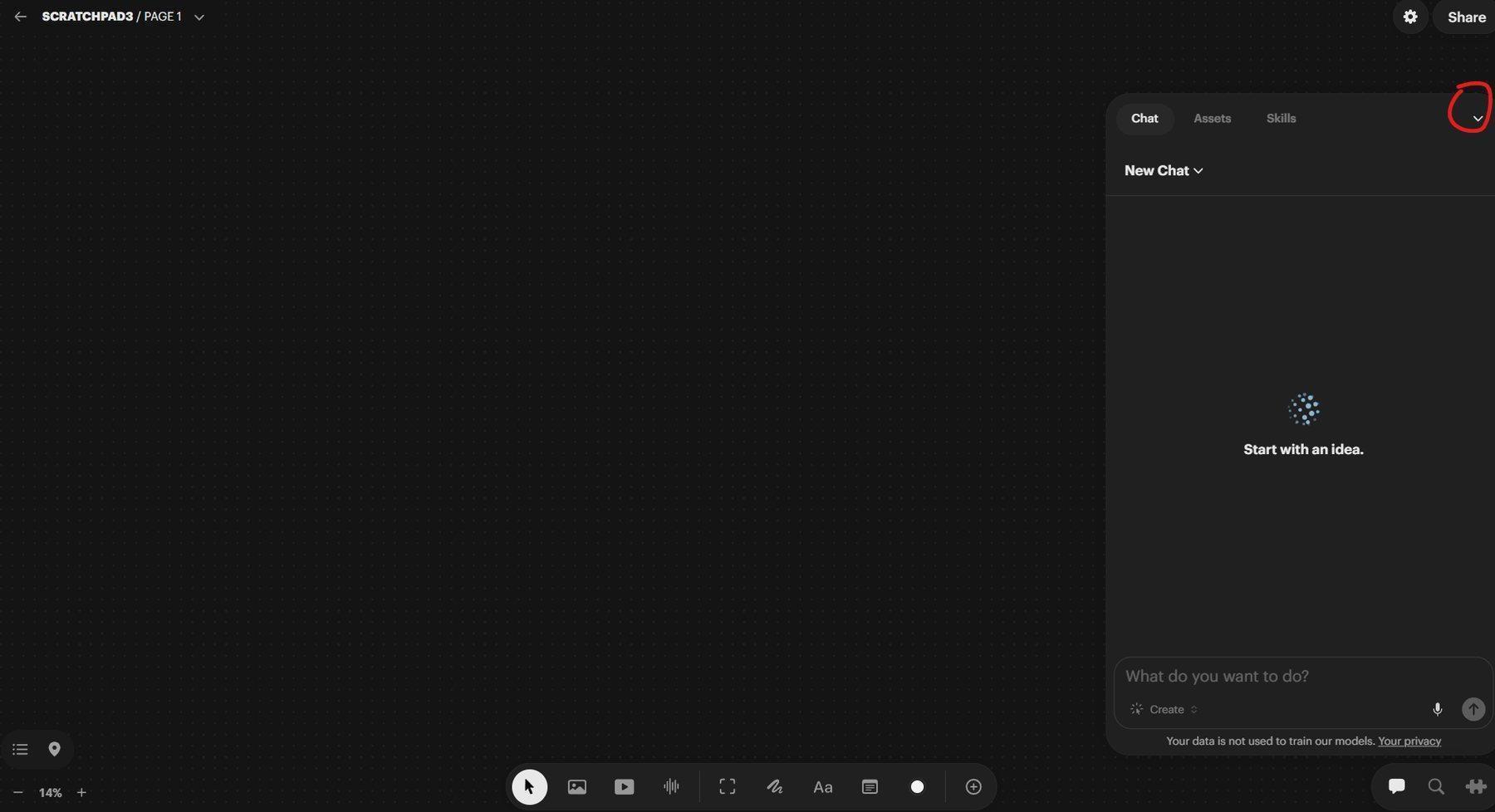
Closing Agent Chat to make more room on the Canvas.
Open Settings using the Gear Icon at the upper-right of the screen. Under Theme, choose Light, Dark or System. System follows your system or browser appearance. The screenshots in this guide use Dark.
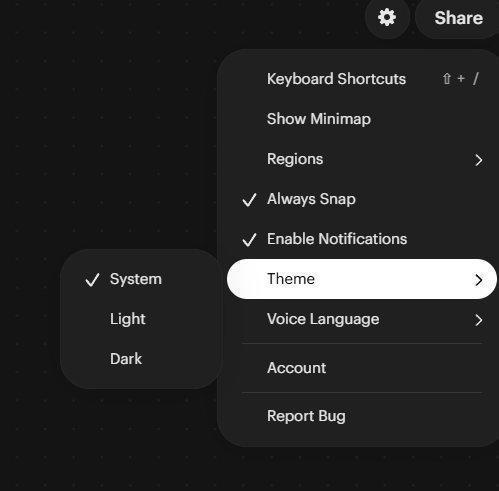
Theme options in Settings.
Open a model panel
There are three direct ways to choose a Model:
1. Right-Click an empty area of the Canvas, select Create Image, Create Video or Create Audio, then choose a Model.
2. Select the relevant creation tool from the toolbar along the bottom of the Canvas.
3. Ask the Agent to create an asset and you specify which Model to use.
You can also let the Agent choose a Model. Its selection is generally influenced by technical requirements, such as reference-image support or multi-Keyframe capability appropriate for the job requested. Be aware that Agent choice may not be the least expensive Model - another reason to try the manual workflow first.
How do I know which model to pick? This is more of an experience question. You will get used to what models work well for your prompt style, your subject matter and the assets you want to use to make your creations. For a rough suggestion guide, see the article Which model should I use?
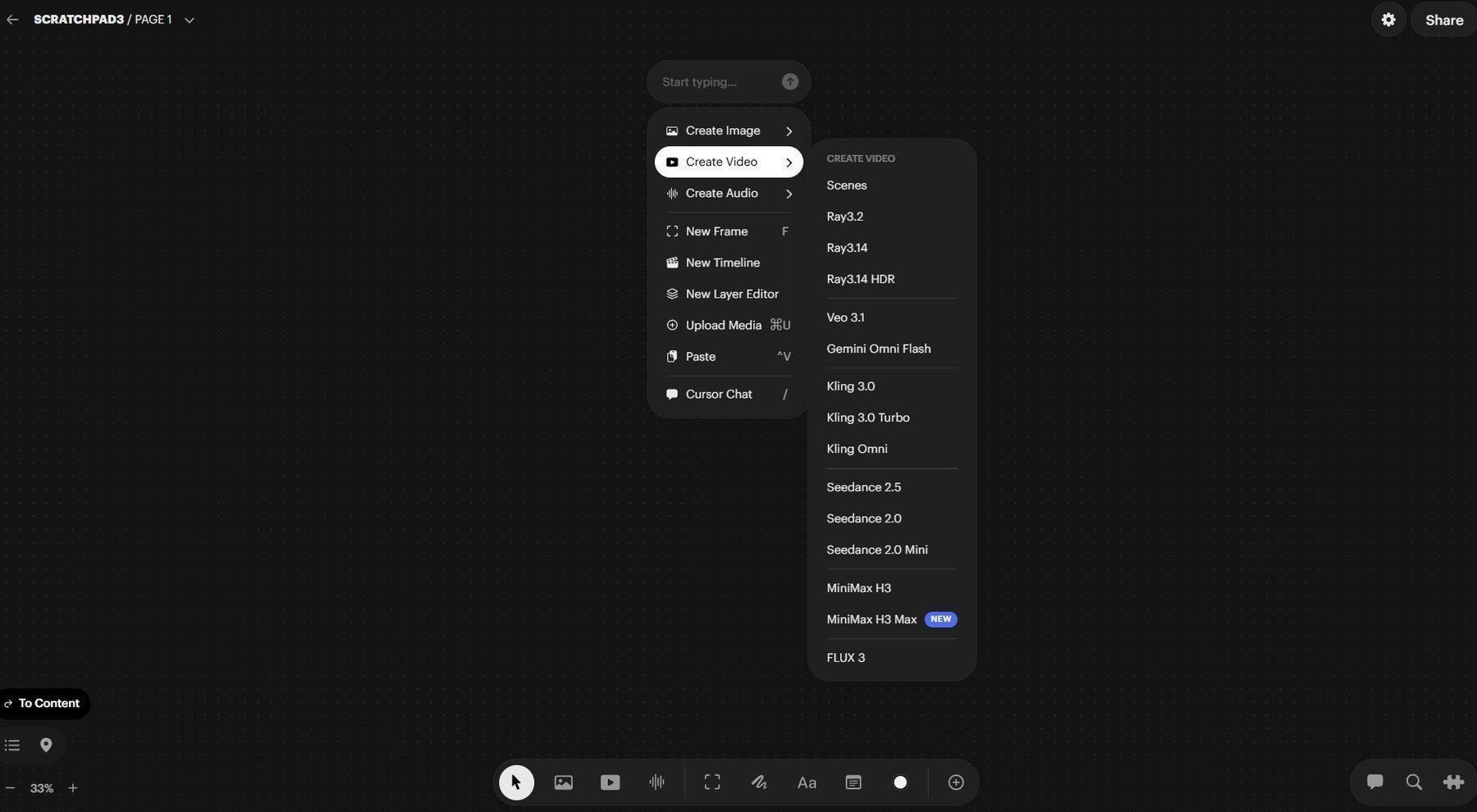
The Right Click asset creation menu and model selection.
Next: Part 2: Generate and animate your first image
Back to the series overview: Migrating from Dream Machine to the Luma app