
Part 2: Generate and animate your first image
Your first project in the Luma app · Part 2 of 9
You’ll need: Your workspace set up from Part 1.
We will start with a simple character and garden image using GPT Image 2, a relatively inexpensive, fast option for this exercise.
Each Model has its own Panel that will pop up where you can type your Prompt, add Reference Images and Keyframes, and choose Resolution, Aspect Ratio and a number of other Settings. Not all Panels have all features; some Model Panels have features unique to that Model.
1. Right-Click the Canvas and select Create Image → GPT Image 2.
2. Enter the following in the Instruction (Prompt) Field:
Cute bunny in a garden, nibbling on a carrot. He has been caught red-handed and has a look of guilt and surprise on his face.
Set Aspect Ratio to 16:9 (a cinema/TV ratio - your HD TV is 16:9). Set Resolution to 1K (this is a good cheap size to use for now). Set detail/smoothness to Medium (this is all you will usually need for your work). Leave the Reference Image field empty. Because these options/settings are available in the Model Panel, you do not need to include them in the Prompt.
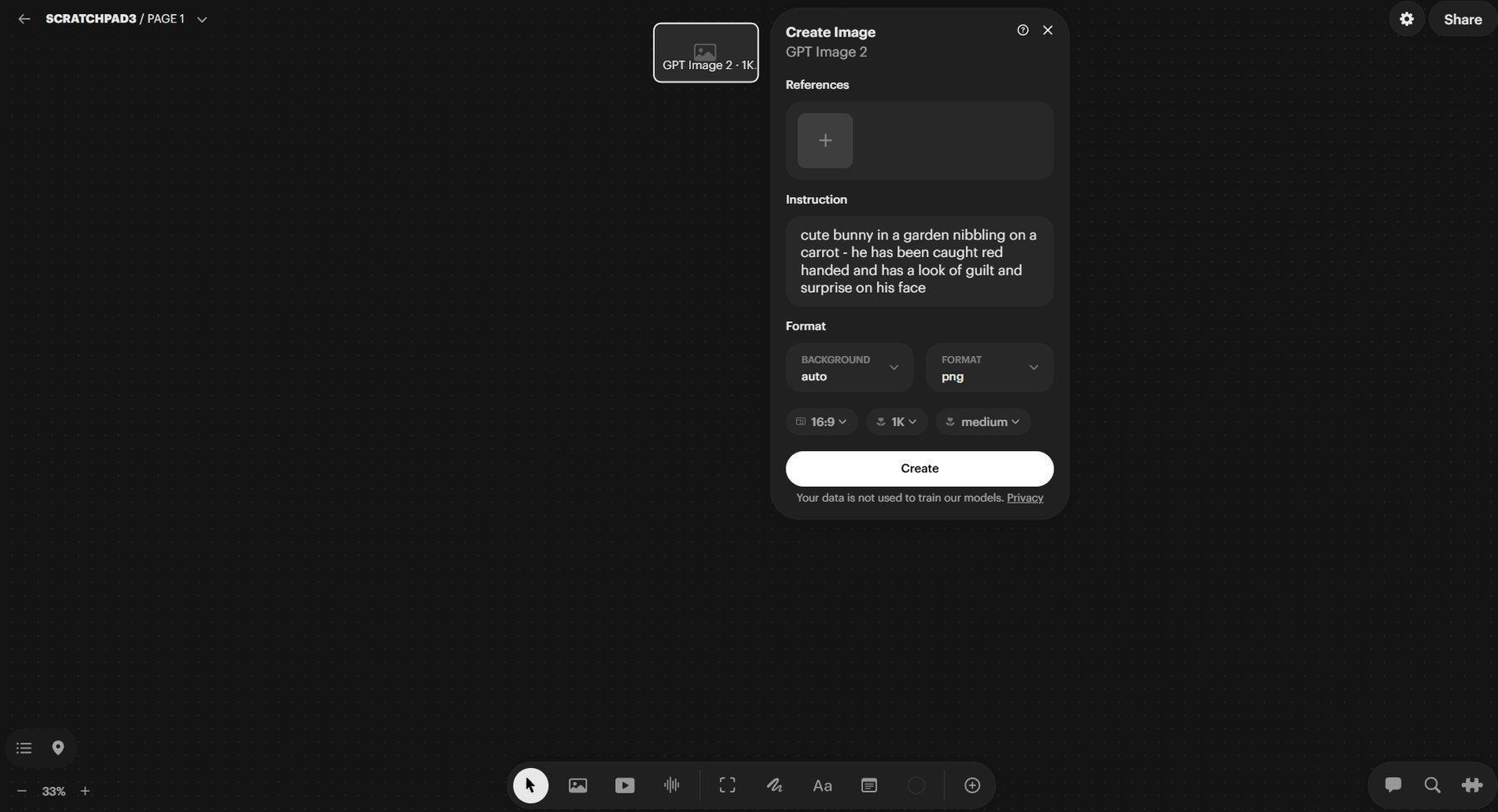
Typing the prompt in the Prompt area of the Panel with the settings at the bottom of the panel
3. Select Create. Depending on the Model, the Panel may remain open or it may close after submitting. In this case, it leaves an in-progress generating Image on the Canvas.
After less than a minute… congratulations on your first image on your first Board!
4. When processing finishes, select the Image to reveal the Upper and Lower Image Toolbars. Use the Full-Screen Button in the Upper Image Toolbar to have the media fill the screen.
You may need to zoom into the Canvas a little to have the buttons in the toolbars become clickable.
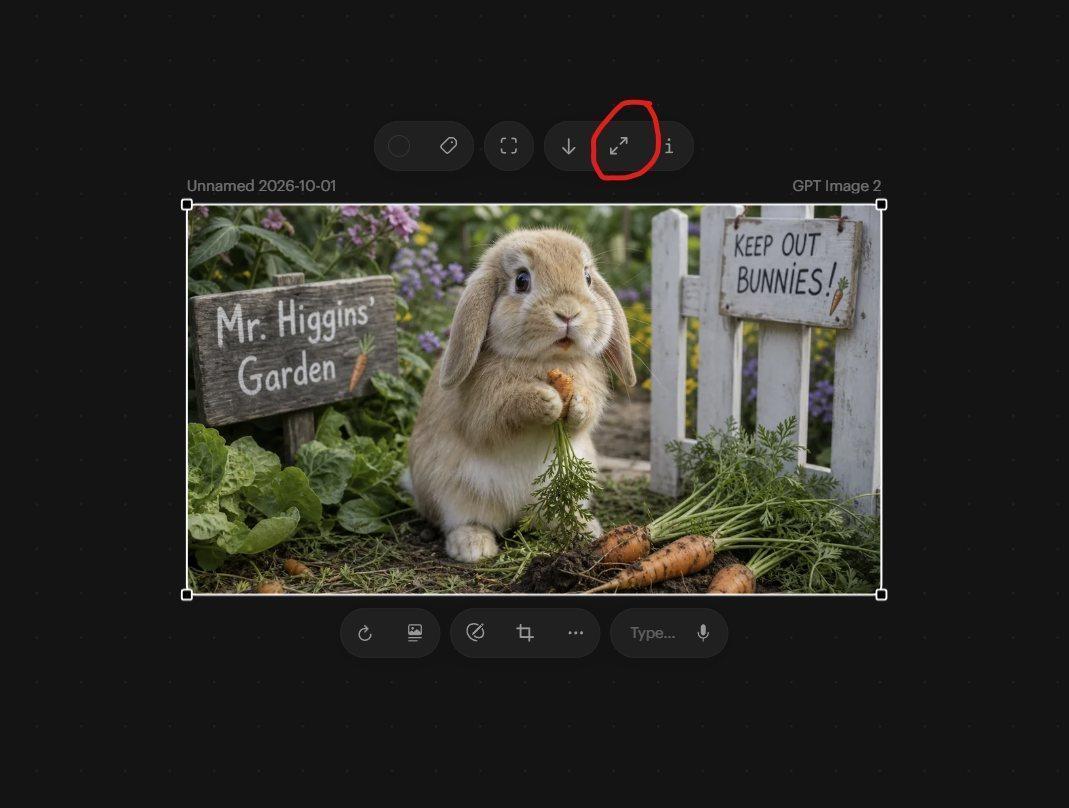
The Full Screen Button in the Upper Image Toolbar.
Inspect, resize and reuse a generation
To change its displayed size on the Canvas, Drag an image’s corner handles. This does not alter the actual image Resolution. You can also zoom into the Canvas with Ctrl + mouse wheel.
Use the Download Button (down Arrow) in the Upper Image Tool Bar to save the asset. Select the Information (i) Icon to inspect its Generation details, such as Model, size, Aspect Ratio and Prompt.
The Information Panel, opened by clicking the “i” button, also contains two useful actions: Rerun submits the Generation again with the original Settings; Reuse opens a copy of the Panel so you can change the Prompt or options before generating another result.
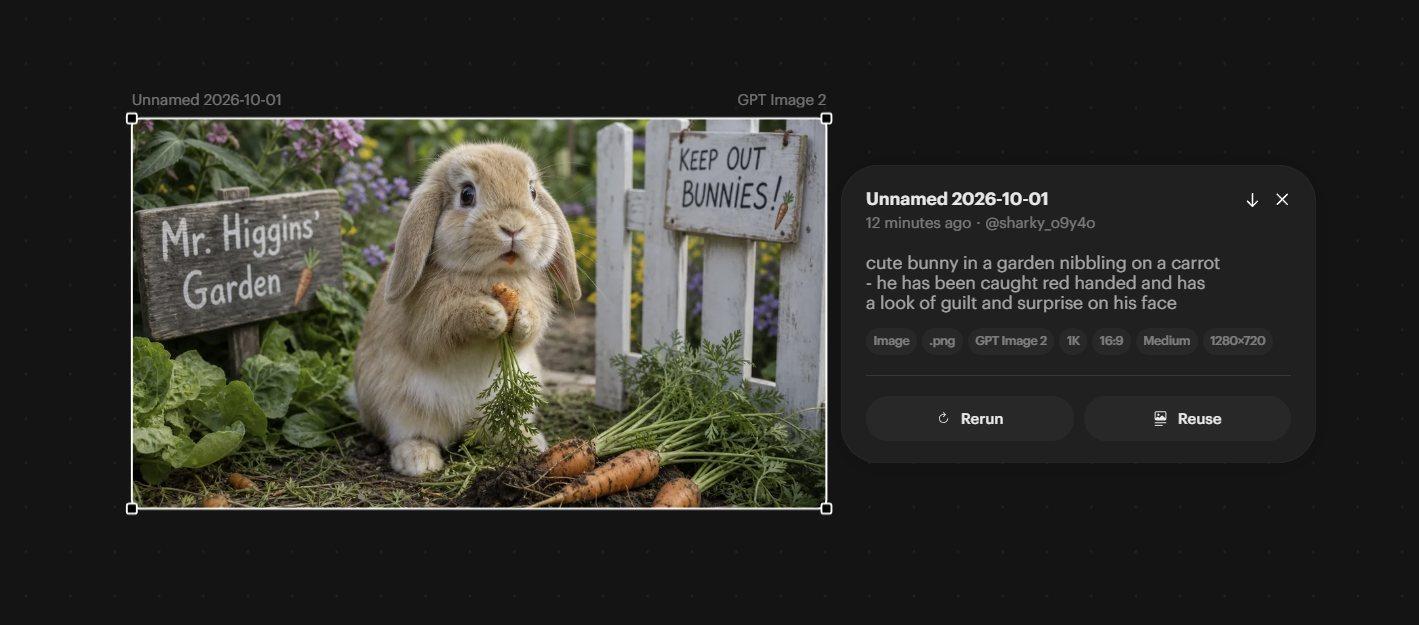
The Information panel of the image with Rerun and Reuse.
Animate your image with Ray 3.14
Let’s get the bunny moving using Ray 3.14, a Model familiar to Dream Machine users.
1. Click an empty Canvas area to dismiss the Information Panel.
2. Right-Click your bunny image and select Create Video → Ray 3.14.
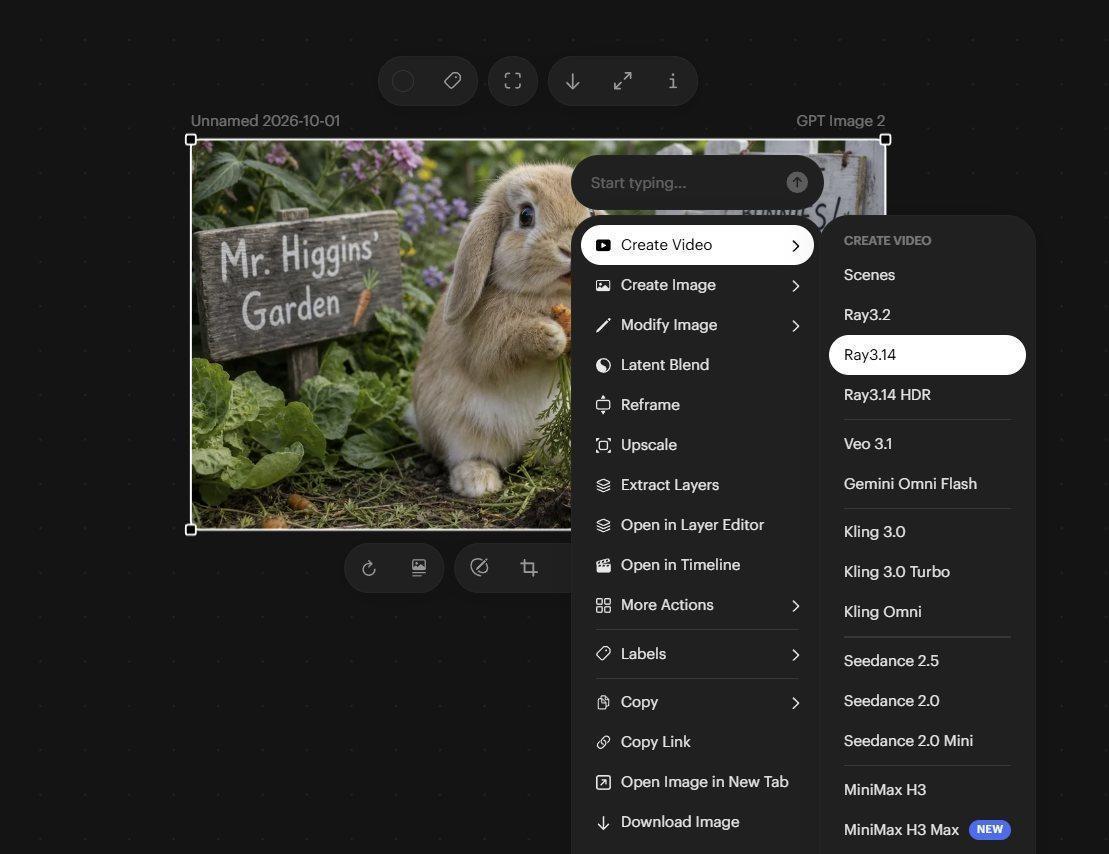
Choosing a video model with the Right Click Menu
3. The Model Panel opens with the selected image already loaded into the StartFrame box.
4. Enter a simple motion Prompt in the Prompt field,
A cute bunny nibbles on a carrot and then he scampers off
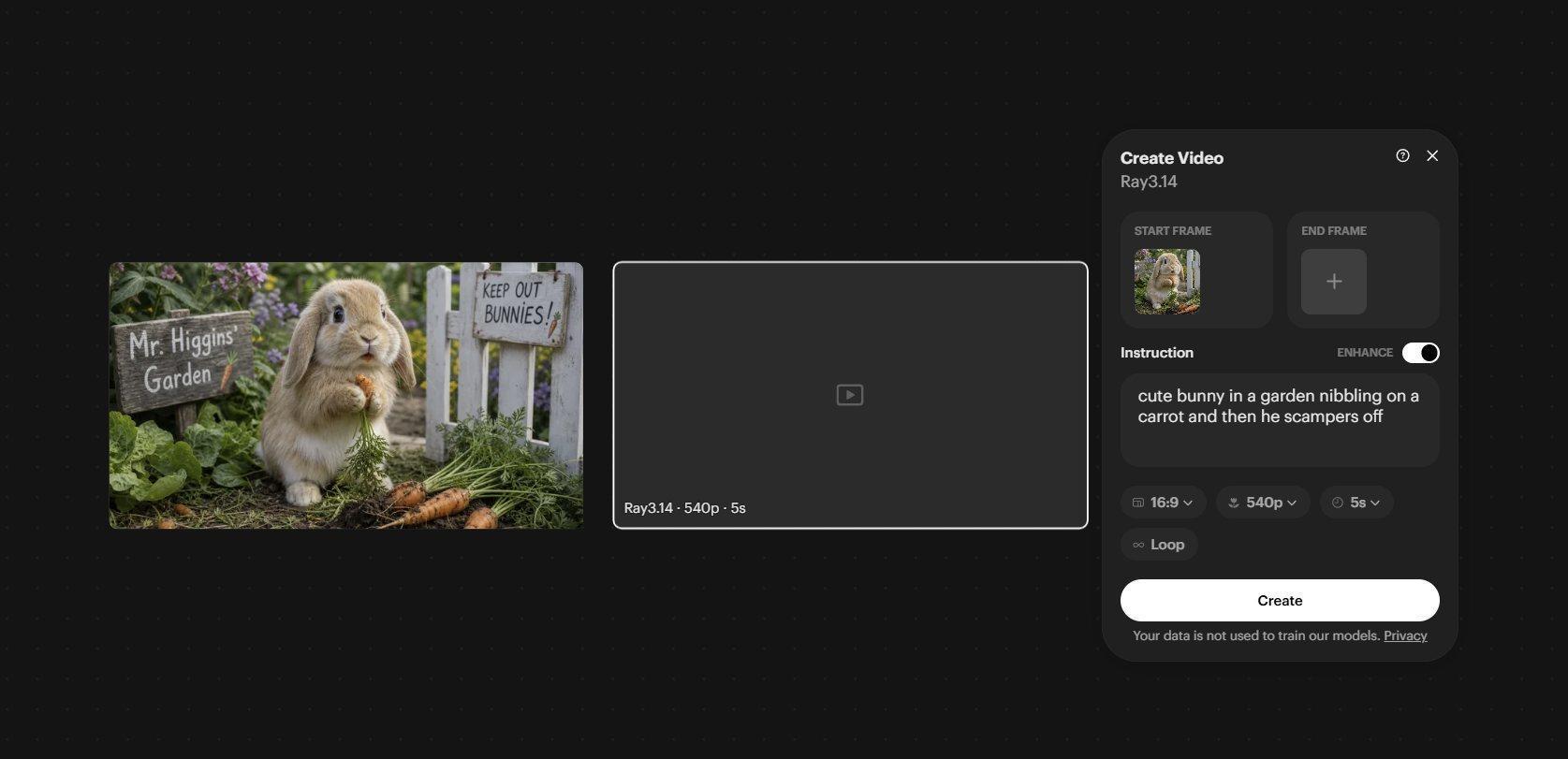
The Ray 3.14 Panel with start Keyframe in place and typed in Prompt
5. Then choose a Duration of 5 seconds and a Resolution of 540p. The Aspect Ratio should already match your StartFrame of 16:9 but it’s good practice to check. We are using 540p (960 pixels by 540 pixels) because it is a good cheap format to use when getting used to the system. You can upscale this later if you want to, or use a higher, more expensive resolution.
6. Turn on Enhance for this Generation. Enhance interprets and expands your prompt to help guide the Generation. Setting Enhance is up to you, but the Prompt interpreter in the Luma app is very good at tuning your Prompt to better match what the Model is expecting, and it will often give you the kind of motion you liked from Ray 3 and Ray 2. Basically, Luma is adding things behind the scenes that will usually make your video better.
7. Select Create.
The Panel closes while the video processes. Once complete, the result will play through automatically. To replay it, click an empty area of the Canvas and hover over the video. Use the Upper Image Toolbar Full-Screen Button for a larger view.
Luma generally places a new Generation beside its source when space allows. You can drag it anywhere on the Canvas; later we will cover the “Frames” that organize the outputs of more complex Panels.
Keep your Canvas organized
1. Move the new video directly below the bunny image. Its edges will snap into alignment with nearby assets. You can change snapping in the Gear Icon.
2. Choose the Text Tool (Aa) from the Bottom Tool Bar, then choose a text color with the Color Picker Dot. Click beside the video and type “Bunny Video Rev 1”. Click an empty Canvas area to confirm the text.
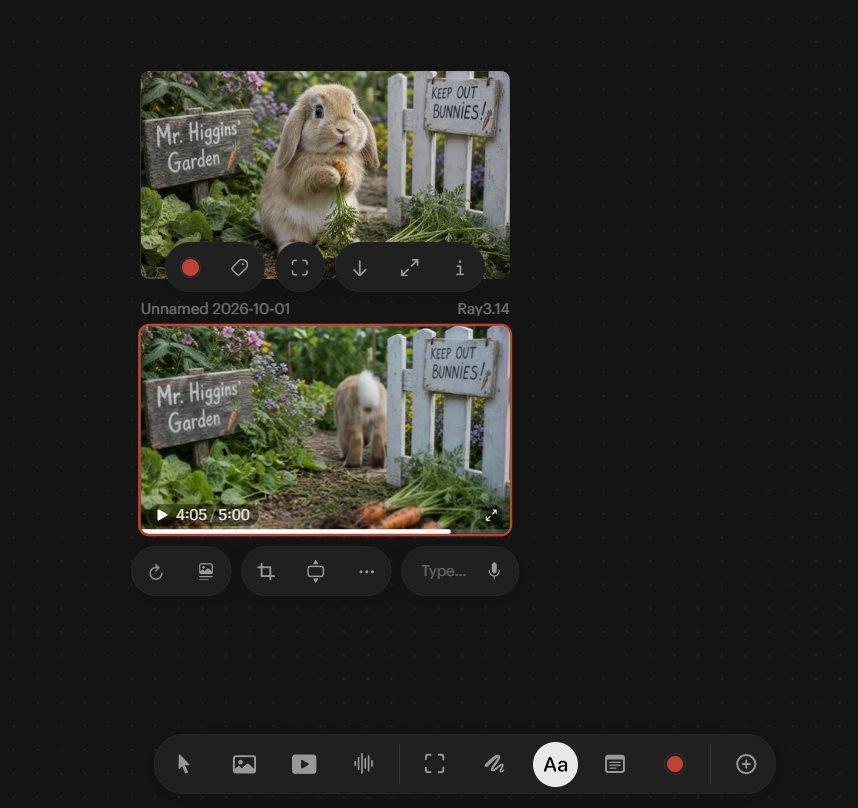
The Text Tool highlighted in white, with Color Picker dot in Red.
3. Select an empty area to deselect everything. Press T on your keyboard to activate the Text Tool, click beside the original image and enter “Bunny Reference Image”.
4. Select the video, then Ctrl-click its text label we just made and press G to group them. Grouping lets you move them together while still allowing you to select and reposition an individual element inside the group.
Hover over toolbar icons to see their keyboard shortcuts. You can also find the shortcuts list in the Gear Icon top right
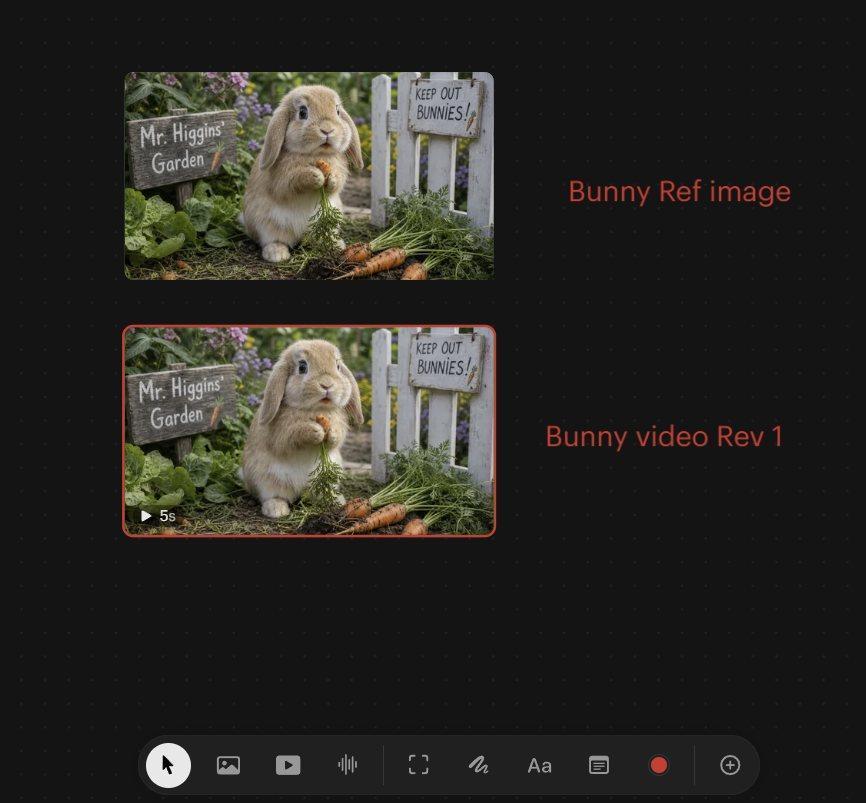
Labeled assets arranged together on the Canvas.
Next: Part 3: Build a video with start and end keyframes
Back to the series overview: Migrating from Dream Machine to the Luma app