
Part 3: Build a video with start and end keyframes
Your first project in the Luma app · Part 3 of 9
You’ll need: The Board and generations from Part 2.
Extract a frame from your video
Now we will recreate the motion another way, using Ray 3.2 and two image Keyframes.
1. Right-Click the completed Ray 3.14 video and choose Extract EndFrame.
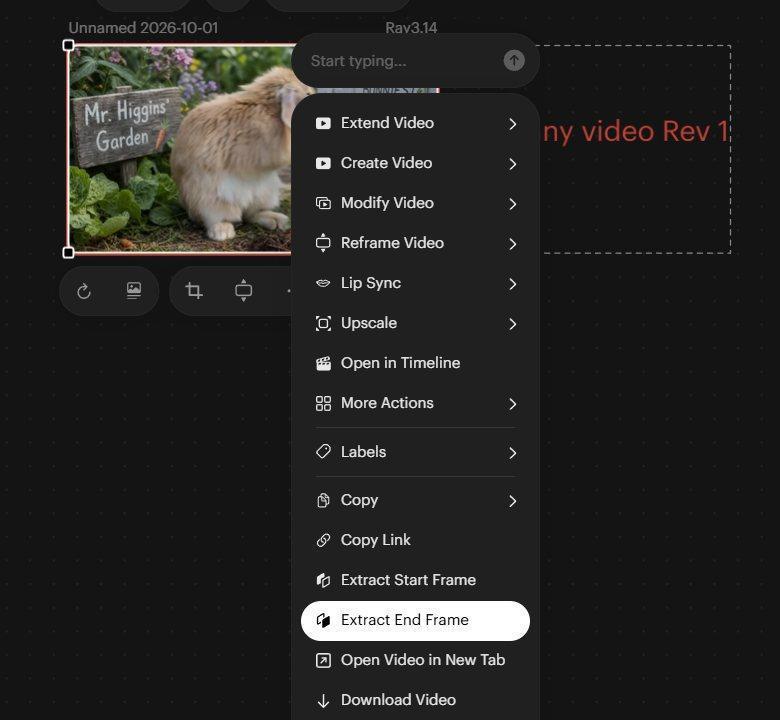
Choosing Extract End Frame from the right click menu
2. Move the extracted frame next to your original bunny image. If your Board is crowded, zoom out first before right clicking on the image and selecting Extract EndFrame so the new asset has room to appear.
3. If the extracted frame displays “Media could not be loaded,” try refreshing the browser page.
Set up the Ray 3.2 panel
1. Right-Click an empty Canvas area and select Create Video → Ray 3.2.
2. Ray 3.2 Panel opens with four default Keyframe Boxes and supports up to 64 Keyframes. For this exercise, we only need the first and last boxes. Hover over the two middle empty boxes and select the X that appears in each to remove these two boxes.
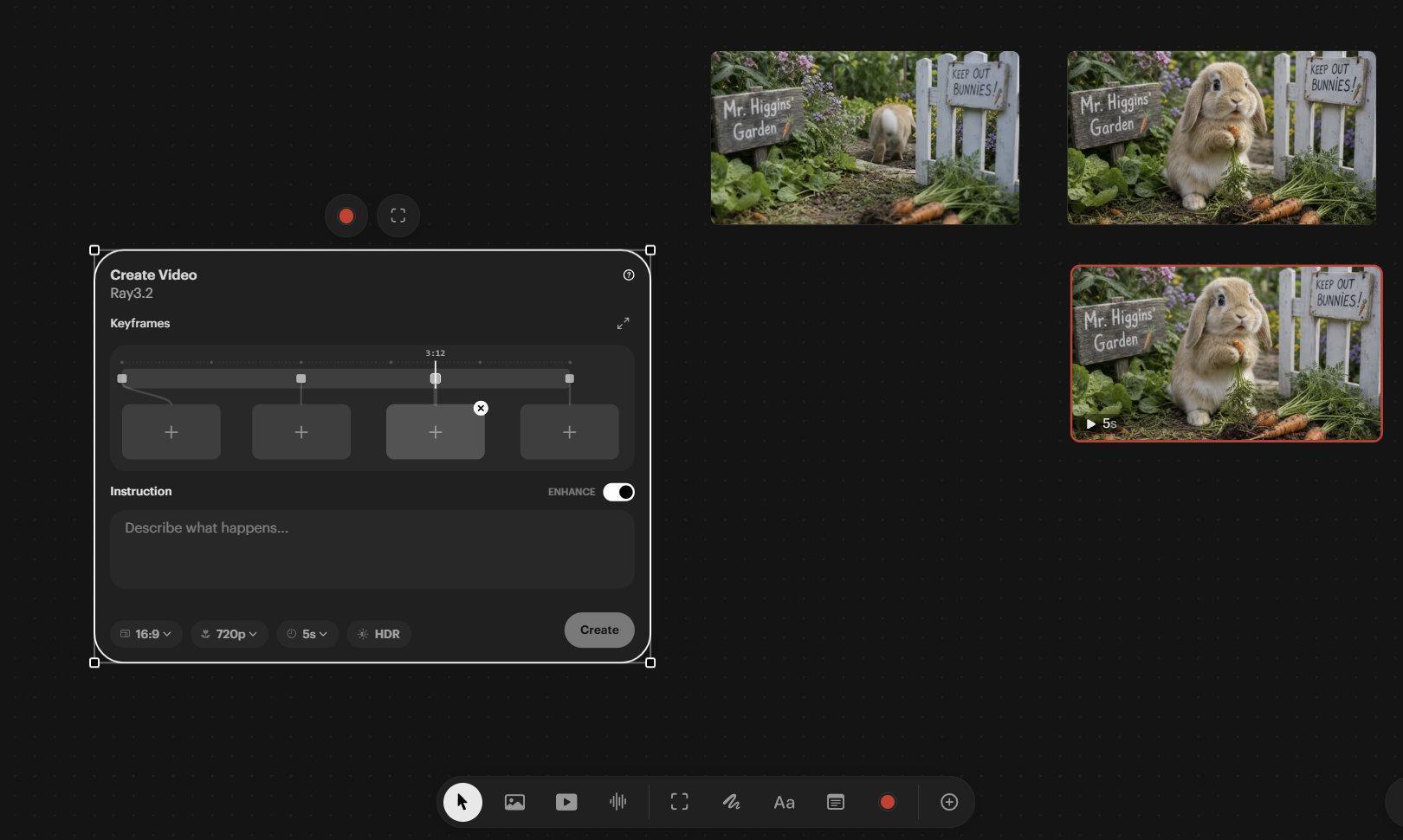
The Keyframe Box with its removal X showing.
3. Drag the original bunny image from the Canvas into the leftmost Keyframe Box. Release it when the Keyframe Box is outlined.
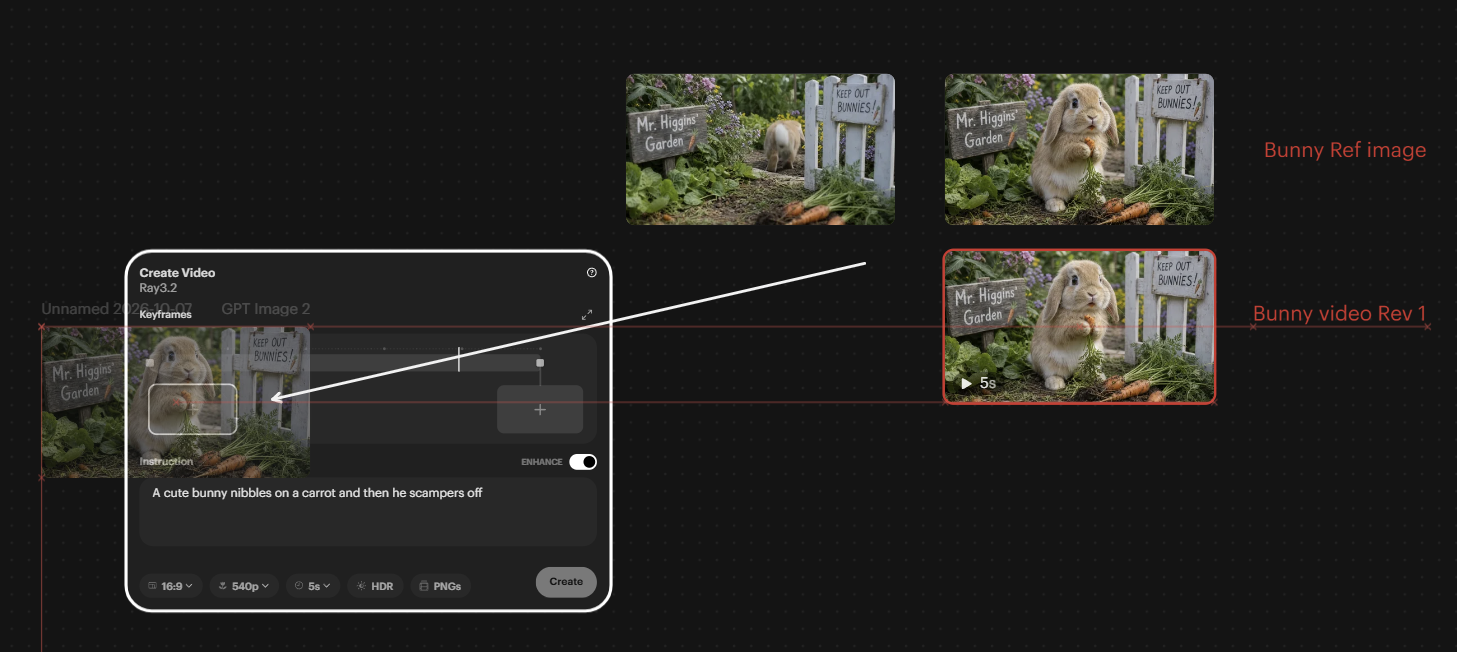
Original Image dragged into the Start Keyframe Box of Ray 3.2 Panel
4. If the large Viewer that expands in the Ray 3.2 Panel takes up too much space, select the small Collapse Button at its upper-right.
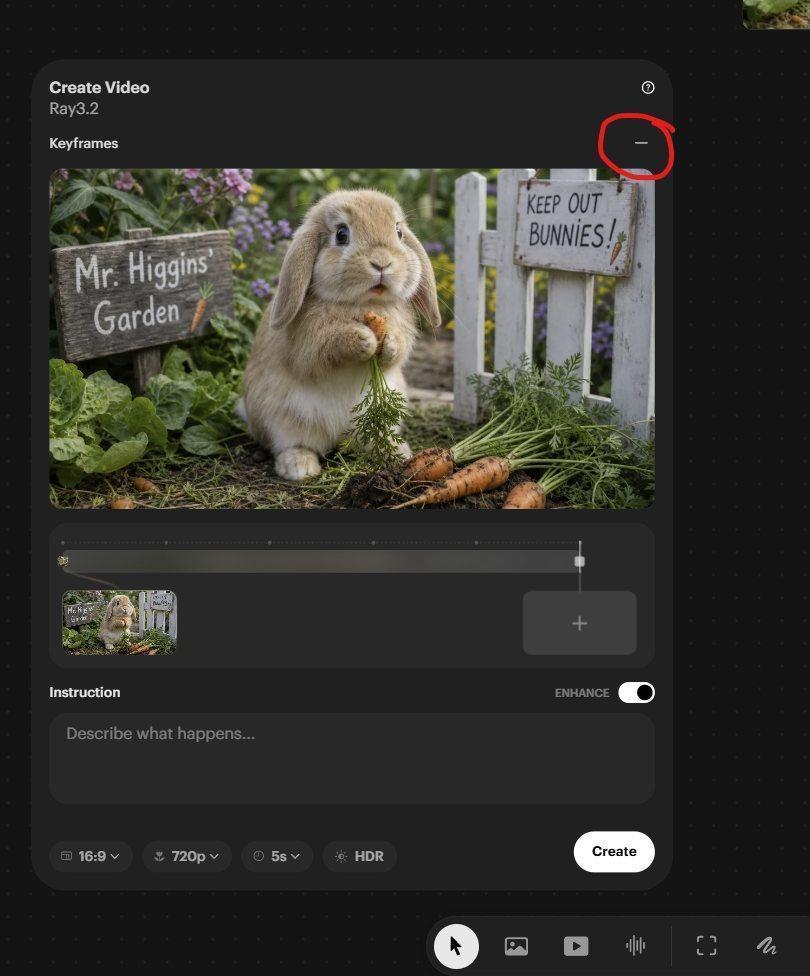
The Collapse Button for the Ray 3.2 Viewer in the Panel.
5. Drag the extracted EndFrame into the remaining Right Side Keyframe Box.
Notice that dragging an image into a Keyframe Box does not remove it from the Canvas. Your source assets stay in place and remain available for other Generations.
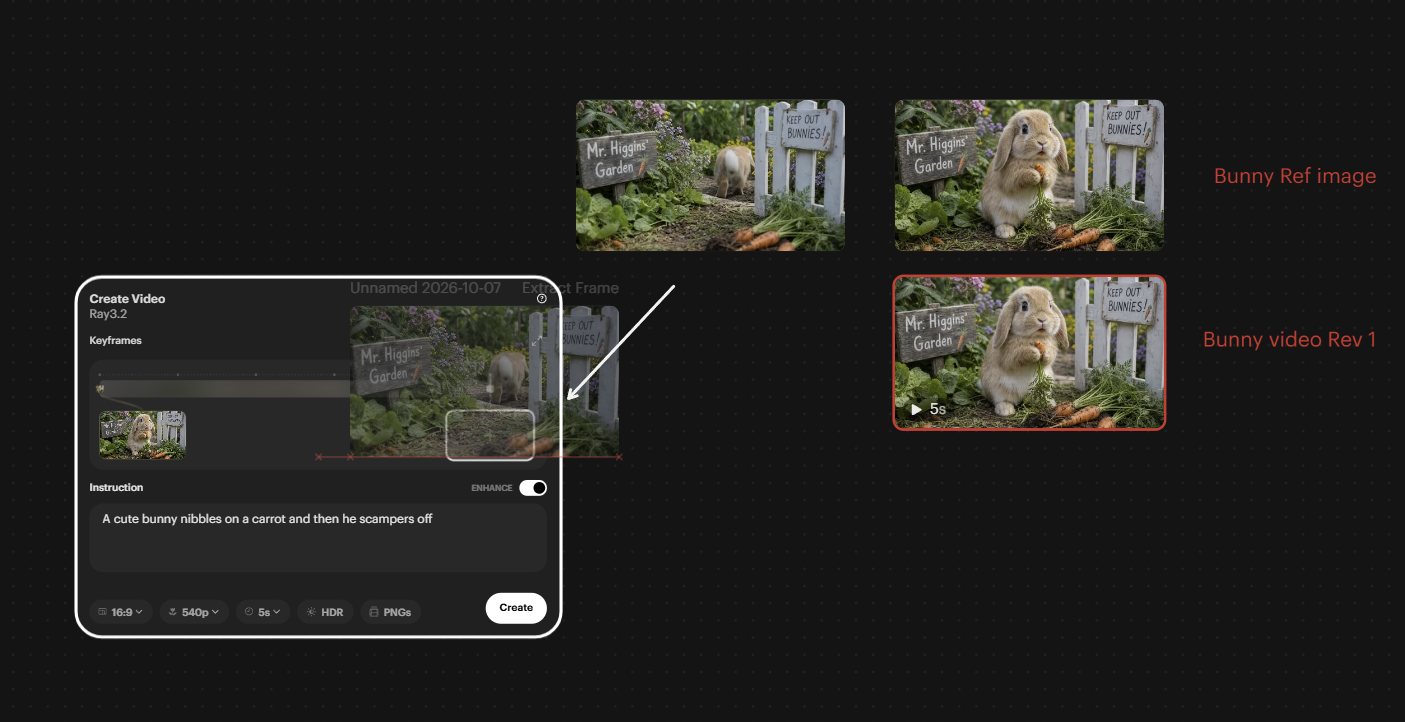
Extracted image dragged into Ray 3.2. End Keyframe Box
Reusing your previous prompt
1. Navigate to the original Ray 3.14 video-and-label group and click on the one we called Bunny Video Rev 1, then select the video inside that group.
2. Open the Information (i) Panel in the Upper Image Toolbar and copy its Prompt that is displayed.
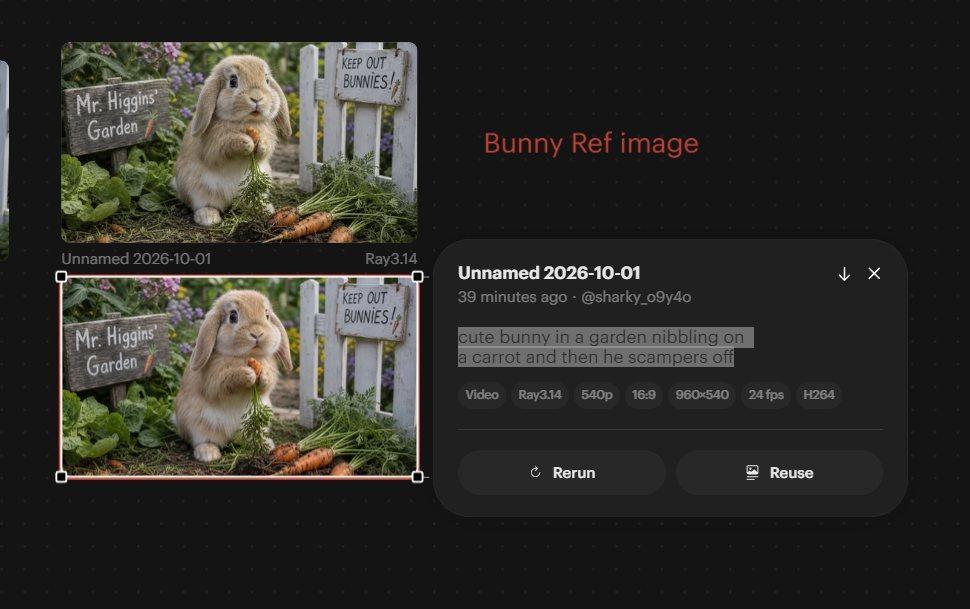
Selecting and copying the prompt in the Information box of Ray 3.14 panel
3. Navigate back to the Ray 3.2 multikeyframe Panel and paste the copied text into Ray 3.2’s Panel Prompt Field.
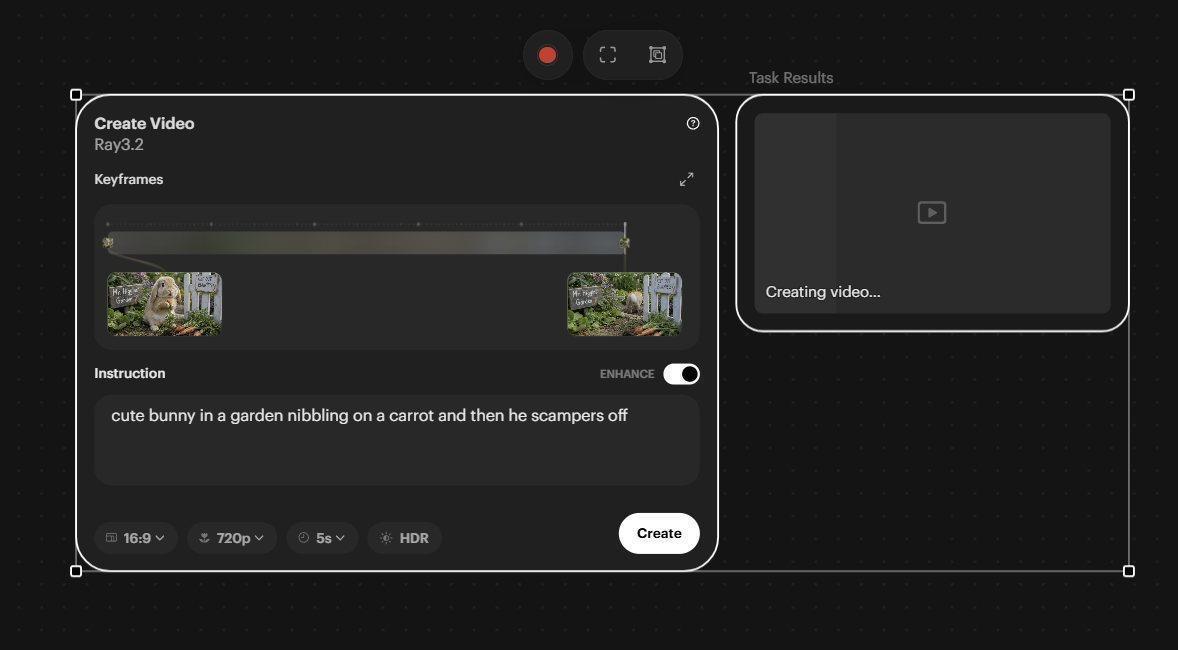
Pasted prompt in the Ray 3.2 prompt area
4. Check Aspect Ratio, Resolution and Duration at the bottom of the Panel. Leave HDR off for this exercise, and choose whether to enable Enhance. (See note on page 11)
5. Select Create.
Ray 3.2 will display the processing result to the right of the Panel. Your new animation may differ from the first one (even though we are using the same start and end frame), because AI Generation includes variation.
Control the timing of a keyframe
So far, this is everything you could do in Dream Machine, just in a different interface.
Let’s start doing things you could never do before.
This is where Ray 3.2 begins to offer more than a simple two-frame animation. You can decide when the image Keyframes occur within the video.
1. Move the mouse over an empty Canvas area beside the Ray 3.2 Panel and zoom in (Ctrl Mouse Wheel) until the Timeline is large enough to work with. Avoid zooming while the pointer is over the Panel itself, because the Panel has its own internal zoom for Timeline controls.
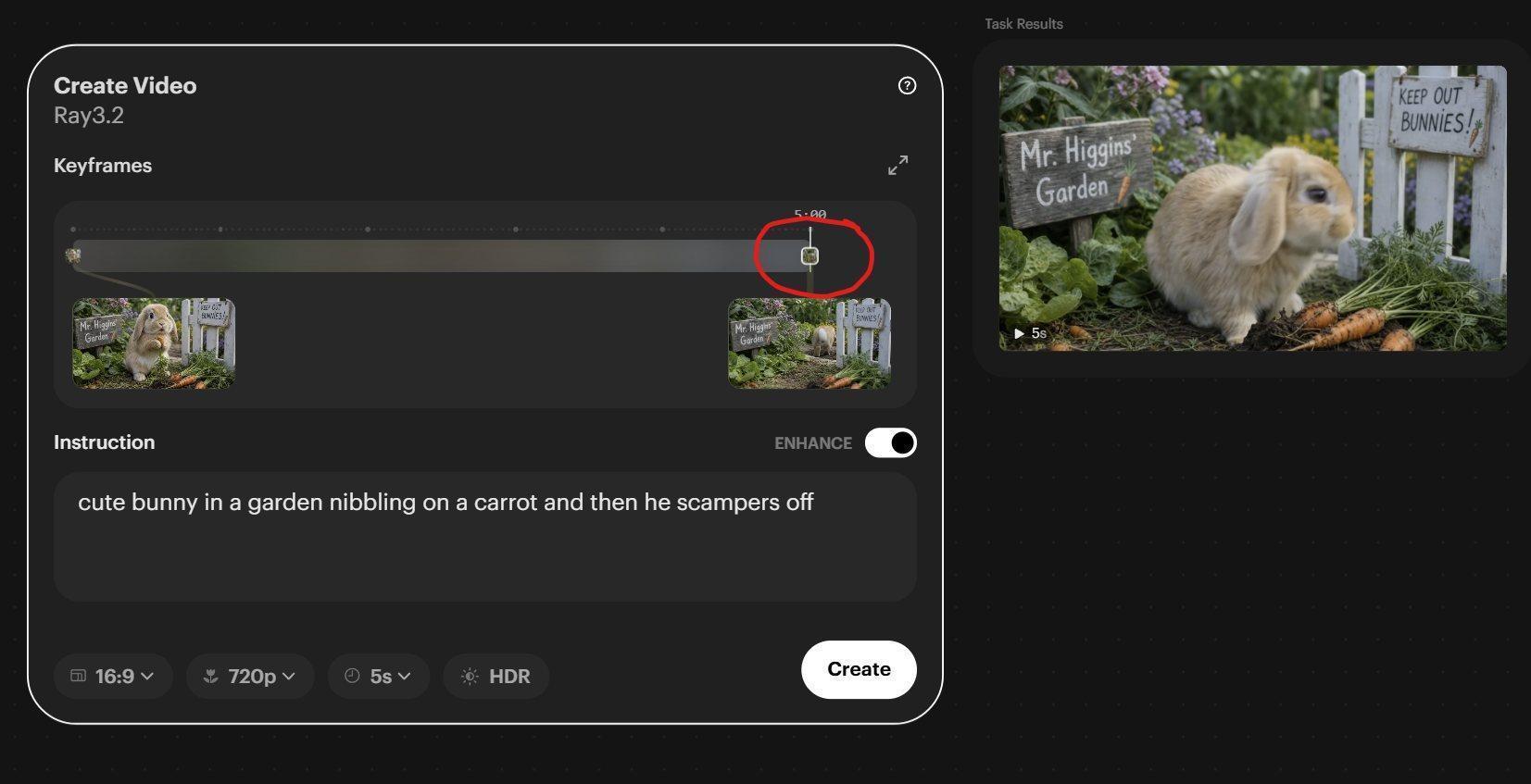
The far right Keyframe Node on the Ray 3.2 Timeline
2. Find the Node above the end Keyframe on the Ray 3.2 Timeline. Hover over it until the cursor changes to horizontal arrows.
3. Drag this Node earlier in the Timeline, to approximately the 3:00-second mark. Watch the time readout while you move it.
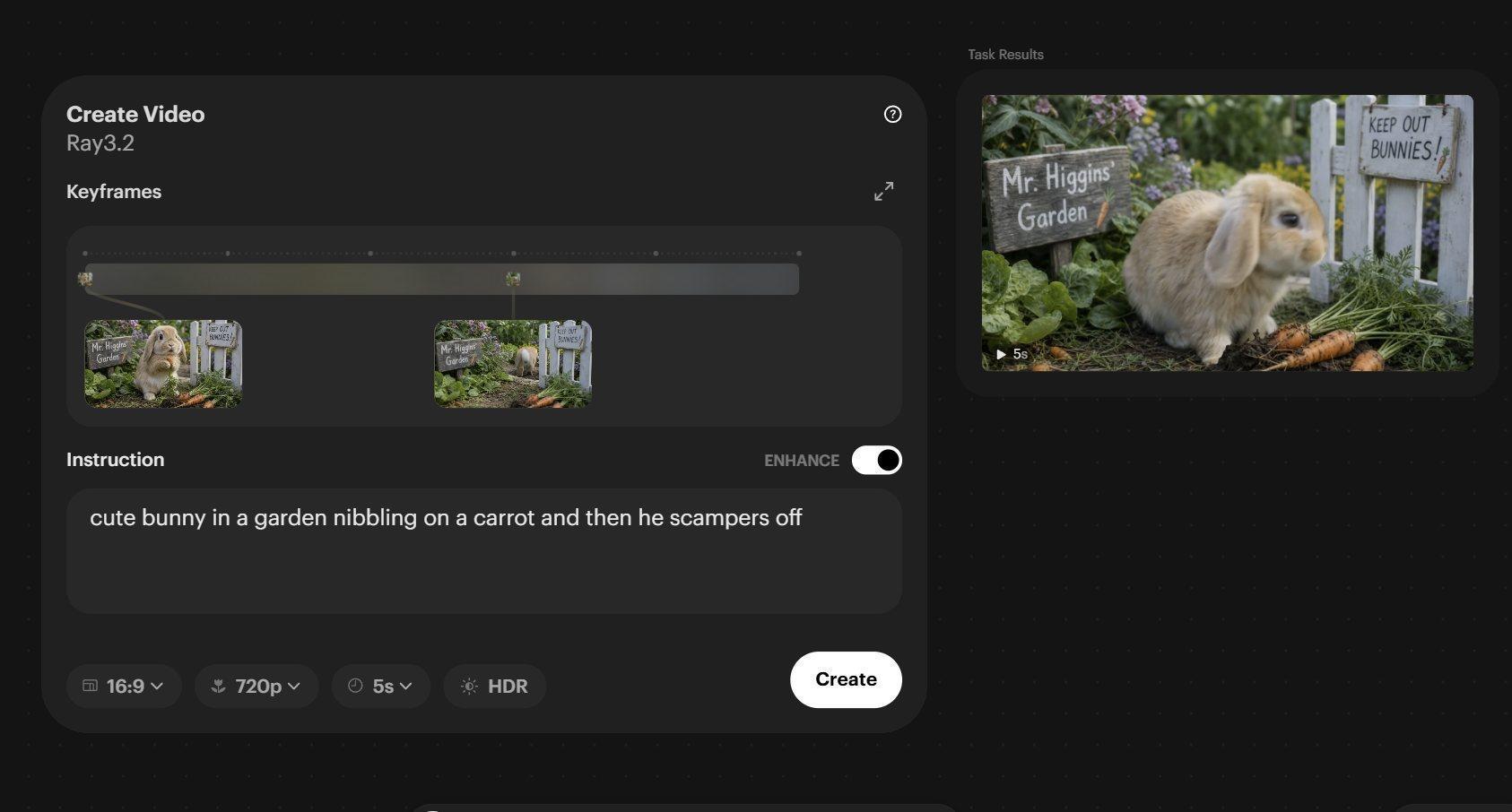
Node and Keyframe moved to the 3:00 second mark
4. Append the following to the Prompt field.
...and then the camera tilts up toward fluffy white clouds in a blue sky.
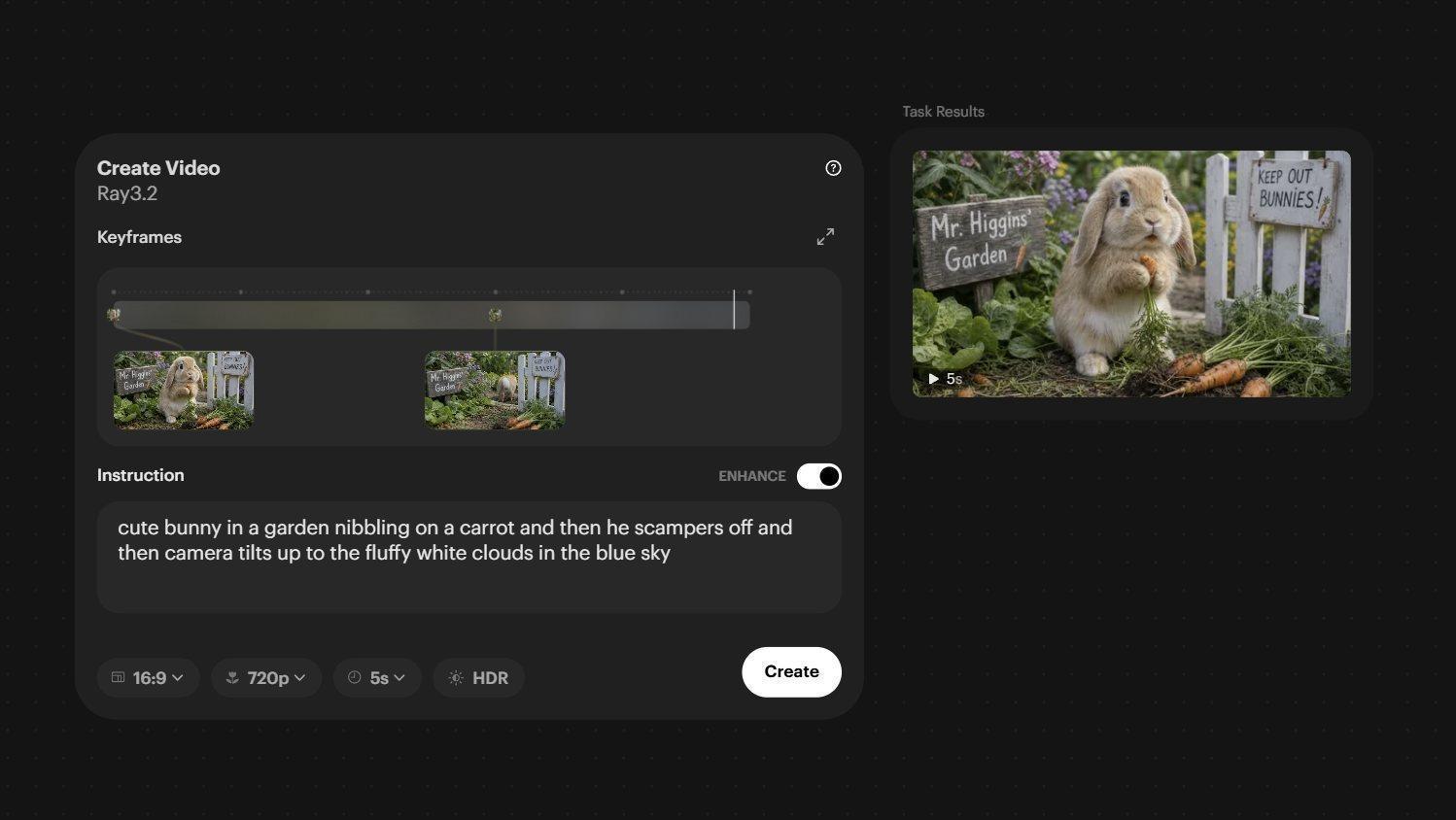
New Prompt we will use for the new video generation
5. Select Create
The new Generation appears above the earlier results, which shift downward. You can experiment with different timings and descriptions. Each new generation will appear at the top of the outputs in the video stack to the right of the Panel.
You can also Alt/Drag the Ray 3.2 Panel to make a copy of it somewhere else on the canvas and change the prompt or images and generate new videos from this new Panel. Every new video you create will retain the prompt used for that generation in its Information Panel regardless of what you change the prompt to in the Ray 3.2 Panel. This way you can experiment with different prompts while keeping a record of the prompt used, permanently attached to the actual video generated.
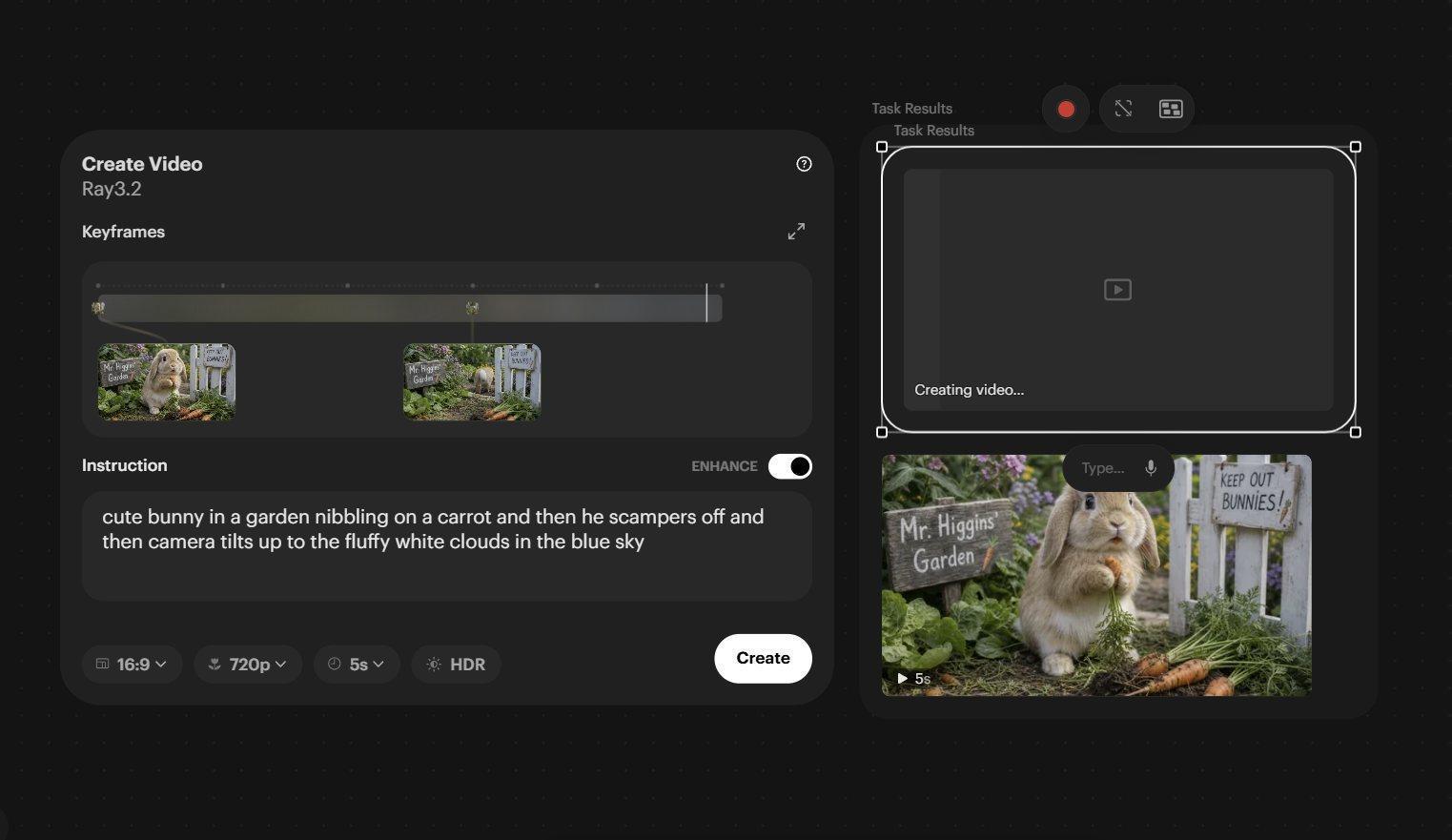
The new video generating above the first video generated from this single Ray 3.2 panel
Understand output “Frames”
More complex Model Panels organize their results inside a Canvas “Frame”, keeping the images or videos generated by that Panel or operation together. Select the outer Frame (it will light up as an outline around all assets within the Frame), to move all of its contents at once. Alternatively, drag an individual video out of the Frame to separate it. You can also drag a selection box across assets (starting on an empty part of the Canvas) and move the selection together.
Next: Part 4: Add a cut with a new keyframe
Back to the series overview: Migrating from Dream Machine to the Luma app