
Part 4: Add a cut with a new keyframe
Your first project in the Luma app · Part 4 of 9
You’ll need: The Board and generations from Part 3.
Create a farmer close-up
Let’s add a reaction shot of a farmer.
1. Move into an open area of the Canvas and select Create Image → Uni-1 from the Right-Click menu.
I chose Uni-1.1 because what I was getting from the GPT 2 model wasn’t very good for this particular farmer subject. Every Model can treat your subject differently which is why it’s great that Luma offers so many in one canvas.
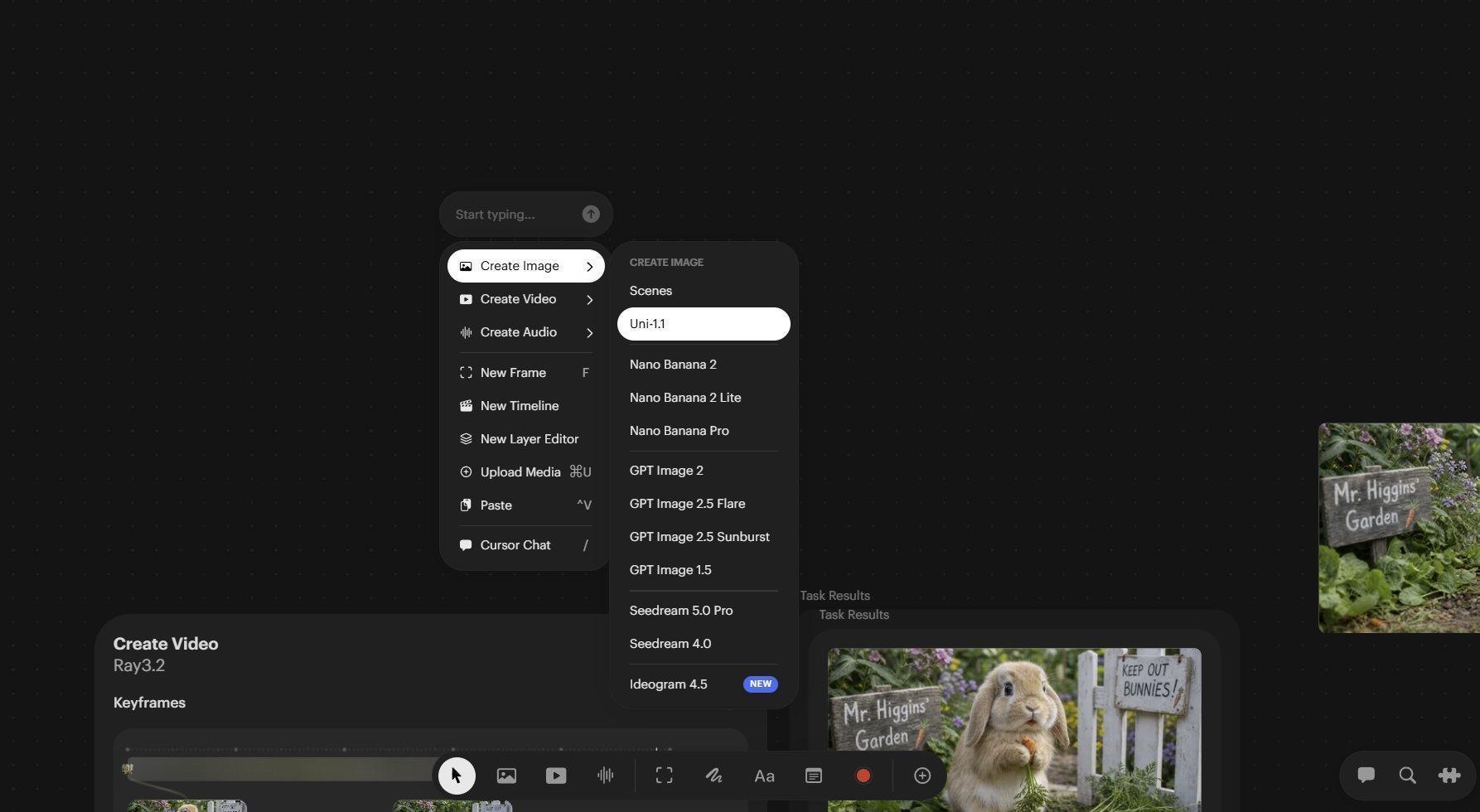
Choosing the Uni-1.1 Image model with the right click menu
2. Type this Prompt into the Prompt area of the Uni-1.1 Panel.
Eye-level extreme close-up of a horrified farmer’s face as he realizes a cute bunny offscreen has been eating from his garden behind him.
We are reusing a few words from the bunny Prompt to encourage similar surroundings and style. Specifying an eye-level close-up helps avoid placing the farmer’s face down at ground level with the bunny. If you mention something in the prompt (the garden and bunny) the AI will try and show it. You can override this by providing other details that inform the AI what the scene should look like.
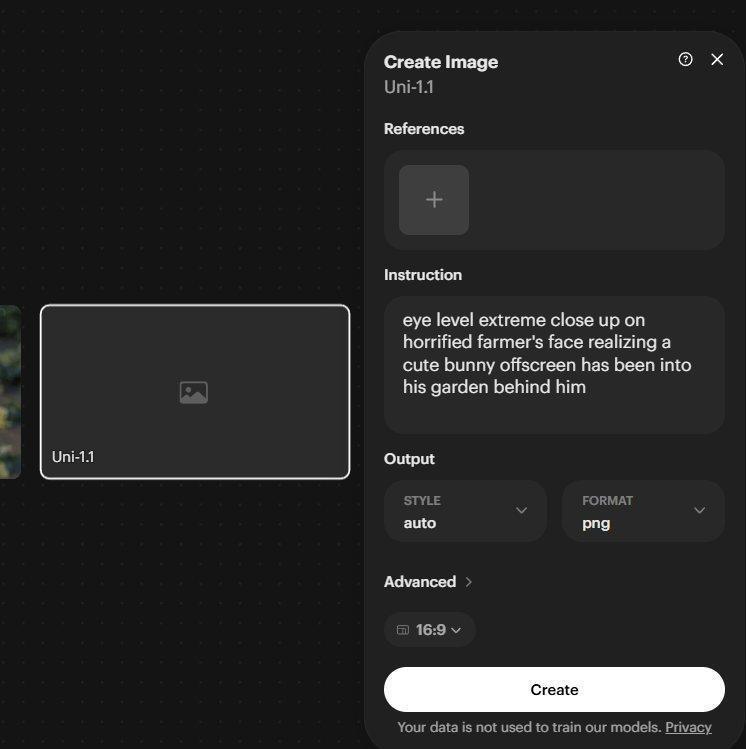
The farmer prompt in the Uni-1.1 Panel
3. Set the Aspect Ratio to 16:9. Uni-1 uses a fixed total pixel count (approximately 2K), so this Panel does not offer the same Resolution choices as the GPT 2 panel we used before. Images used as keyframes should be the same Aspect Ratio in a video generation but don’t have to be the same size.
4. Select Create.
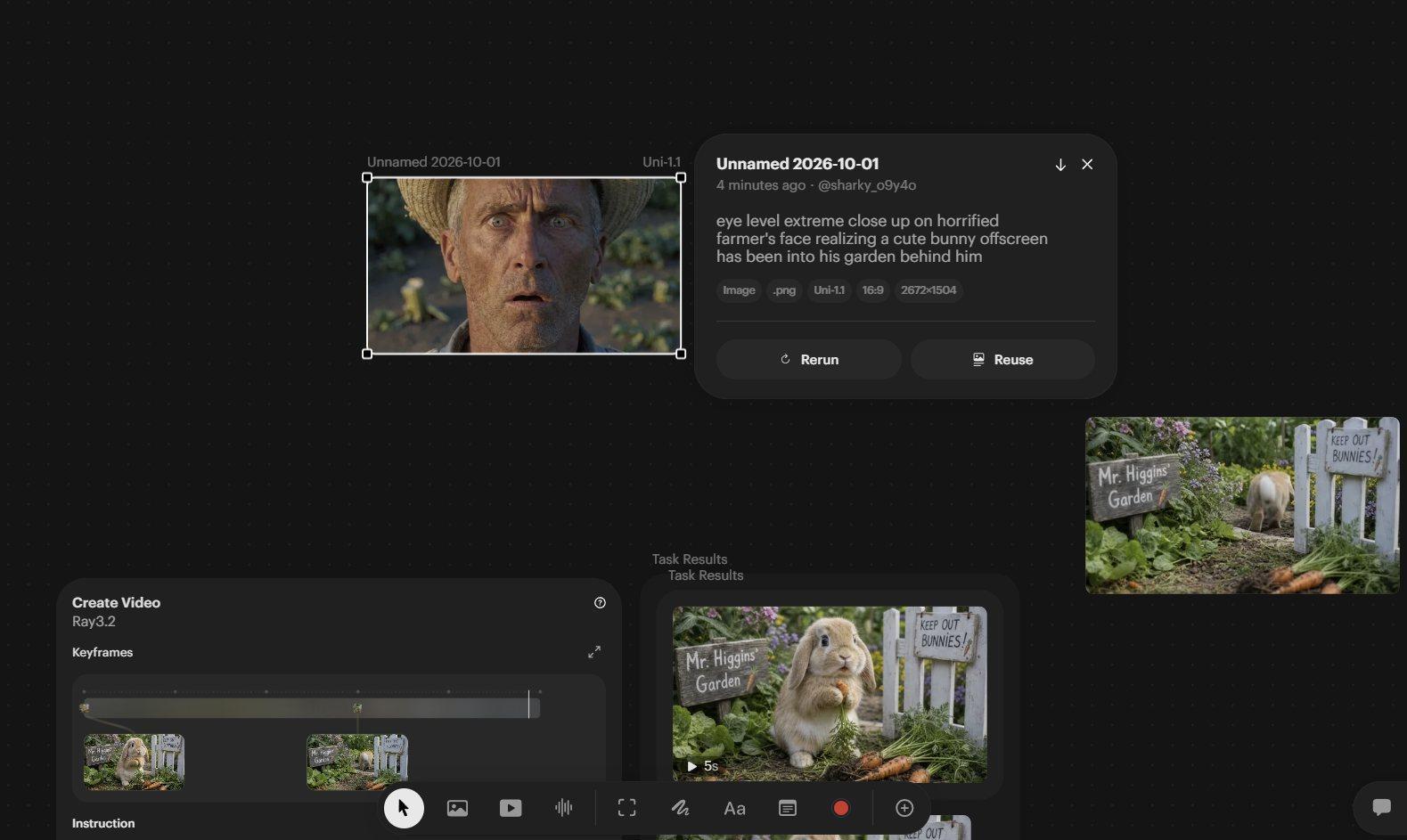
The Farmer image appears beside the Uni-1.1 Panel
Add a new keyframe to the Ray 3.2 Panel
1. Navigate back to your Ray 3.2 Panel. Click the Timeline just to the right of the existing Keyframe on the right, around the 3:05 mark (you don’t need to be accurate with this). A new Node and empty Keyframe box will appear.
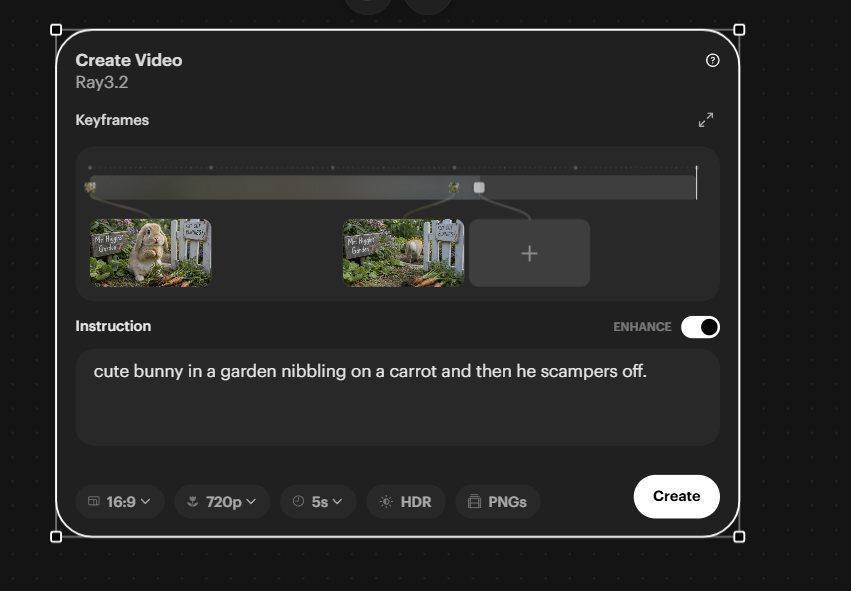
The new Node and empty Keyframe box at the 3:05 mark
2. Move the new Timeline Node back to approximately 3:01 (or one frame later than your rightmost keyframe node). The previous Keyframe thumbnail shifts to make room for the new empty Keyframe Box. The Timeline position of the middle Node stays in place.
3. Drag your farmer close-up image into the new Keyframe Box.
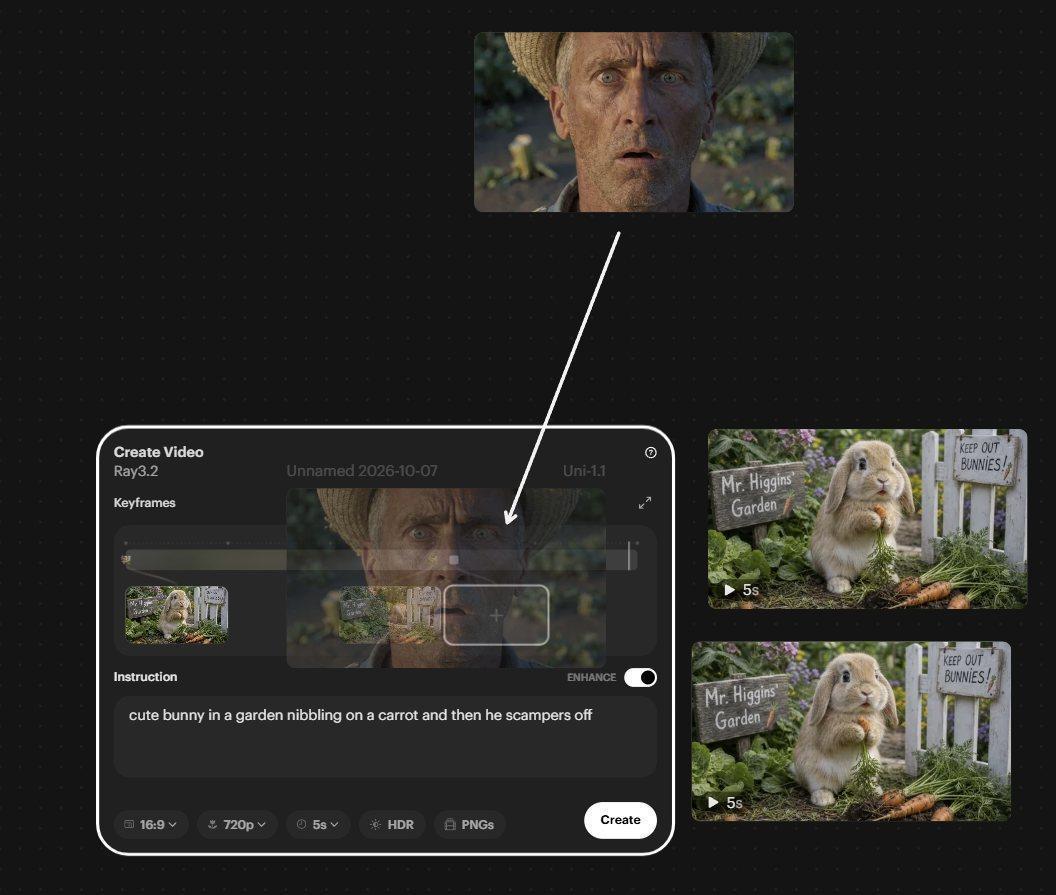
Dragging the Farmer image into the new Keyframe Box on the Ray 3.2 Timeline
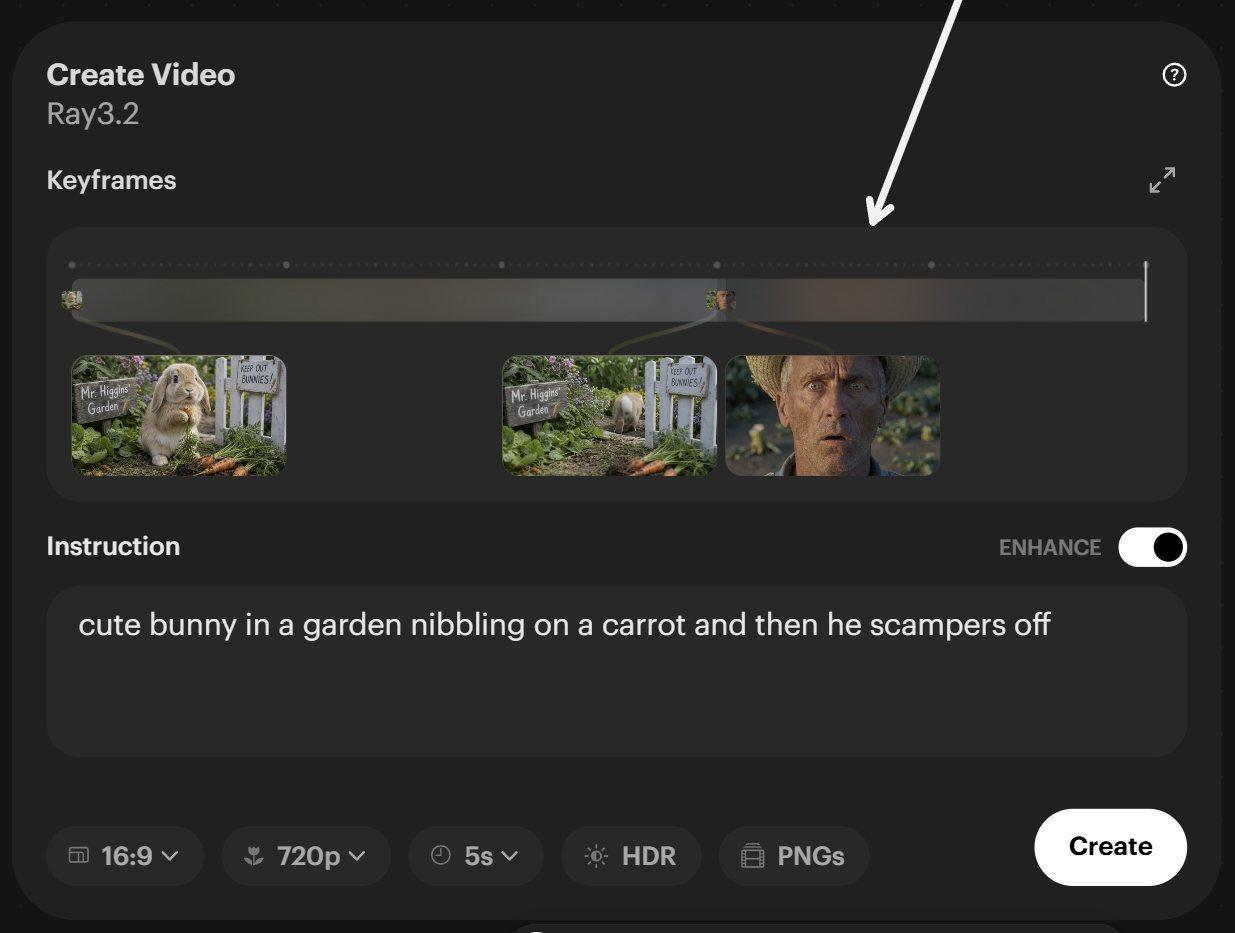
The farmer keyframe in place next to the final Rabbit keyframe
4. Add a period to the end of the current Prompt and append the following to the Prompt already in the Prompt area.
Cut to a close-up of the horrified farmer watching the bunny run away.
You could also just copy your Prompt from the farmer job Info Panel and paste it in, starting it with “Cut to…”.
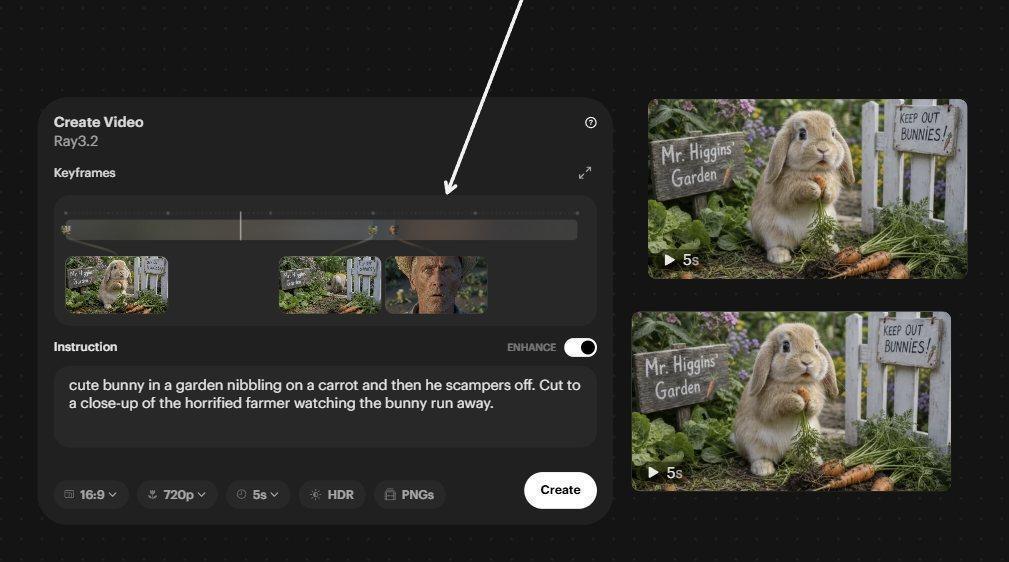
The new Prompt in place in the Ray 3.2 Panel
5. Select Create.
The newest video appears above the two previous versions. Because the videos we have made all start on the same Start Keyframe, they all look the same when they aren’t playing. Click an empty Canvas area and hover over the top video to play it. You have now added an edit (a cut to the farmer) inside a video-Generation Panel, rather than building the two shots separately in an external editor.
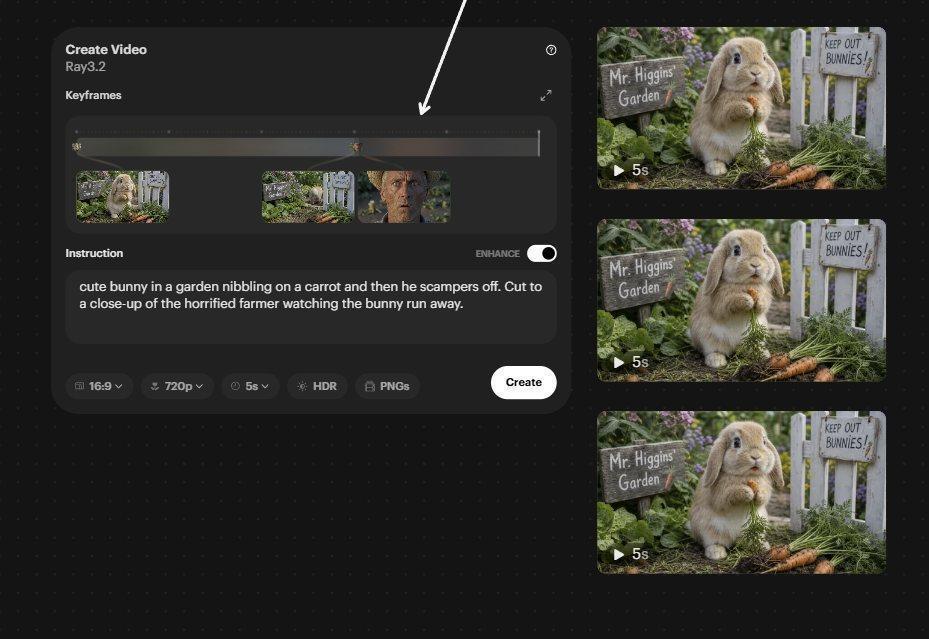
Our three created videos stacked on the right of the Ray 3.2 panel
Next: Part 5: Keep a character consistent with reference images
Back to the series overview: Migrating from Dream Machine to the Luma app