
Part 5: Keep a character consistent with reference images
Your first project in the Luma app · Part 5 of 9
You’ll need: The Board from the earlier parts.
Next we will build a short, continuous action using two stylistically consistent 3D-animated characters.
Generate the first stylized bunny image
1. Move into a clear Canvas area. This time, select the Create Image icon in the Bottom Tool Bar (the landscape with mountains and a sun). This process is exactly the same as right clicking on the Canvas. It’s just another way to access the tools.
2. Choose Nano Banana Pro from the Model list.
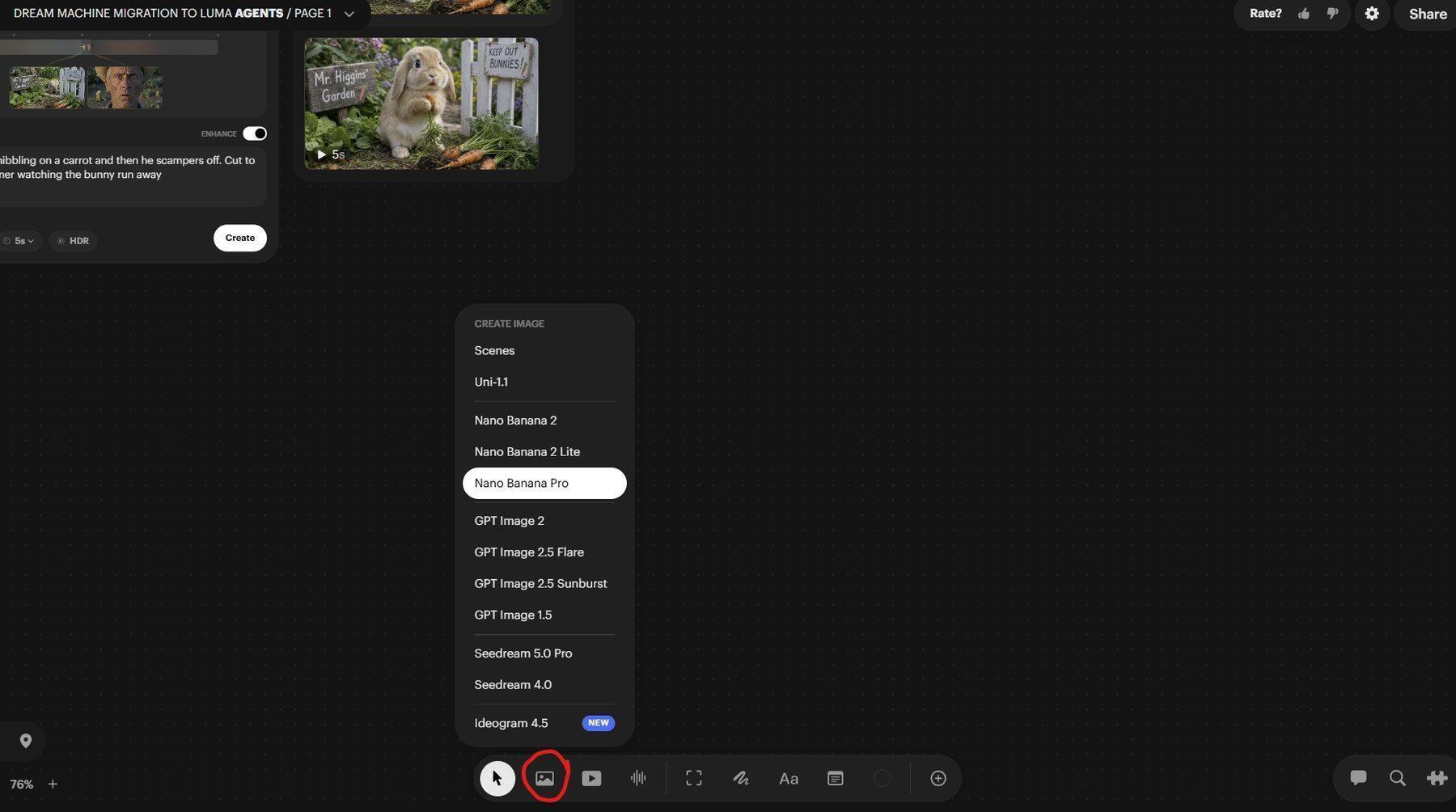
Choosing Nano Banana Pro from the Image tool in the Bottom Tool bar.
3. Set Aspect Ratio to 16:9 and Resolution to 1K. And enter this Prompt in the Prompt area
Side view of a cute adorable bunny on all fours nibbling on lettuce in a garden, 3D animation style.
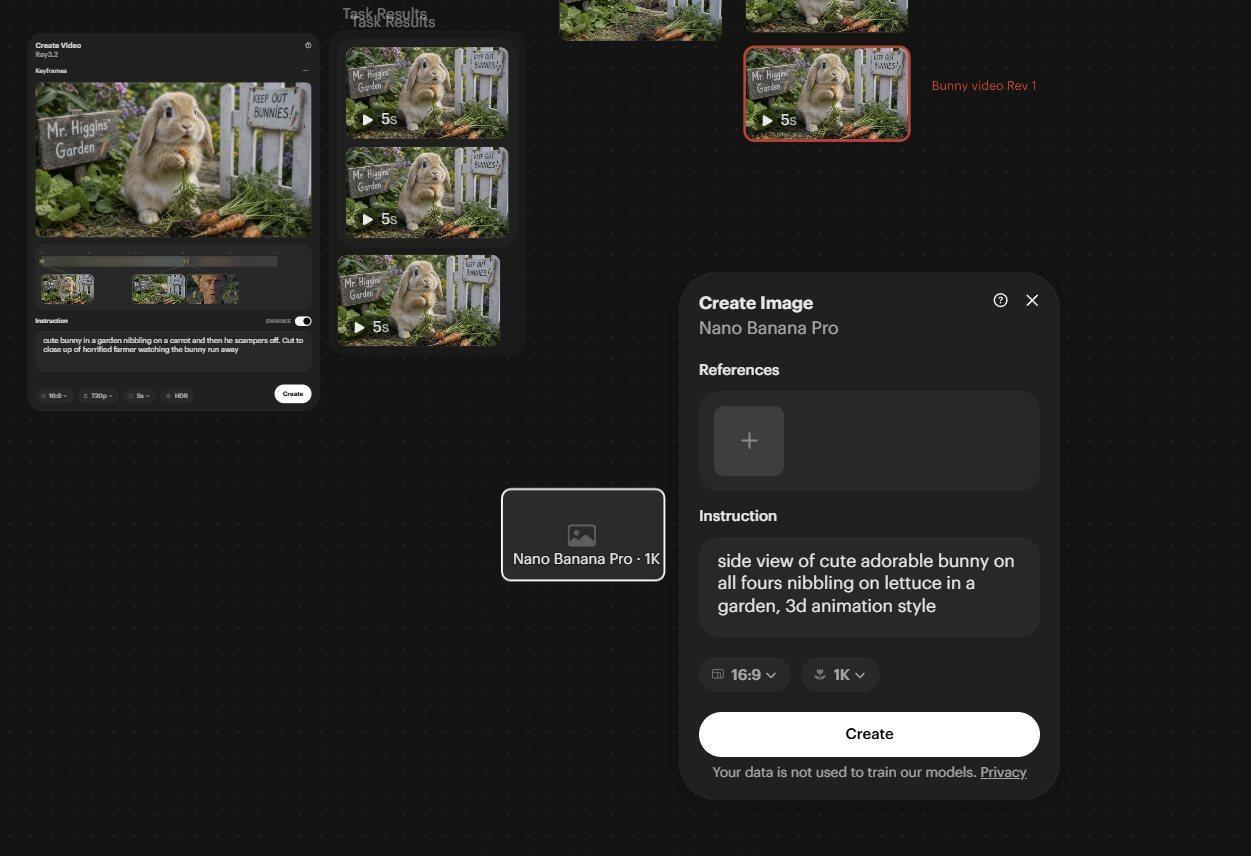
The Nano Banana Pro Image creation Panel with the prompt and correct settings
I just want to point out another feature here. Click on the empty Canvas somewhere.
The Nano Banana Panel will go away. Don’t worry, your Prompt has not been lost. Just double click the small frame that says Nano Banana Pro. That will open the Panel up again.
Often, you will have to go and find an asset elsewhere on the Canvas before you can complete the creation operation. This lets you do that without having to enter your Prompt or Reference Images a second time.
4. Select Create.
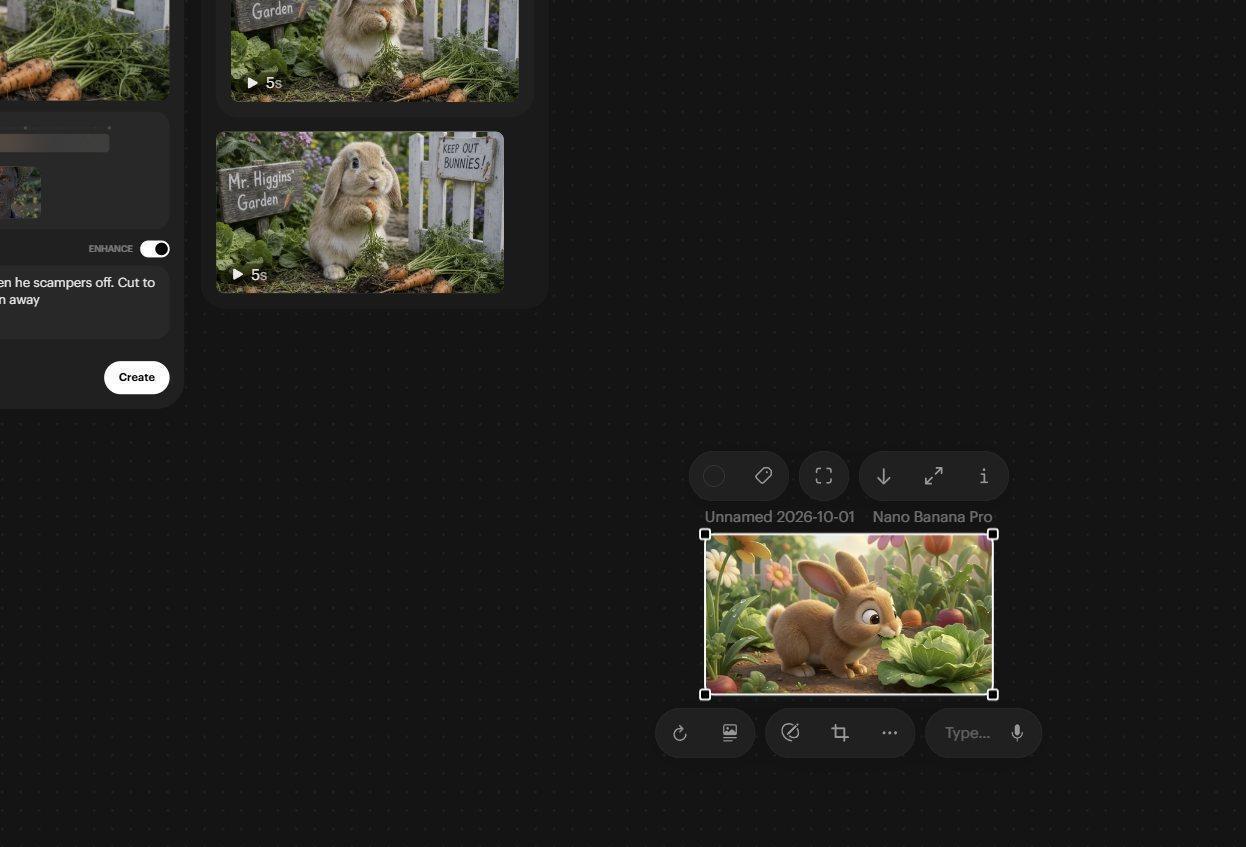
The generated Nano Banana Pro Image of the bunny in 3D animation style
Generate a matching running pose
1. We want to make an image of the bunny running. But we want it to be the same bunny in the same style. Using the original stylized bunny we created as a reference will help to keep the style and the character looking like it should.
Right-Click the new stylized bunny image and choose Create Image → Nano Banana Pro. The source image is automatically loaded into the Reference Box because we right clicked on it to start the process.
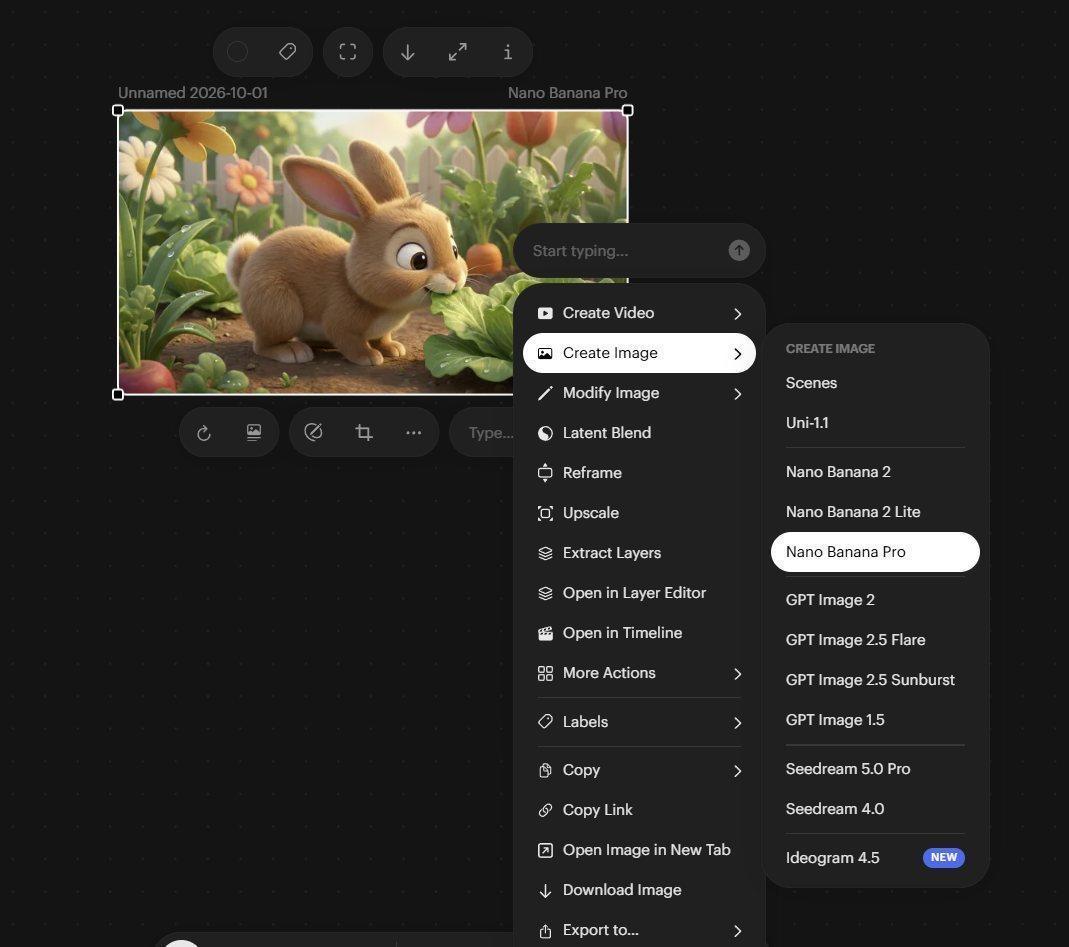
Choosing the Nano Banana Pro image model from the Right click menu
2. Type the new running pose Prompt below. Keep the Aspect Ratio at 16:9 and Resolution at 1K.
Side view of cute adorable bunny running to the right in a garden, 3D animation style
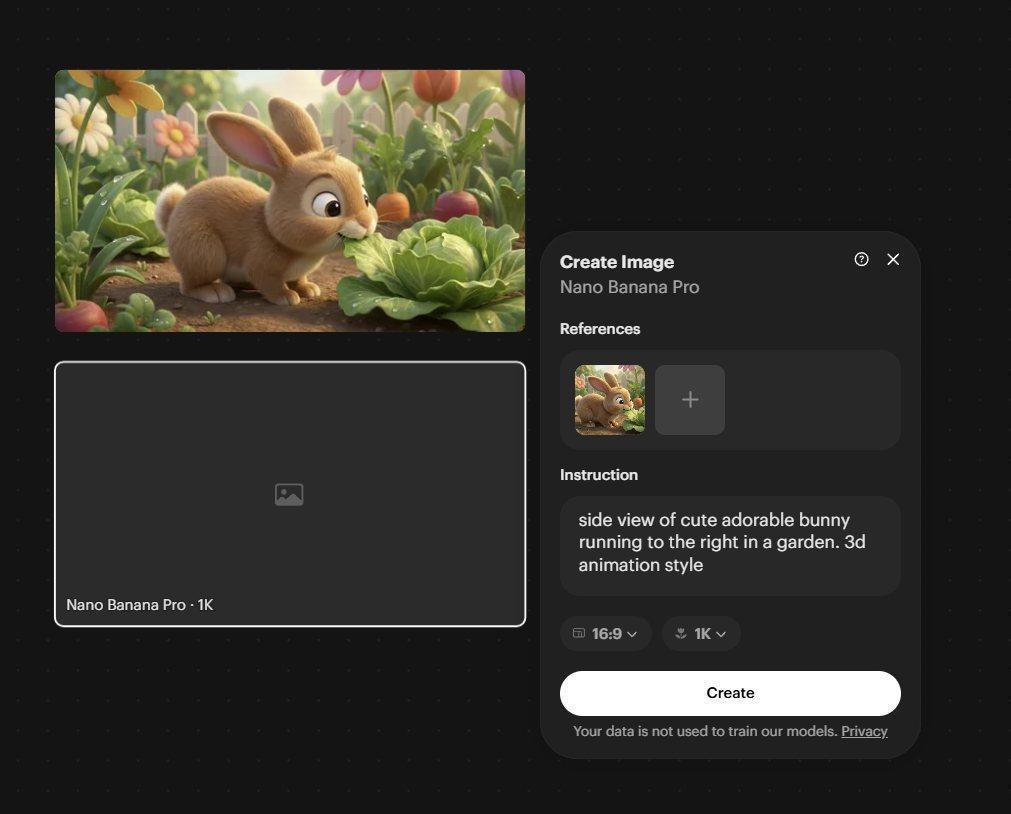
The running prompt in the Nano Banana Pro Image panel
3. Select Create
The new image appears below the original.
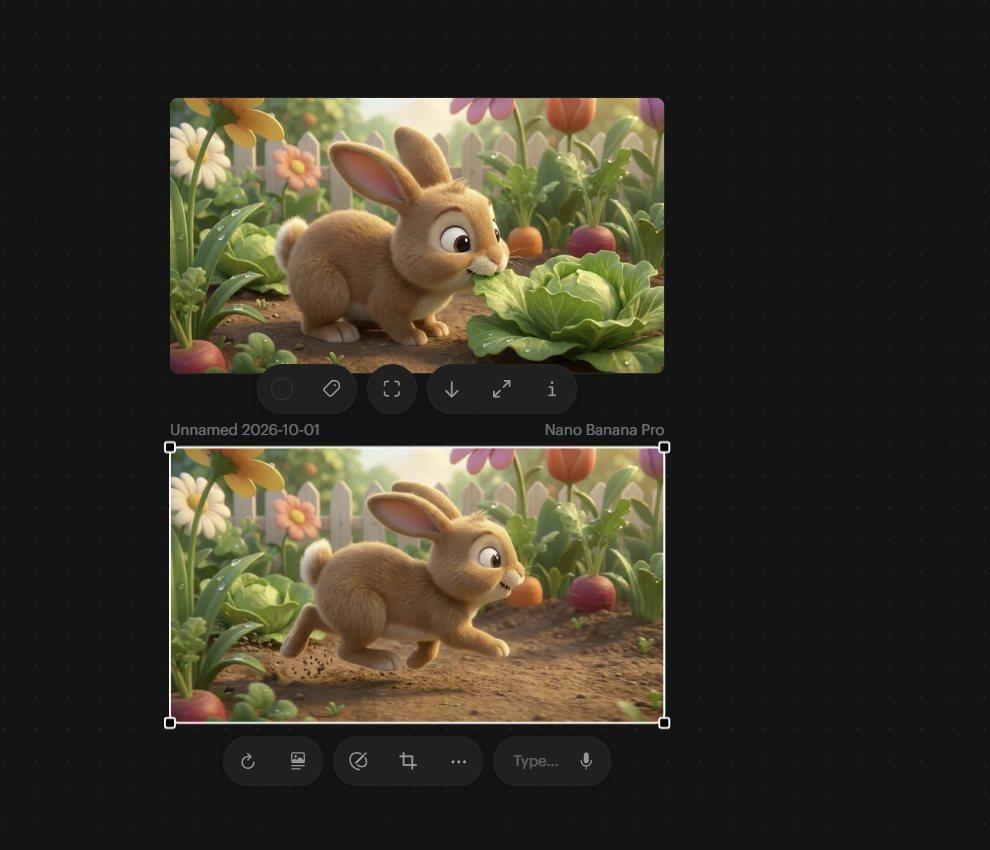
The new Running image below the original bunny image
Animate between these two images
1. Right-Click an empty Canvas area and choose Create Video → Ray 3.2.
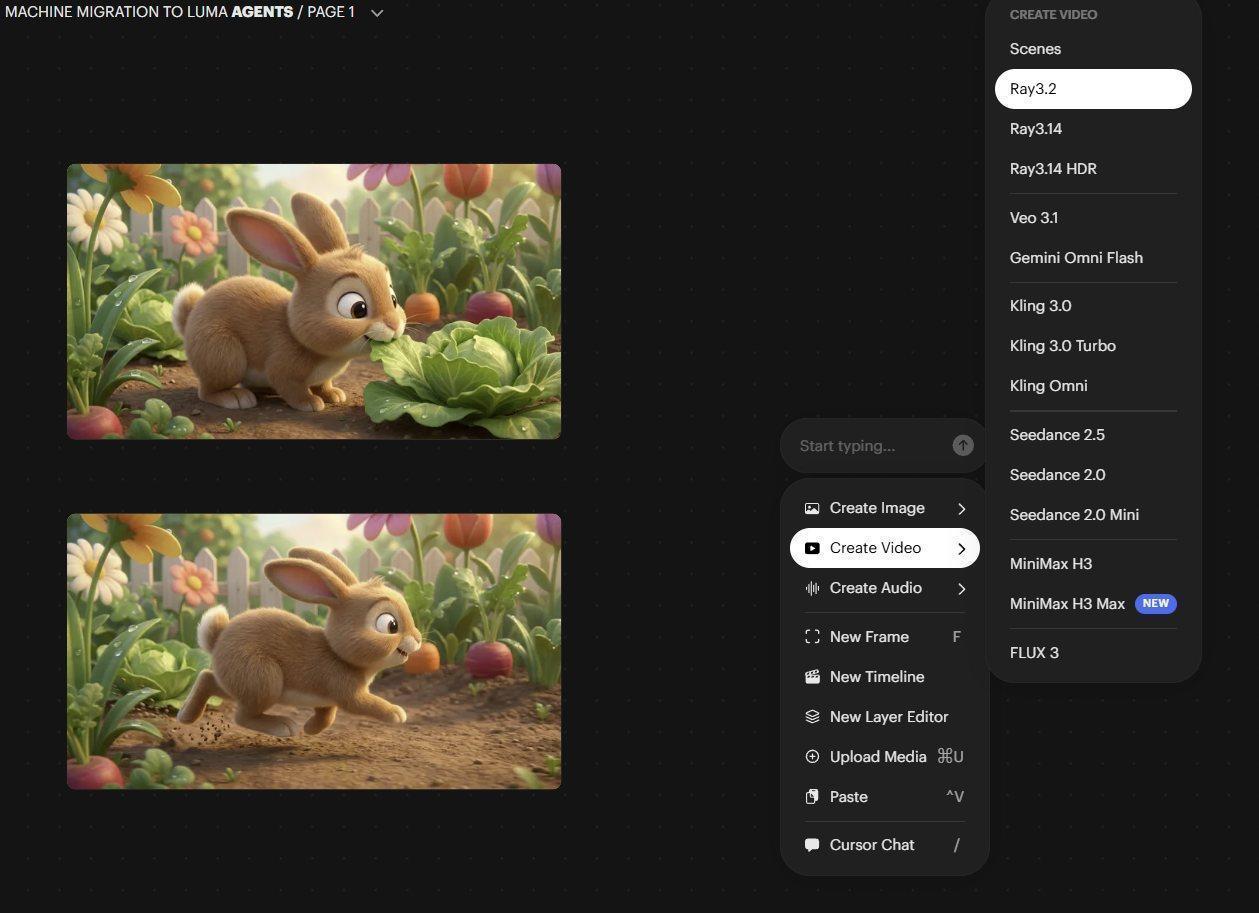
Choosing the Ray 3.2 video model from the Right click menu
2. Drag the first stylized bunny image into the leftmost Keyframe Box. The box outline will light up when you have positioned the image correctly. If the Keyframe box does not light up, zoom into the canvas a little. Make sure your mouse is positioned outside the Ray 3.2 Panel for the zoom as this Panel has its own internal zoom system.
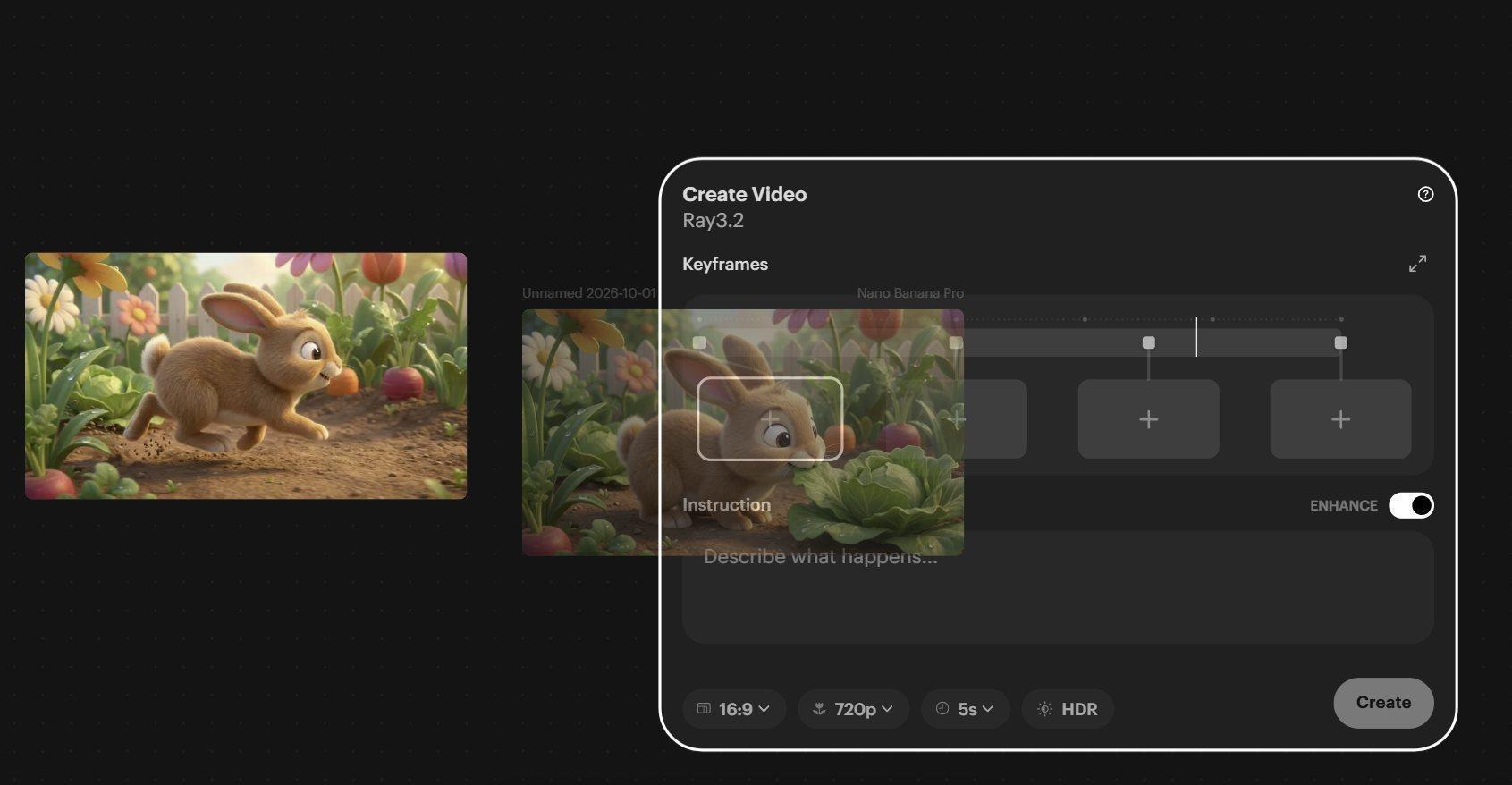
Dragging the first bunny image into the Ray 3.2 Start Keyframe box
3. Not all Panels will accept drag and drop from the Canvas to load the Keyframe Boxes. To demonstrate an alternative to drag-and-drop, download the second bunny image using the Download Button in the Upper Image Tool Bar. Clicking this will open your browser's save dialog and you can save it somewhere on your hard drive where you can find it.
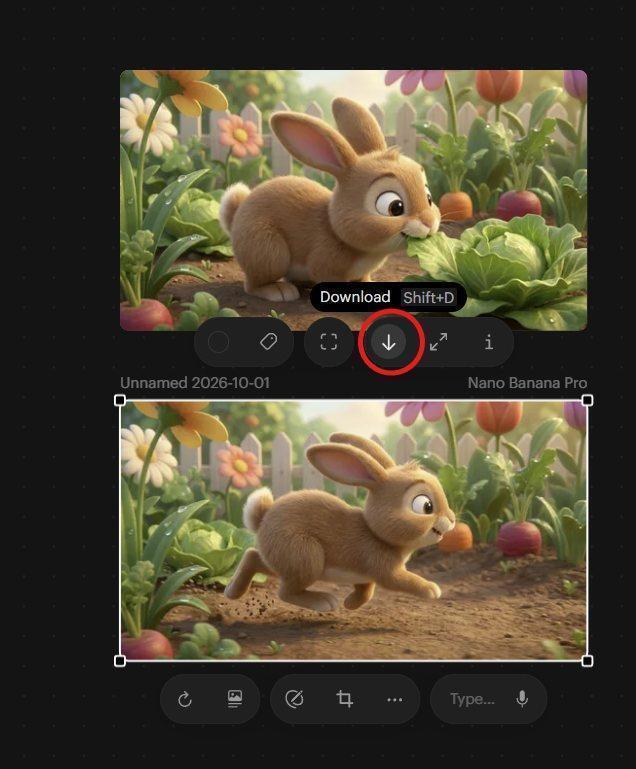
The Download Button for the lower image.
4. Return to the Ray 3.2 Panel, click the last empty Keyframe Box. This will open your browser’s Open dialog and you can choose the downloaded image from your computer’s file picker.
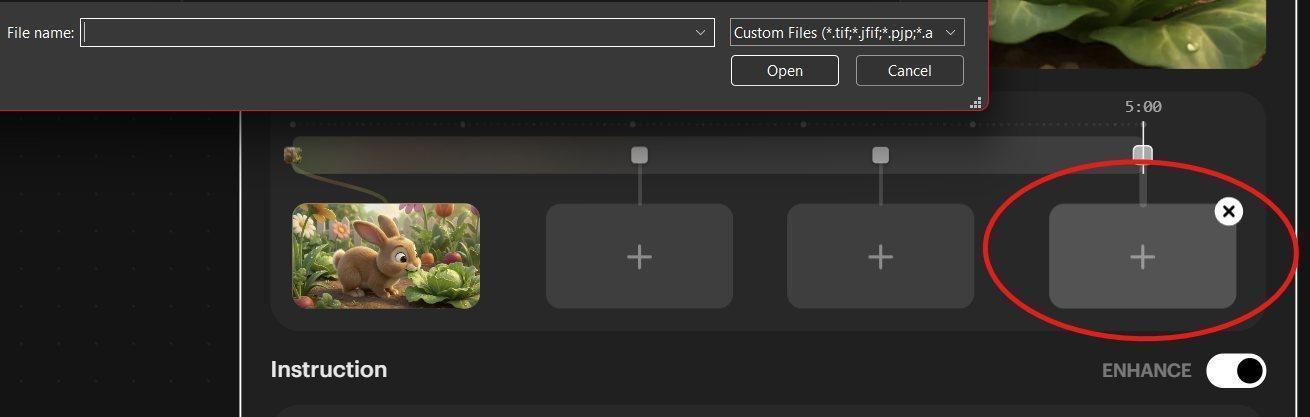
Image caption.
5. Remove the two empty middle Keyframe Boxes with their X delete controls (roll over them to display the X).
6. Enter the Prompt below; choose 16:9, 540p and 5 seconds.
Side view of a cute adorable bunny on all fours nibbling on lettuce in a garden, 3D animation style. The bunny then starts running to the right through the garden.
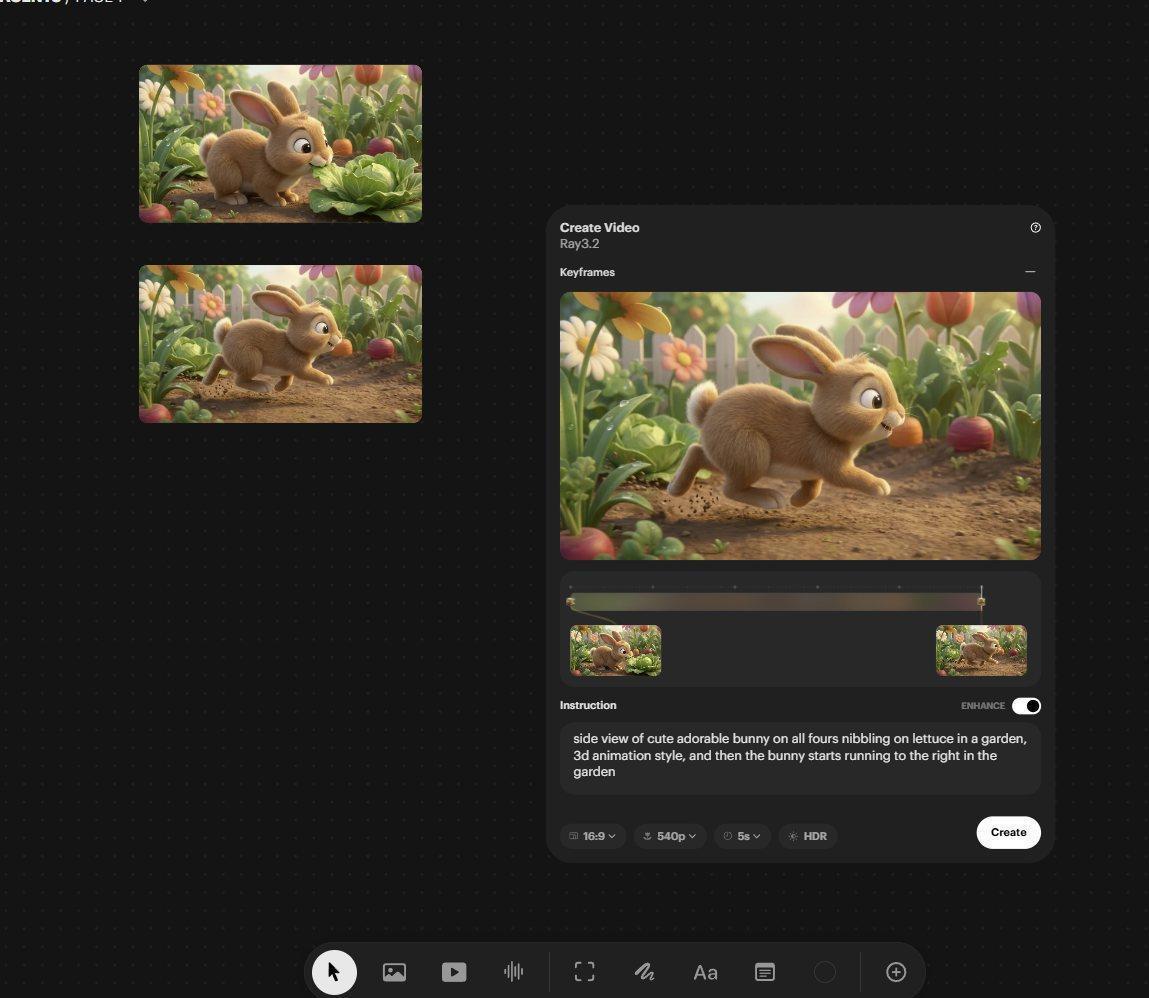
The prompt in the Ray 3.2 Panel and the two middle empty keyframe boxes removed
7. Select Create
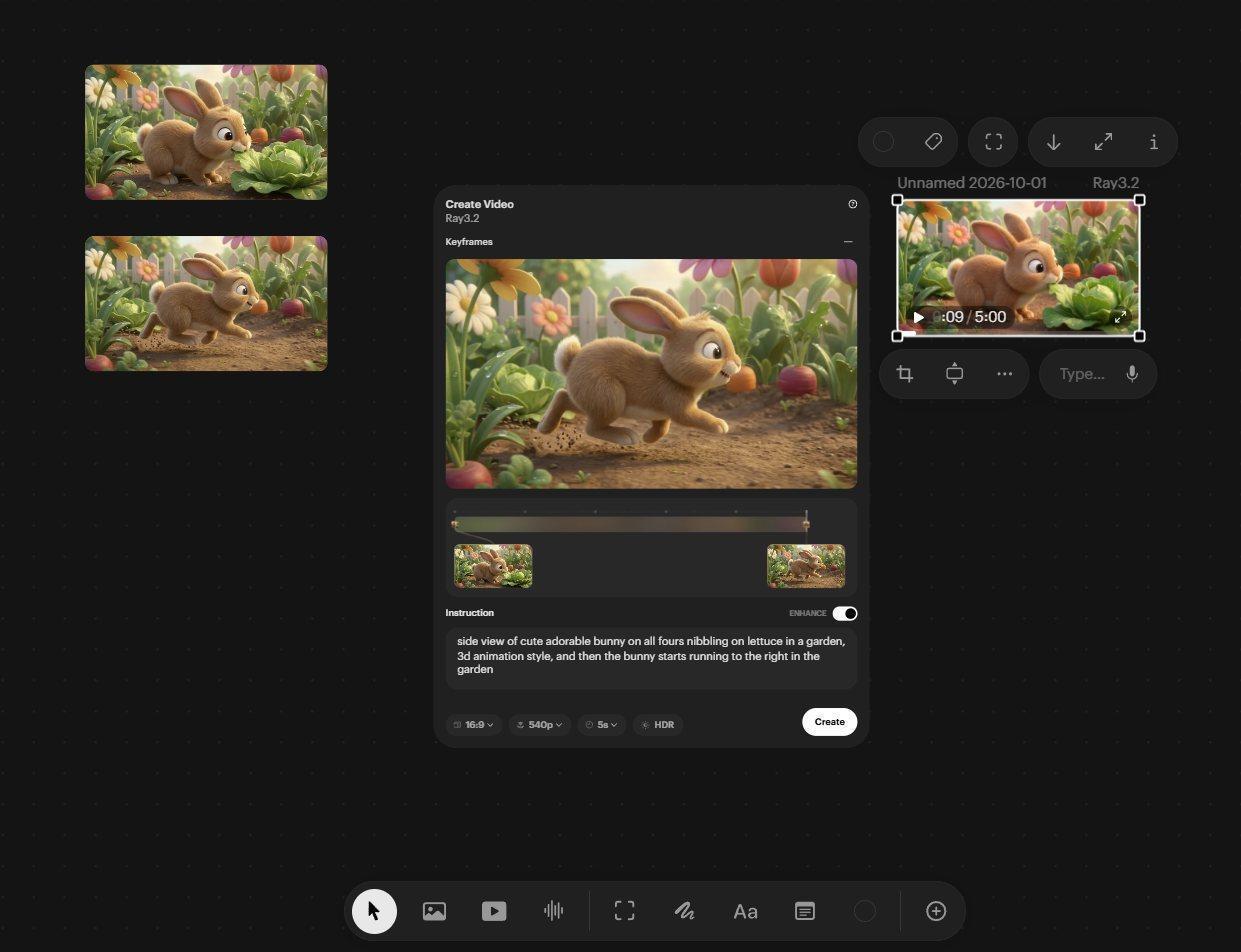
The generated video of the running bunny - top right of the Ray 3.2 panel
Preview motion by scrubbing
You should now have the bunny eating and running to the right. In hindsight we perhaps should have said hopping - it is a bunny after all. Click on the Canvas and then hover over the generated video to watch it play. Use the Full Screen icon from the Upper Image Tool Bar to view it full screen, or zoom in on the Canvas to see it larger.
Another viewing/checking method is to “scrub” through the video. This is like an interactive Playhead you control in real time.
Select the new video and release the mouse button. Hold Ctrl, then move your mouse left and right without pressing any mouse buttons. This scrubs back and forth through the video, avoiding repeated use of Play and Pause.
Next: Part 6: Add a new action in the middle of a scene
Back to the series overview: Migrating from Dream Machine to the Luma app