
Part 6: Add a new action in the middle of a scene
Your first project in the Luma app · Part 6 of 9
You’ll need: The Board and generations from Part 5.
We will alter the action so the bunny eats, runs, jumps a picket fence in slow motion, lands, and then continues at normal speed.
Create an image of the jump
1. Right-Click the first stylized bunny image (to keep the style and the likeness of our character), and choose Create Image → Nano Banana Pro.
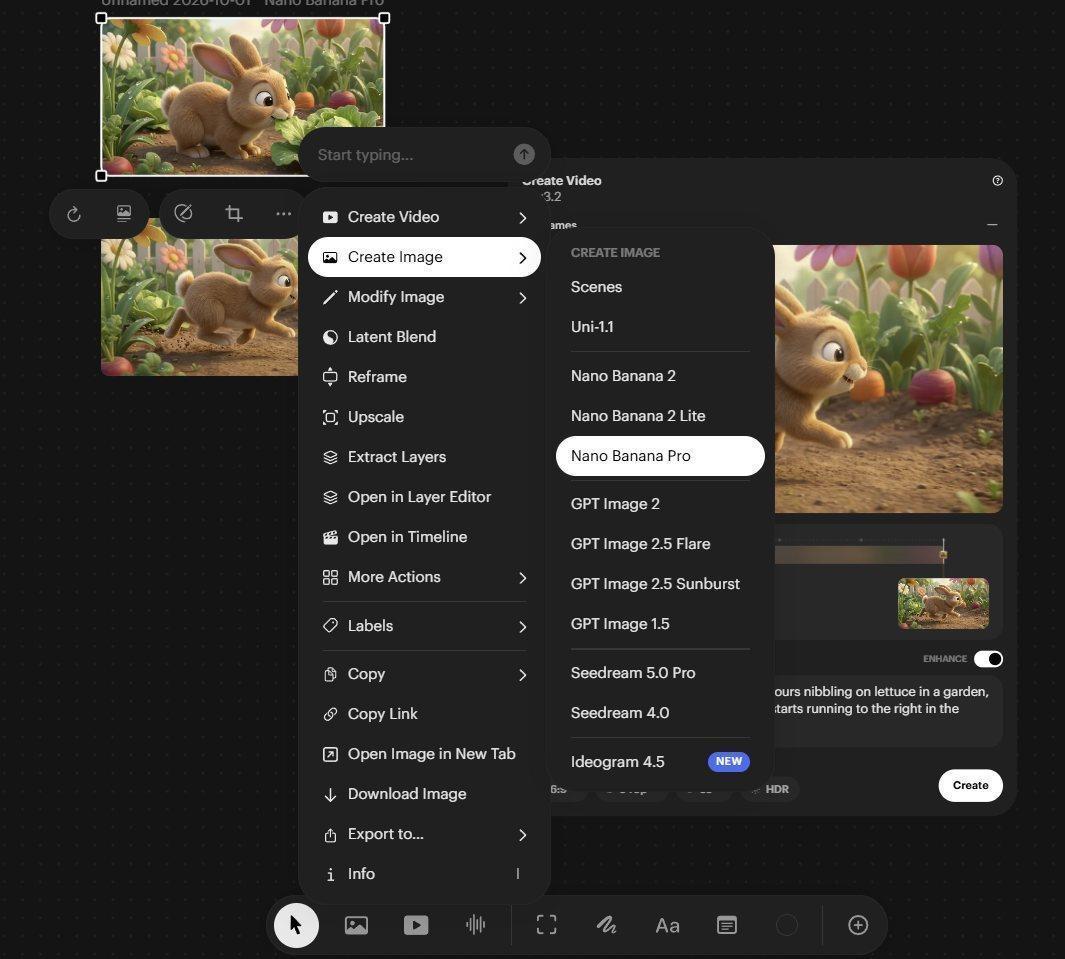
Choosing the Nano Banana Pro Image model from the right click menu
The stylized bunny automatically appears in the Reference Box. Notice how the new Nano Banana Panel overlaps the Ray 3.2 video Panel. It will go away once we are done.
2. Enter the following Prompt, and set 16:9 at 1K with the panel controls.
Side view of cute adorable bunny leaping over a picket fence in a garden, 3D animation style.
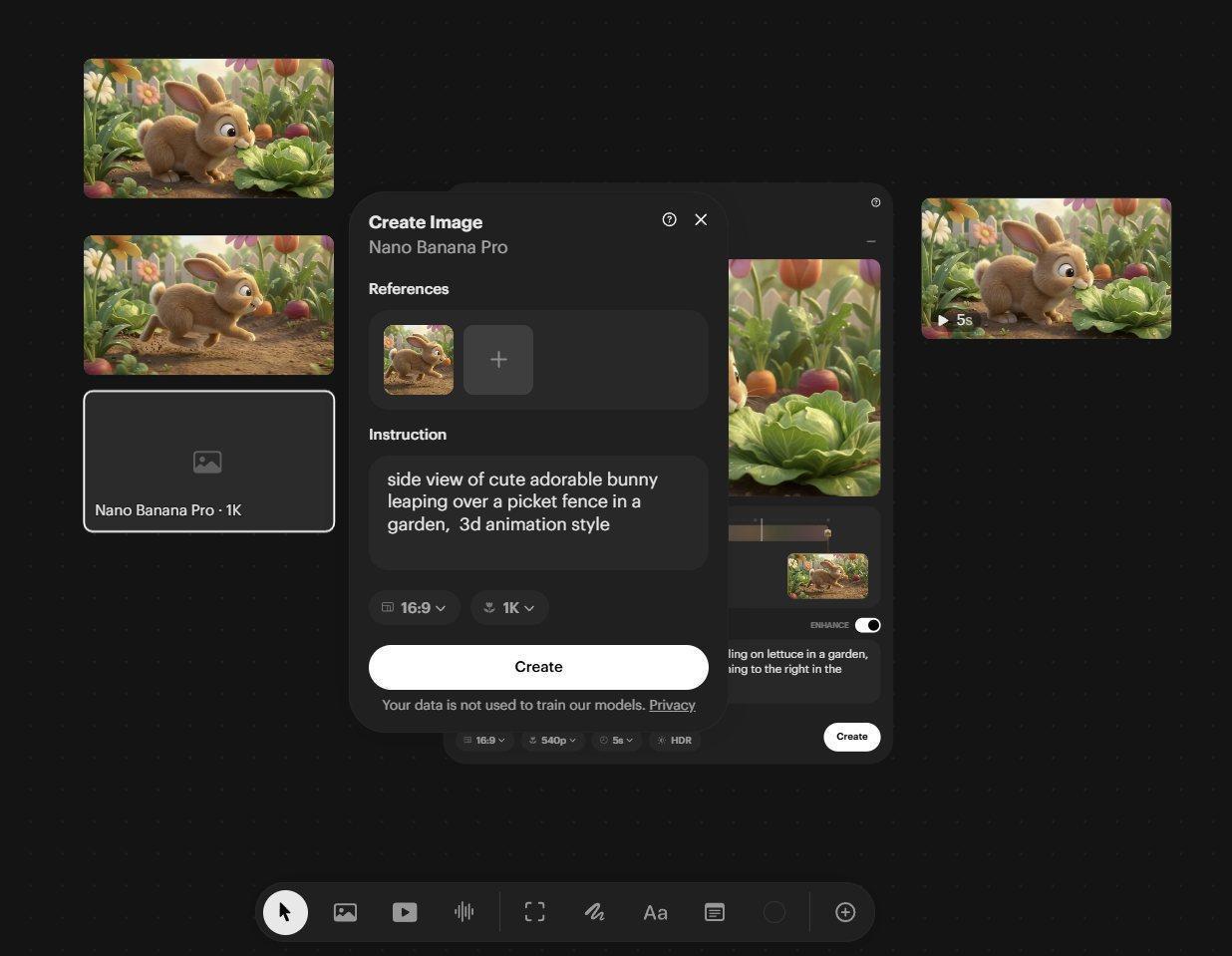
The new prompt in the Nano Banana Pro Panel
3. Select Create:
The first result might not place the fence where we need it. We want the fence to run roughly through the center of the composition, from near the camera, and then into the distance.
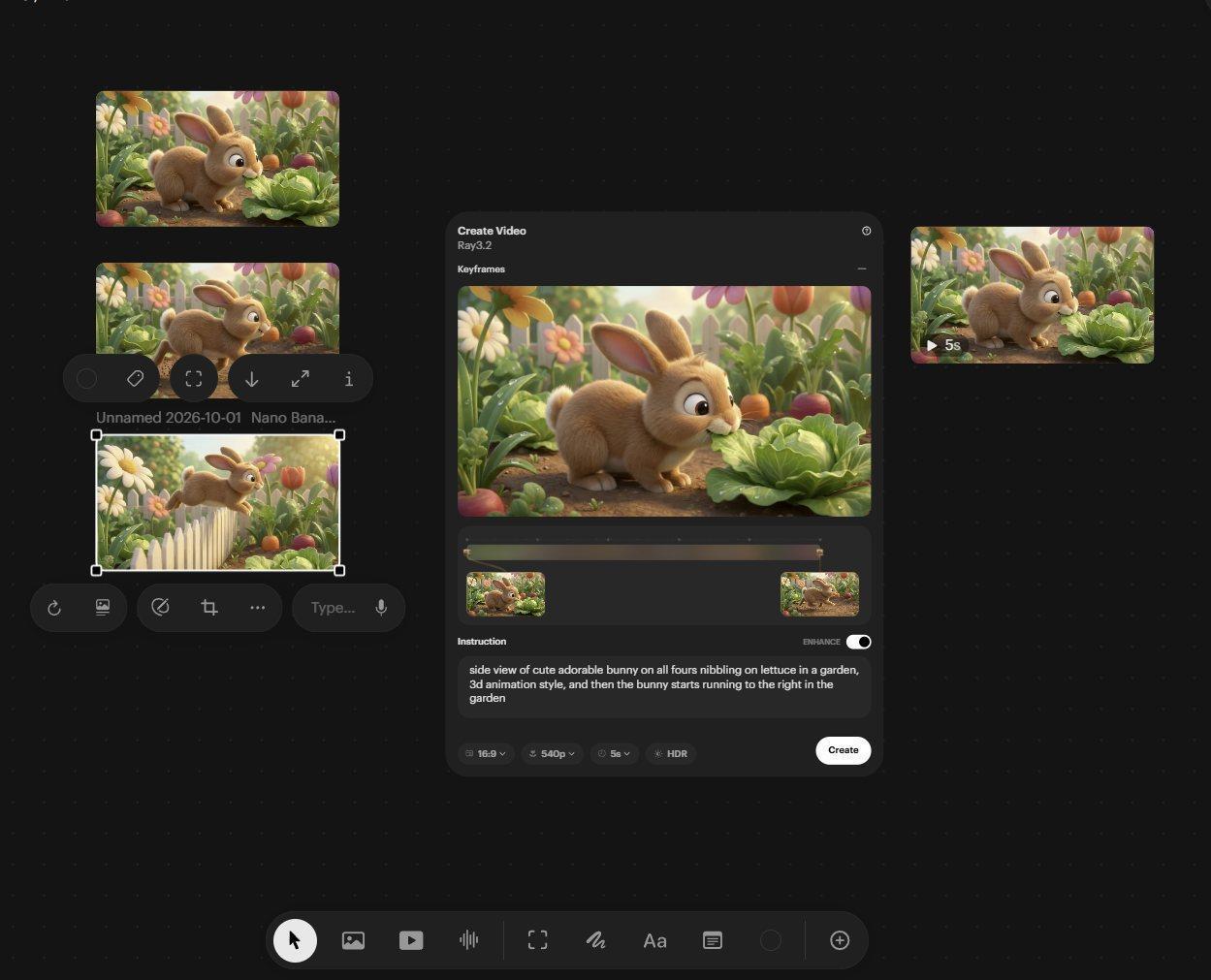
The first prompt of the bunny jumping over the fence (on left at bottom)
Rerun or Reuse?
Select the new fence-jump image and open its Information (i) Panel. Rerun repeats the original request unchanged. To revise the Prompt, choose Reuse.
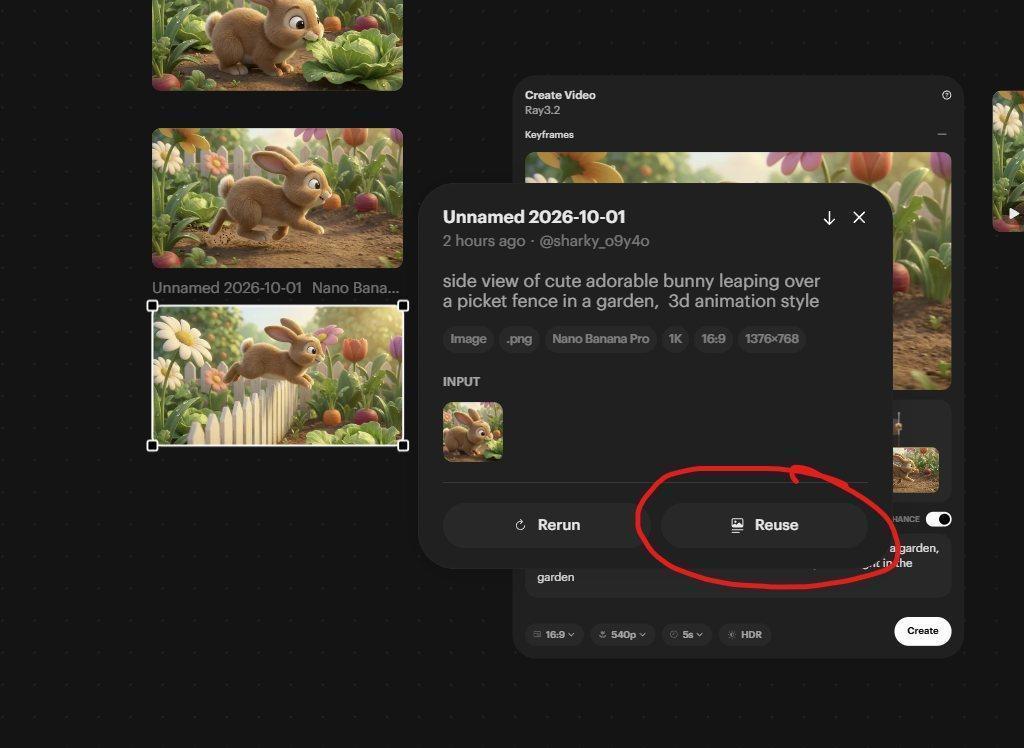
Choosing the Reuse option to tweak the Prompt of the jumping bunny.
1. Replace the Prompt in the new Nano Banana Pro panel, with the more specific version below:
Side view of cute, adorable bunny leaping over a picket fence in a garden. Fence in the center of frame, leading from the camera into the distance. 3D animation style.
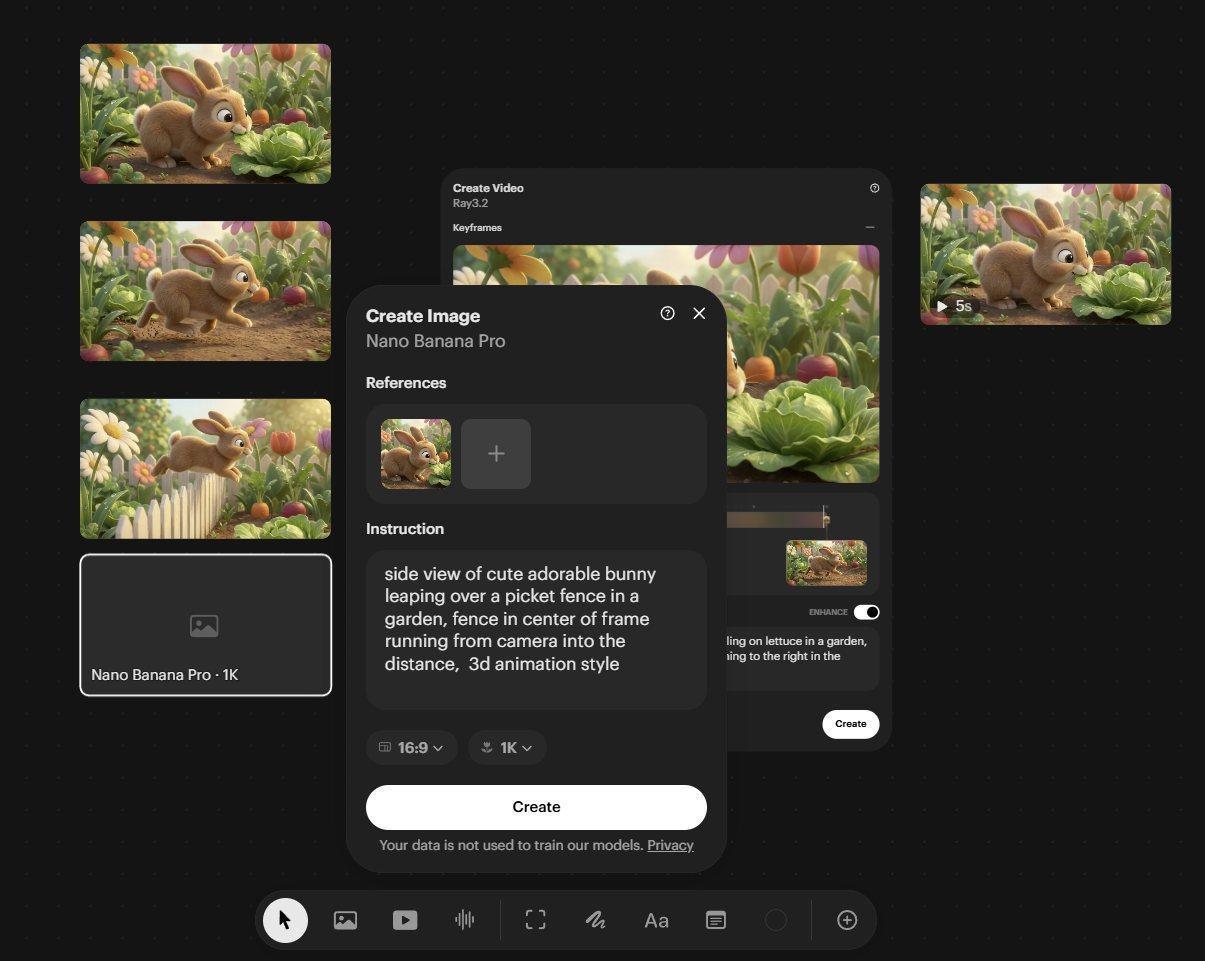
The revised prompt in a new Nano Banana Pro image Panel
2. Select Create. You can work on something else on the Canvas while that job processes. Let's add the middle Keyframe box we are going to need for the jump.
Insert the jump into the action
1. Return to the earlier Ray 3.2 Panel where the 3D animated bunny runs to the right. Click approximately halfway along its Timeline to add a Node and empty middle Keyframe Box. Notice the difference the more fleshed out Prompt has on the second image with the fence once it has come back. It might be better or worse - only you can decide that.
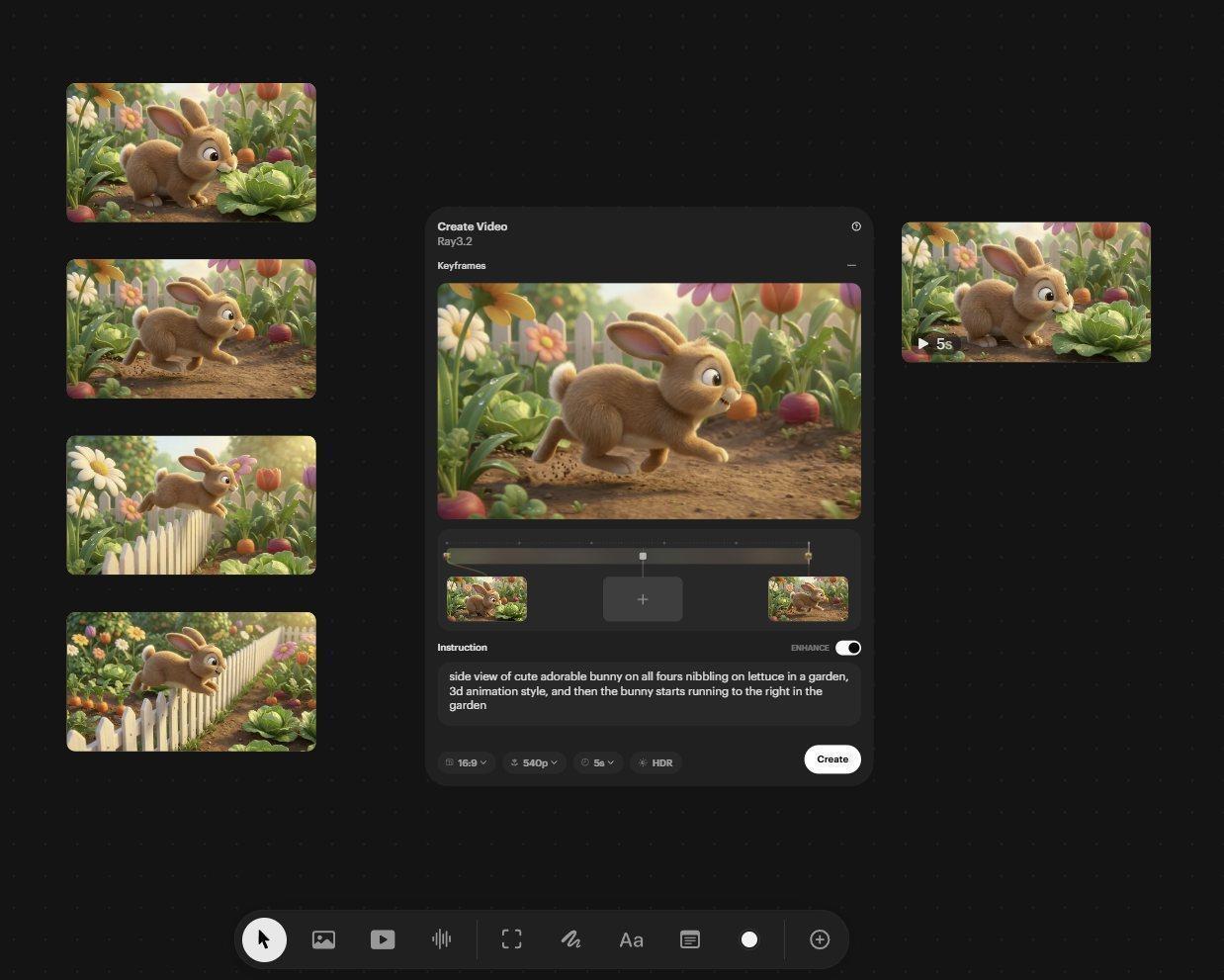
The Ray 3.2 panel with the added middle keyframe box. And the second fence image on left at bottom
2. Drag whichever fence-jump image has the better composition into the new Keyframe Box. Release the mouse button when the Keyframe Box outline highlights.
3. Replace the Prompt with the text below. Check that the previous 16:9, 540p and 5-second Settings are still selected.
Side view of a cute adorable bunny on all fours nibbling on lettuce in a garden, 3D animation style. The bunny starts running to the right as the camera tracks alongside him. He then hops over a picket fence in slow motion as the camera passes the fence. The bunny lands in the garden on the other side and continues running at normal speed.
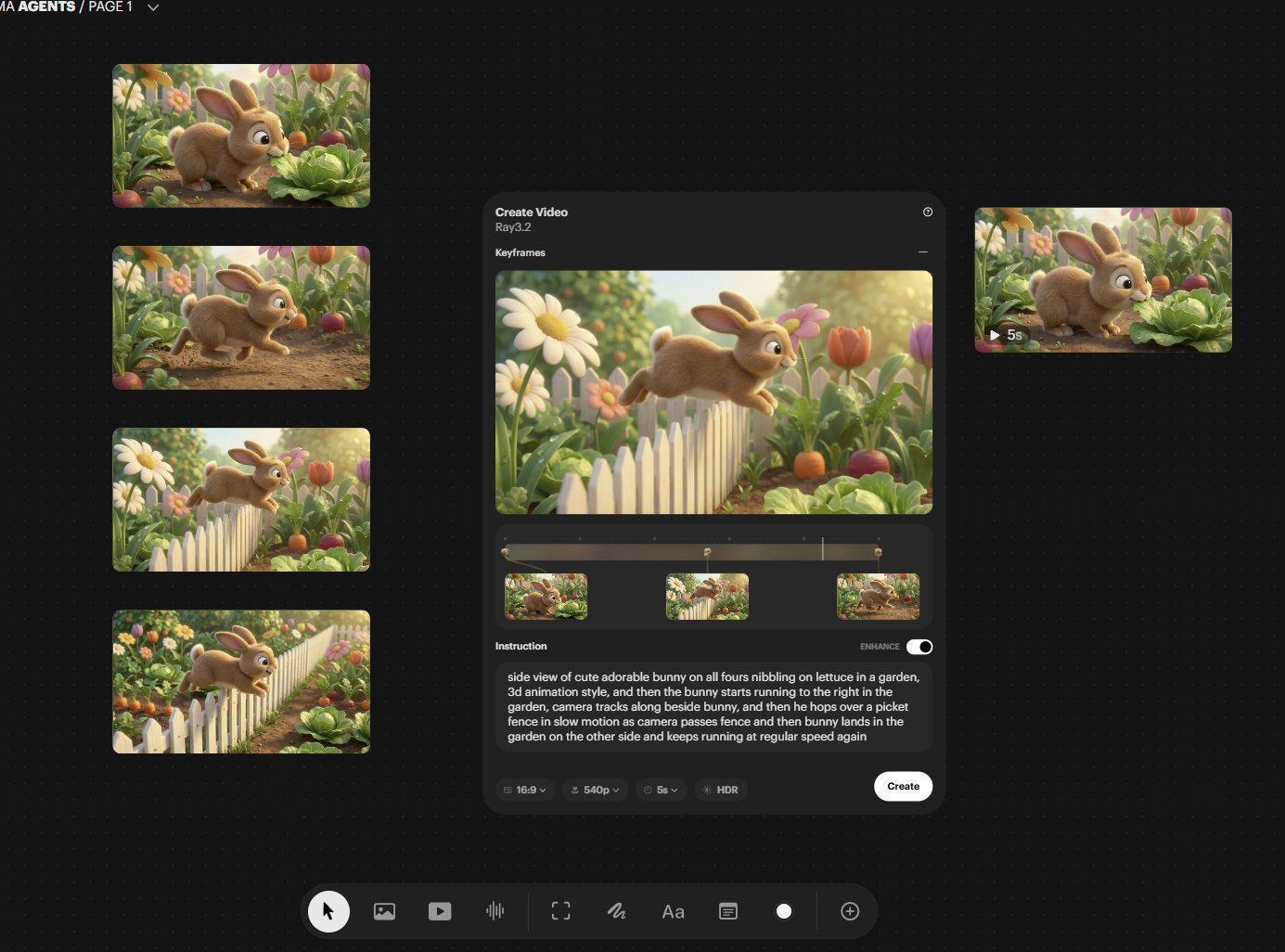
The Ray 3.2 panel with all the keyframes in place and the new Prompt
4. Hover over the large viewer in the top half of the Ray 3.2 Panel and use the Play Button that appears to preview the timing of the keyframes spaced out on the Timeline before spending credits on a render. It will be less than spectacular here but with more Keyframes, being able to preview in real-time and adjust each keyframe’s timing becomes particularly useful. The Prompt is not used for this playback - this is simply to get a feel for the overall shot.
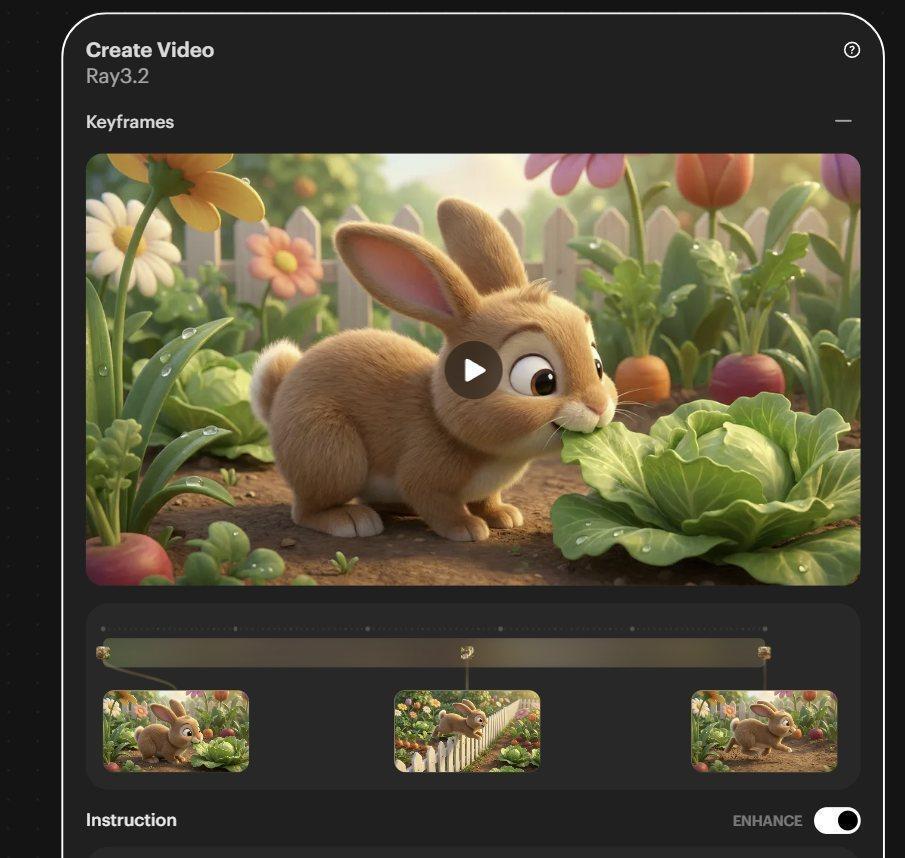
The play button in the Ray 3.2 panel viewer
5. Make sure to check the Resolution and Aspect Ratio Settings at the bottom of the Panel just to be safe. Select Create when you are satisfied.
The new result appears above the earlier versions on the right. It should show continuous action: eating, then running, a fence jump in slow motion and then landing and running again at normal speed, all guided by these three Keyframes. Congratulations, you have just directed your first scene with more than just a Start and End Frame.
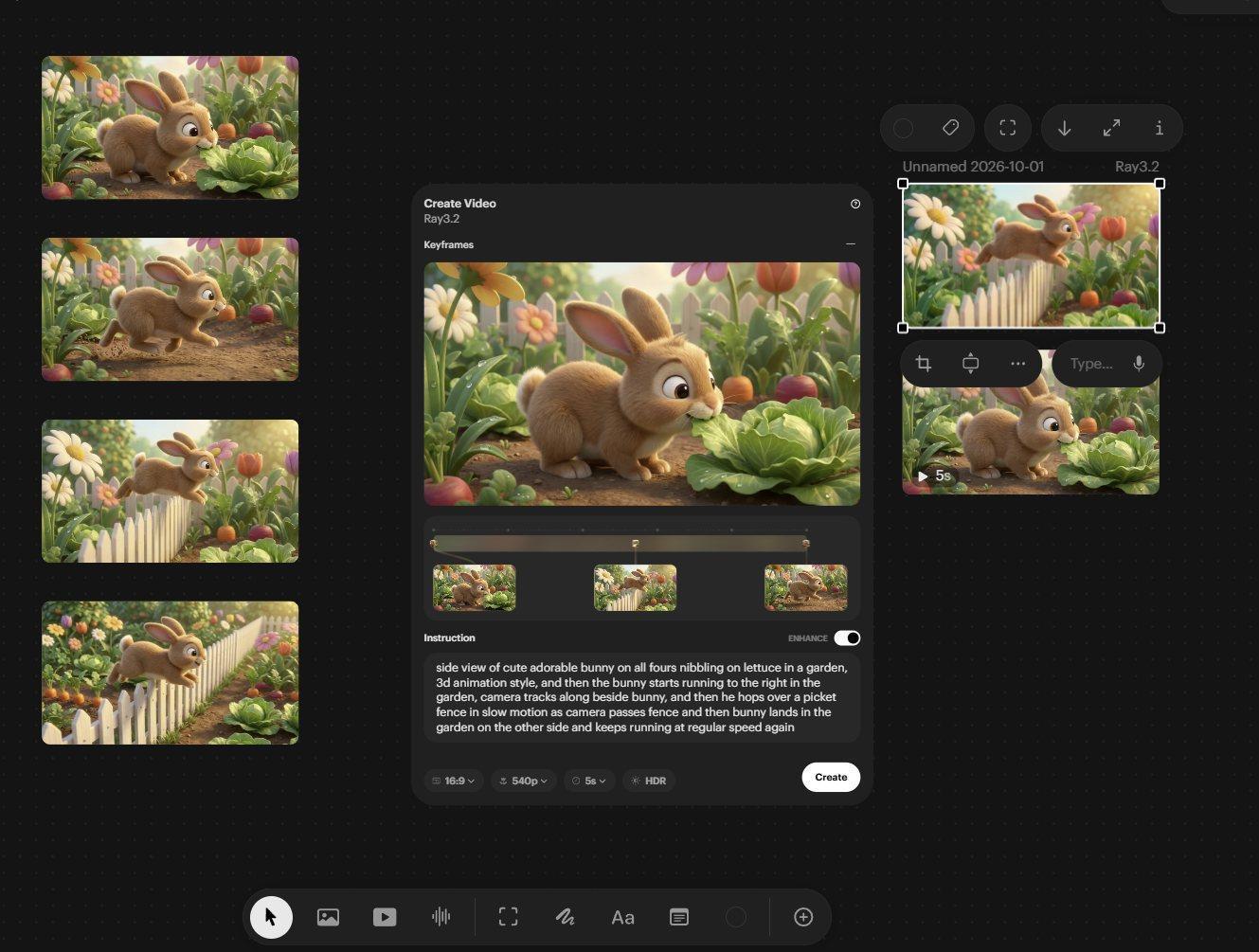
The new eating, running, jumping video top right
Next: Part 7: Meet the Agent
Back to the series overview: Migrating from Dream Machine to the Luma app