
Part 7: Meet the Agent
Your first project in the Luma app · Part 7 of 9
You’ll need: The Board from the earlier parts.
Everything so far has been done directly in Model Panels. The Agent Chat offers another way to work. You can describe the result conversationally and let the Agent coordinate the request. The Agent can also be a great collaborator and time saver. Some workflows and tools require the Agent Chat so even if you want to only work with the Models directly, it’s a good idea to get used to the Agent.
1. Move the Canvas until there is a clear area in the middle.
2. Select the Speech Bubble Icon beside the magnifying glass at bottom-right to open Agent Chat.
3. Select the first stylized bunny image on the Canvas (top left in the next image). A thumbnail appears in the Agent Chat composer, indicating that the image will be included in the next Instruction.
4. Enter the Prompt below in the Agent Chat
Use Image1 as a style reference and create a cute adorable hedgehog sitting on its hind legs in a garden and looking to the right. Use Nano Banana Pro at 16:9 and 1K.
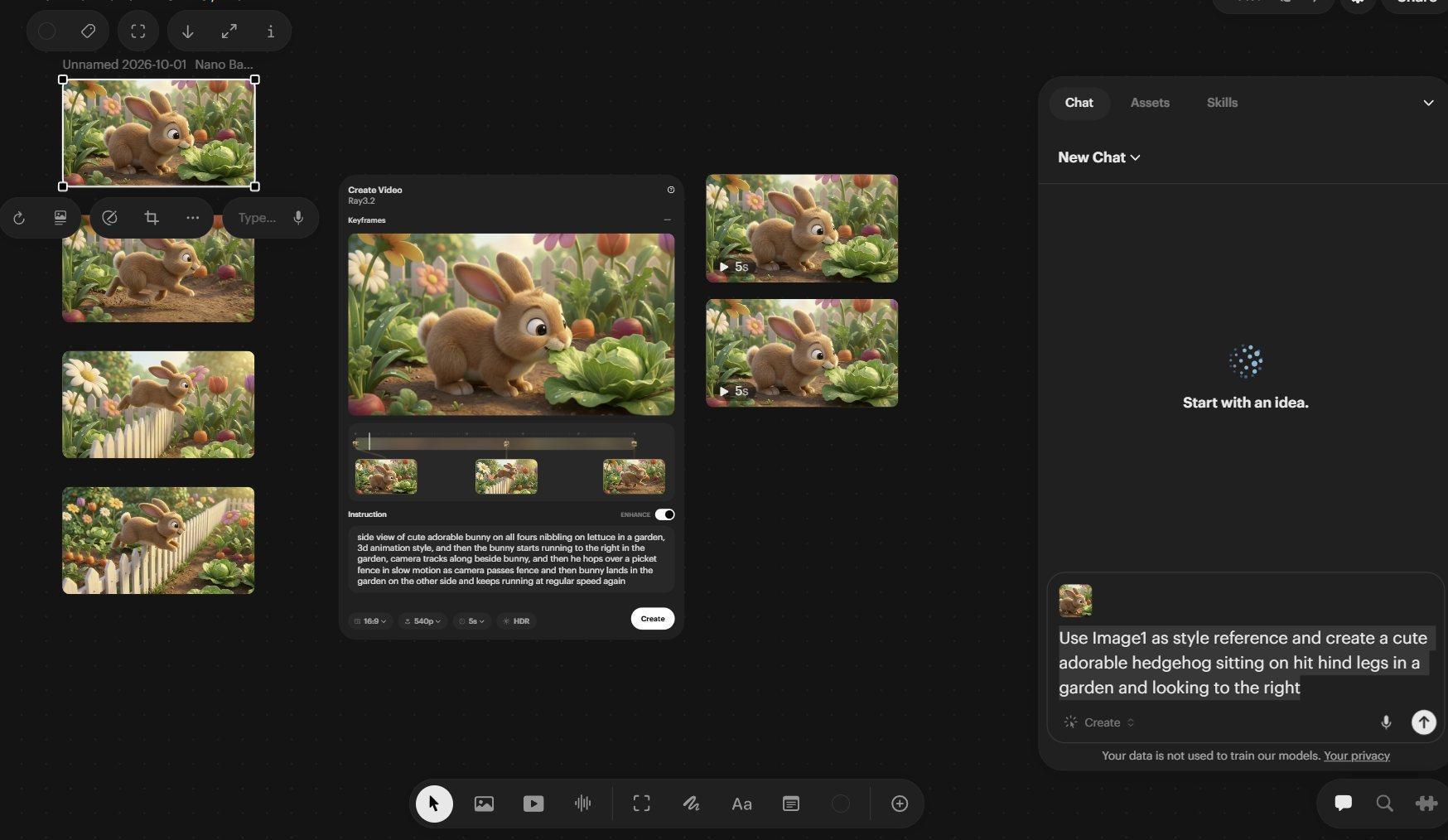
The open Agent Chat window and the typed in prompt and the bunny reference image thumbnail
“Use Image1” in the prompt identifies the attached reference asset and how it should be used. With multiple images you can assign different roles, such as “Use Image1 for the bunny; use Image2 for the garden.” You can omit a Model name and let the Agent choose, but we are specifying Nano Banana Pro to help maintain the look of our previous stylized images also done in that Model. Notice that the Agent can infer the 3D-animation look from the selected reference, even though the Prompt does not say “3D animation.” The Agent Chat only has so many lines of text visible in the input area, so you may have to scroll to see the whole prompt.
5. Select the Up-Arrow in the bottom right of the Agent Chat to submit the job.
During a job, Agent Chat displays status and process messages. Those messages can be expanded with their twirl triangles. This can be helpful to see how the Agent is interpreting your request, what tools it is using, and to gain insight on how to talk to it. The Agent’s conversational replies to you appear in bolder text and with more contrast than these internal process messages. Your messages to the Agent appear on the right of the chat box and the Agent’s messages back to you are on the left.
Using the Agent can use a few more credits than working directly with the Model Panels. Whenever you are chatting with the Agent and you send in what you have typed, this uses computer power and, as such, uses a few credits.
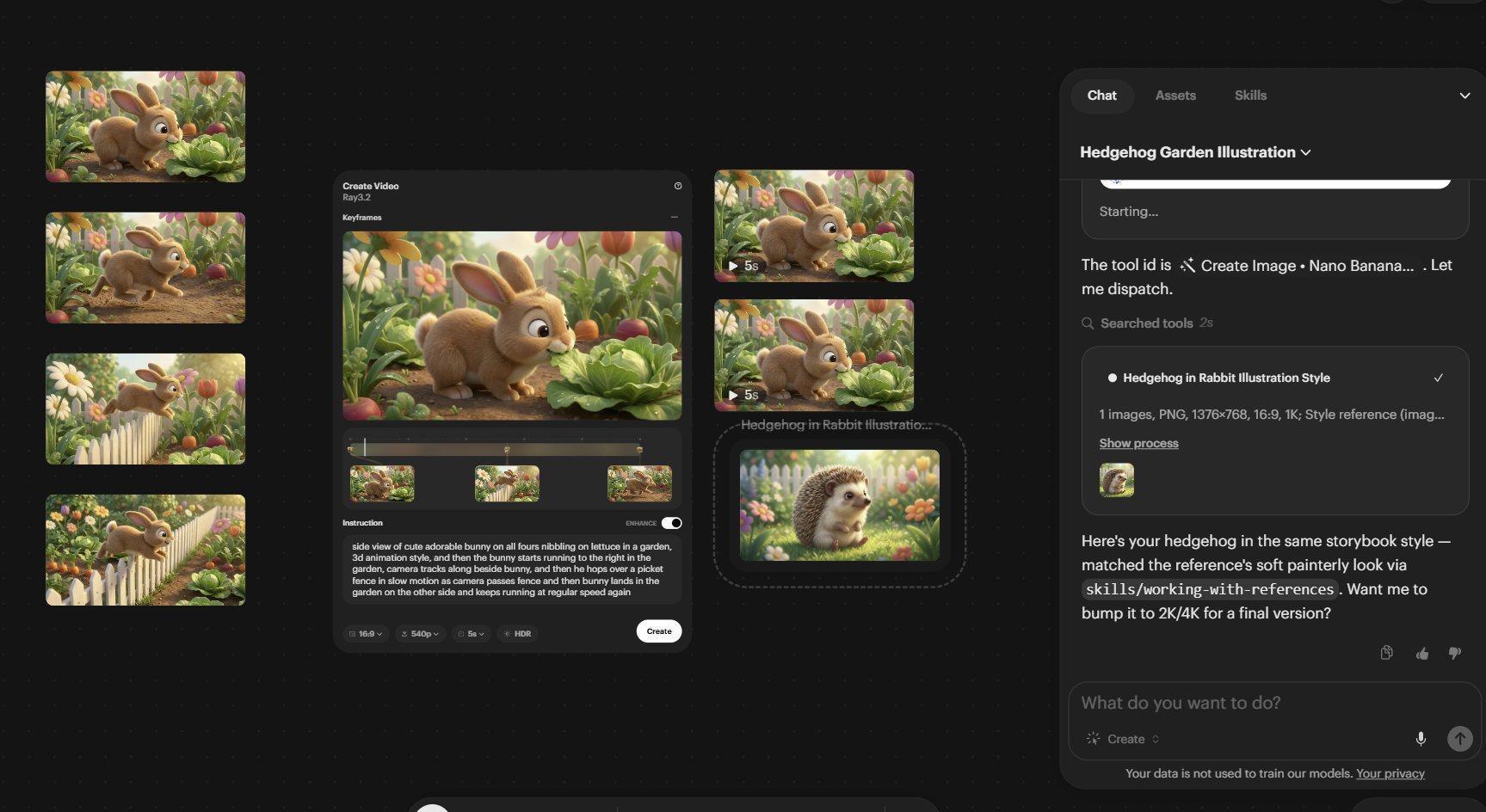
The generated hedgehog image and the agent’s response
Find an Agent generation. And asset tagging
To find an asset generated through Agent Chat, scroll to that result in the chat and select the image or video thumbnail it created on the left-hand side of the chat. Then, if that asset on the Canvas is out of view, or not immediately obvious because nothing lights up (the canvas can get crowded), press Shift + 2 to center the selected asset in the Canvas.
Speaking of finding something on the Canvas, let’s add a Tag so you can spot certain assets easily. Select the new hedgehog image, choose the Tag Icon on the left in the Upper Image Tool Bar. Pick green. The Tag system adds a green status marker to the asset, helping you locate the original image later. These Tags are for your reference only and do not mark the image or video permanently.
Next: Part 8: Create an eyeline with a visual reference
Back to the series overview: Migrating from Dream Machine to the Luma app