
Part 8: Create an eyeline with a visual reference
Your first project in the Luma app · Part 8 of 9
You’ll need: The Board and generations from the earlier parts.
Next we want to “cut” (edit) from the bunny jumping the fence to a reverse angle of a hedgehog looking up as though it is watching the bunny jump the fence. We’re also going to interact with the Agent in another way. The chat window can be a large distraction and take up valuable screen real estate when the Canvas gets full.
Send an Agent instruction from an asset toolbar
1. Collapse Agent Chat using its Text Bubble Icon at right and below the chat window. Keep the original green-tagged hedgehog selected.
2. In the Hedgehog’s Lower Image Tool Bar, click the Type Field (beside the Microphone), enter the Prompt below
Make a video of the cute, adorable hedgehog watching something flying in an arc through the air behind the camera. In one continuous motion, he looks right, then high above the camera, then left. Use Ray 3.2 at 16:9, 540p and 5 seconds.
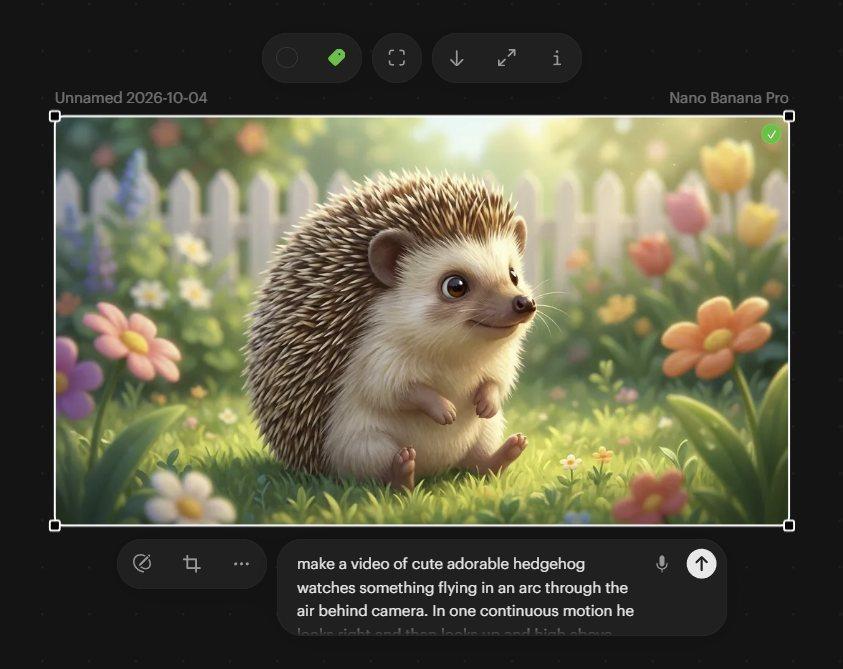
Filling in the prompt in the Lower Image Tool Bar
3. Send the Instruction with the Up Arrow to the right of your Prompt
The Type Field below an asset also sends instructions to the Agent, even when Agent Chat is collapsed. If you open up the Agent window again with the text balloon icon (beside the magnifying glass bottom right of screen), you will see what you just typed has appeared in the chat, and you can see this job that we just sent in, being figured out by the Agent.
When that job comes back, it probably won’t be quite what we want. The hedgehog should watch the bunny flying through the air behind camera, following the bunny’s smooth, continuous arc. Instead, he will probably look right, then up, then left as three separate movements. Or he may follow something through the air, but still not along the eyeline path we want. AIs currently struggle with the concept of “behind camera”, so we’ll have to use a trick.
A note on spatial consistency
Usually you need to specify “Image right” rather than the character’s right, to get things where you want them. The same goes for hands. If a character is facing camera, their right hand is on screen left. To get the AI to place something in that hand, you will usually need to call it their left hand, or describe the screen position directly: “holding a popsicle in their hand on screen left”.
Add a temporary butterfly
1. Select the original green-tagged hedgehog image.
2. Use the Type Field beneath it to submit the Instruction below:
Add a tiny butterfly flying through the air just above the orange flower on the right. Keep everything else the same. Use Nano Banana Pro at 16:9 and 1K.
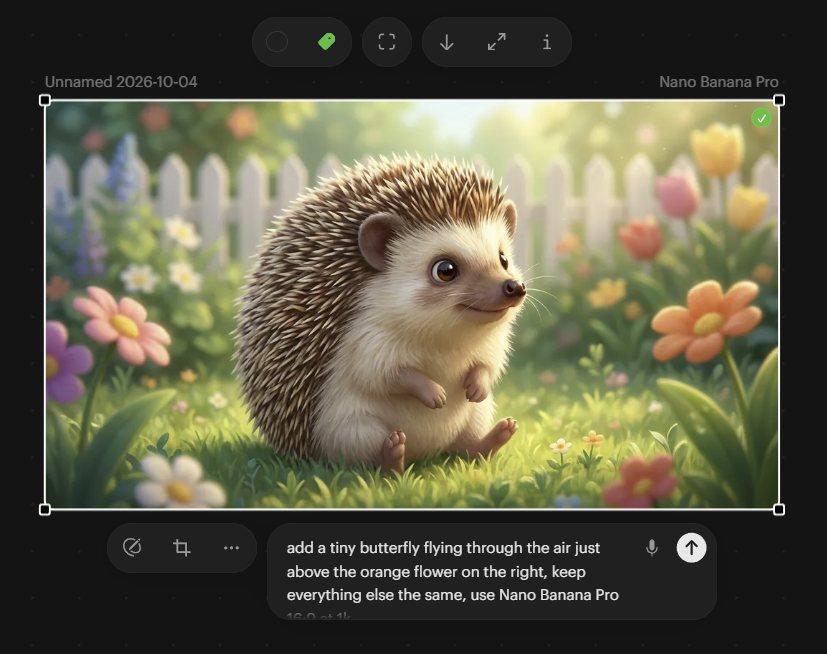
Adding in a prompt in the Lower Image Tool Bar
3. Select the up Arrow to the right of your Prompt to send the instructions
The new version should appear beneath the original, with a small butterfly near the requested flower. Label it “Butterfly” using the Bottom Tool Bar’s Text Tool, or give the image a different colored Tag, such as red, so you can distinguish it from the original at a distance.
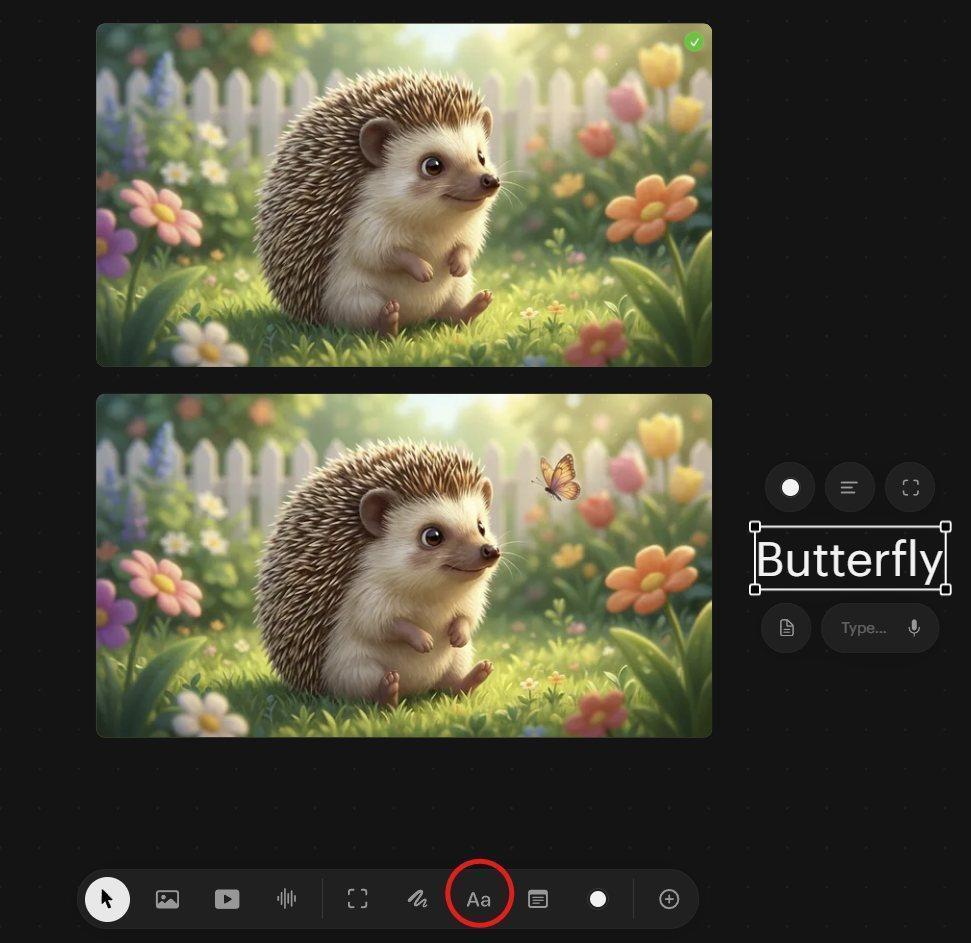
The text tool in the Bottom Tool Bar
Draw the butterfly’s flight path
1. Hold Alt and drag the hedgehog and butterfly image to make a copy on the Canvas.
2. On the copied image’s Lower Image Tool Bar, open Annotation (the Pencil/Ellipse Icon beside the Crop Icon).
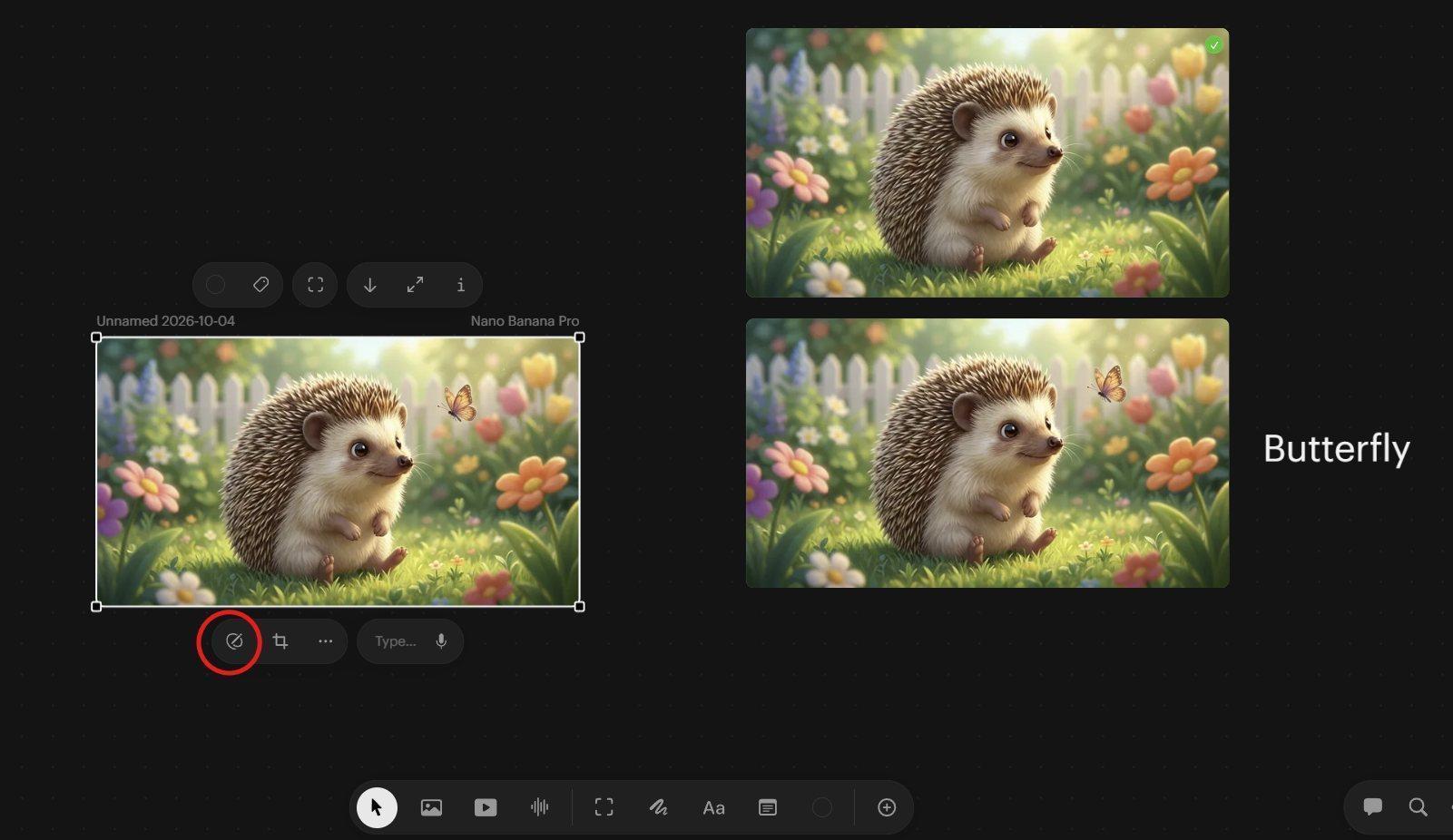
The Annotation icon in the Lower Image Toolbar
3. Change the Annotation color to red (the Color Picker white dot in the image below) and select the Arrow Tool.
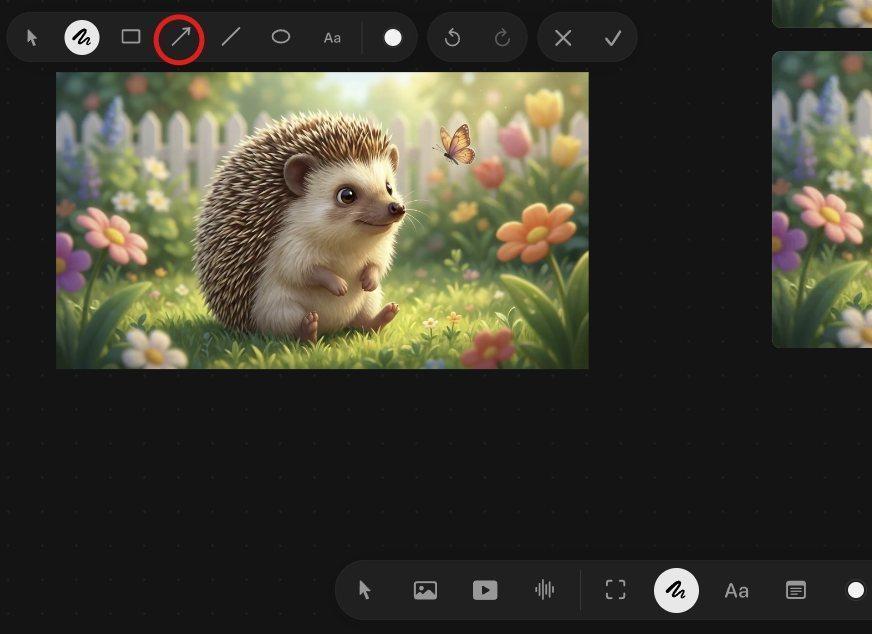
The Arrow tool in Annotations and the white color picker dot in the Annotations Tool Bar
4. Draw a roughly horizontal Arrow from the butterfly toward the left side of the hedgehog.
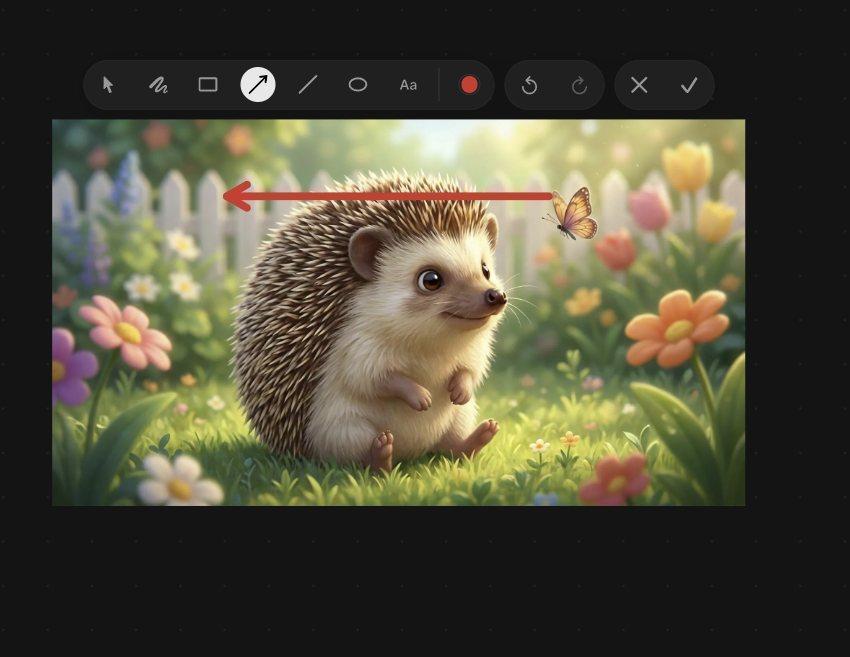
The Arrow Tool draws a horizontal arrow from the butterfly to the other side of the hedgehog.
5. Adjust the Arrow’s middle Control Point upward to create an arc over the hedgehog’s head. It is fine if the arc extends slightly outside the frame.
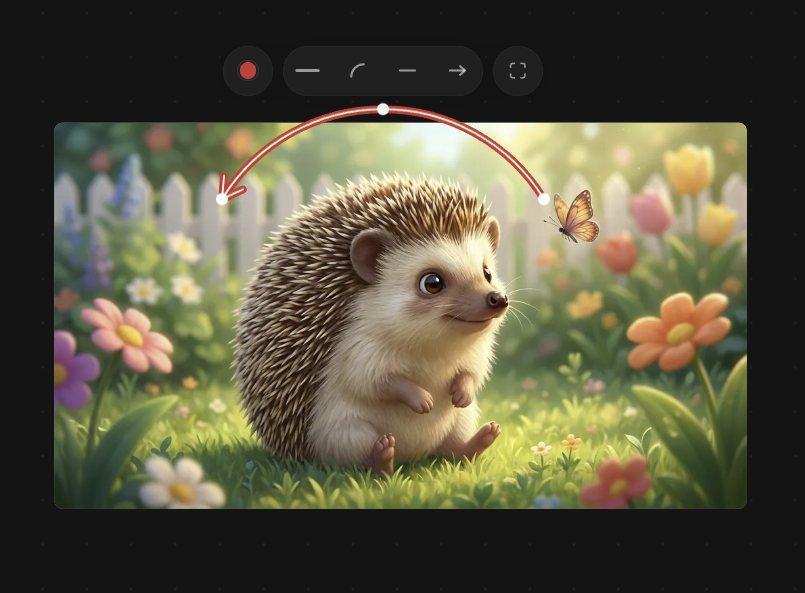
The altered arrow graphic in the Annotation system
6. Accept the Annotation with the Check Mark at the far right of the upper Annotation Toolbar. Wait a moment for the result to process, then click an empty Canvas area.
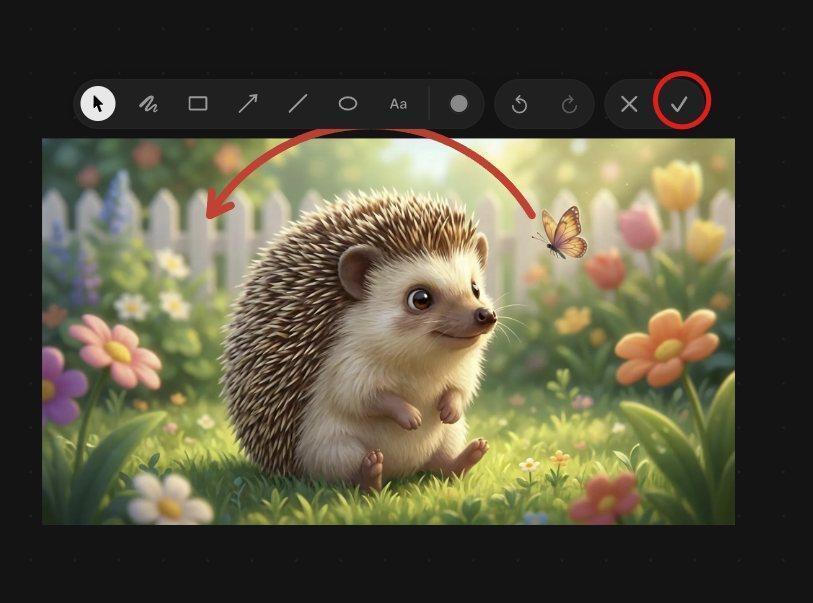
The accept check mark button in the Annotation Tool Bar
The red Arrow will act as a path reference: it describes the movement we want, and its red Arrow should not appear in the finished video.
Animate using two references
1. Select the unannotated butterfly image (the one labeled “Butterfly” or tagged red).
2. Ctrl-click the annotated copy with the red arrow as the second selection. Both should appear as thumbnails in Agent Chat below the previous Agent feedback. (The order you pick the images in is important.)
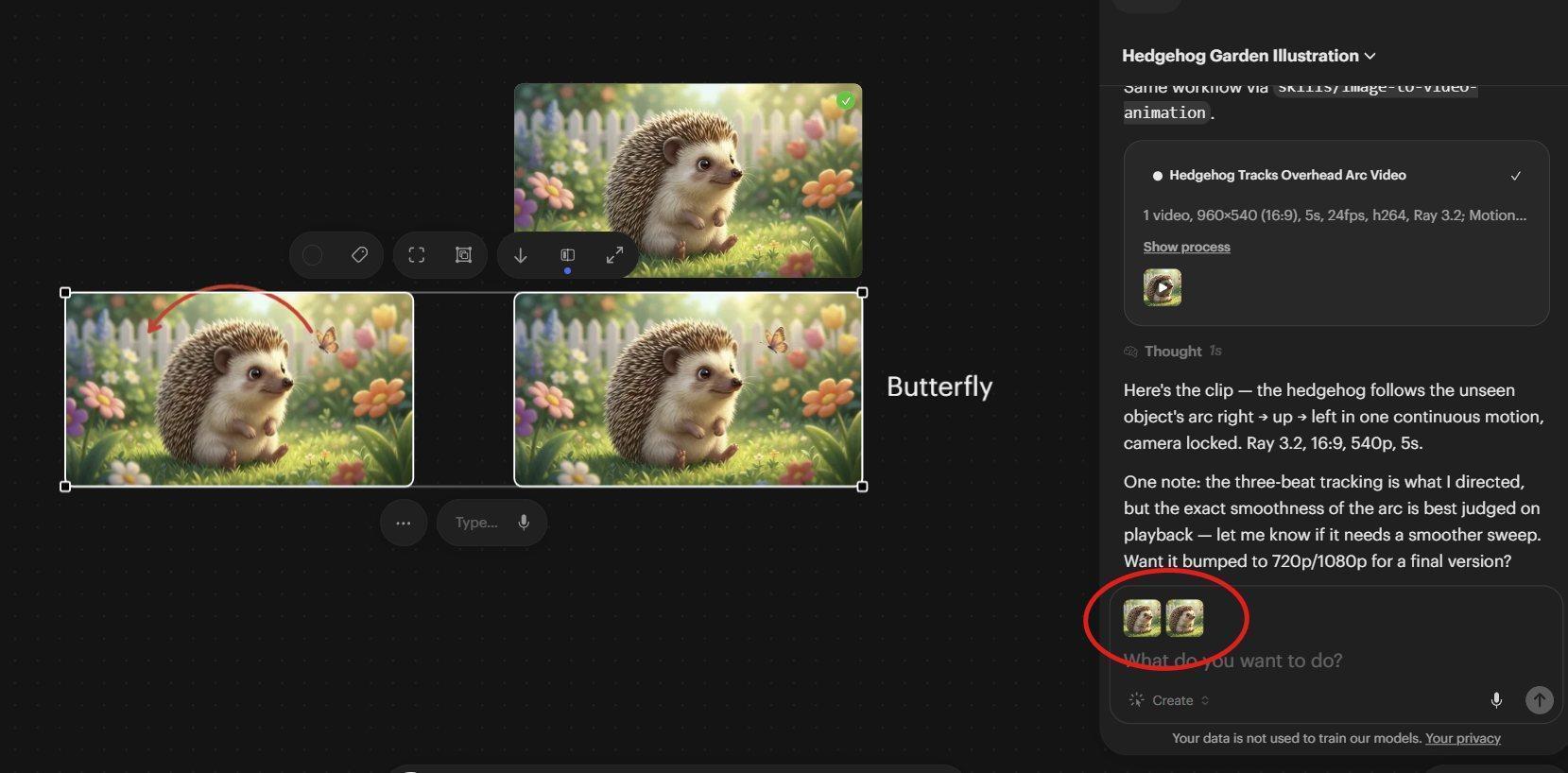
The selected images and their thumbnails in the Agent Chat.
3. Enter the following Prompt into the Agent Chat:
Use Image1 as the start keyframe. Use Image2 as the butterfly flight path and the eyeline for the hedgehog to follow. The cute adorable hedgehog follows a butterfly through the air with his eyes. The butterfly flutters its wings and flies in an arc over the hedgehog’s head. Do not render any annotation elements from Image2. Use Minimax H3.
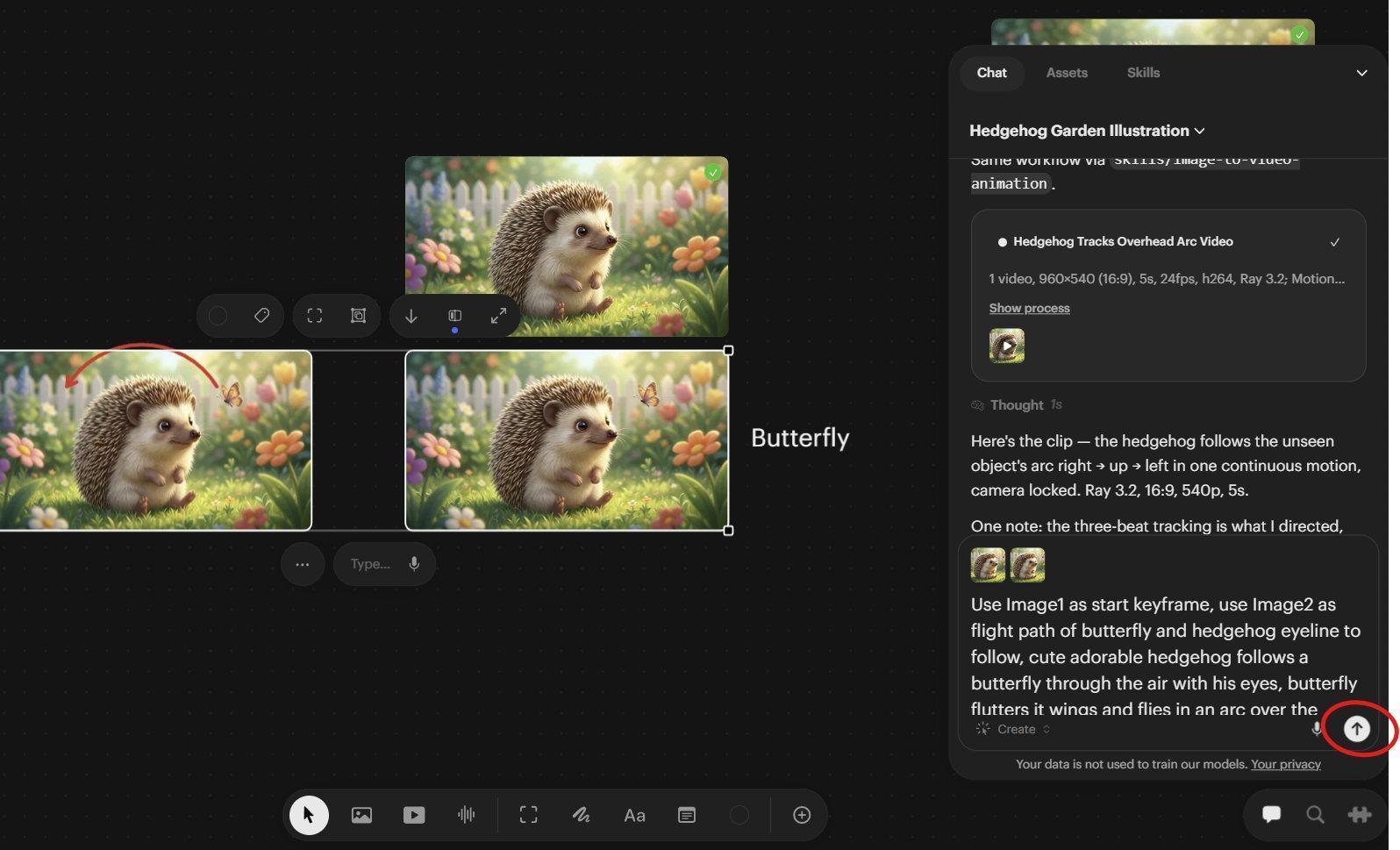
The submit button for the Agent Chat
4. Select the up Arrow in the bottom right of the Agent Chat to send the job.
Other Models can perform this task; MiniMax H3 is being used here as it tends to be the best at drawn-path references.
While we’re waiting…
Tip: To cancel a generation you started by mistake, see How to stop a render.
Remove the butterfly
Once the video comes back, the hedgehog should be watching the butterfly fly in an arc over his head
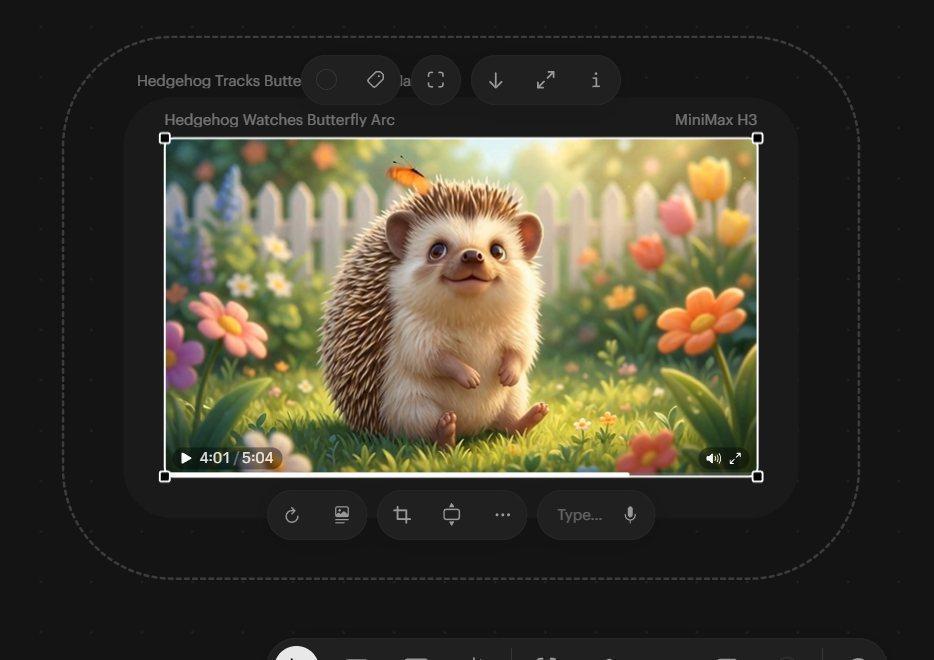
The hedgehog video. He is following the butterfly with his eyes
But the butterfly isn’t what we want him looking at. We want him to seem like he is looking at the bunny jumping behind our viewpoint (behind camera). So let's remove the butterfly.
1. Select the video we just made and send a new Instruction into the Agent Chat and hit the submit Up Arrow:
Remove the butterfly. Keep everything else the same.
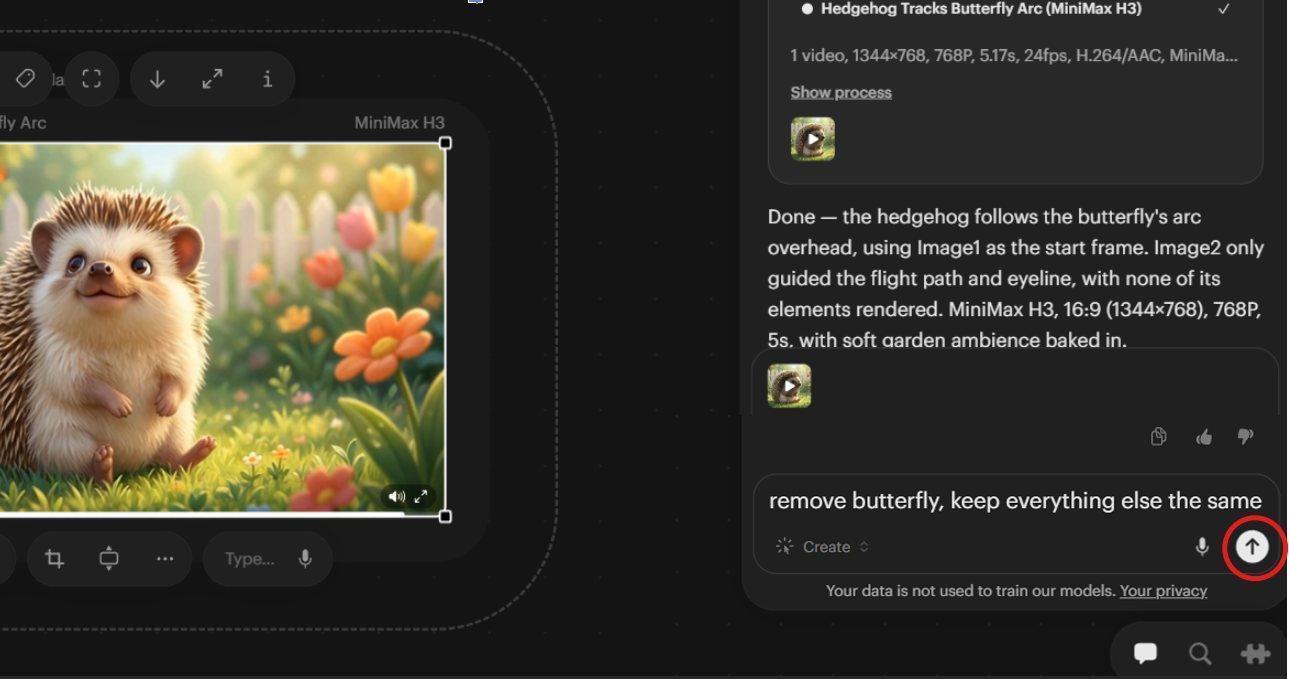
The thumbnail of the selected video we just made in the Agent Chat with our new prompt
Notice we haven’t chosen a Model to achieve this task. You can let the Agent decide or you can include the Model you want to use (for stylistic or technical reasons or because of cost). Continuing with the original Model can help maintain stylistic consistency.
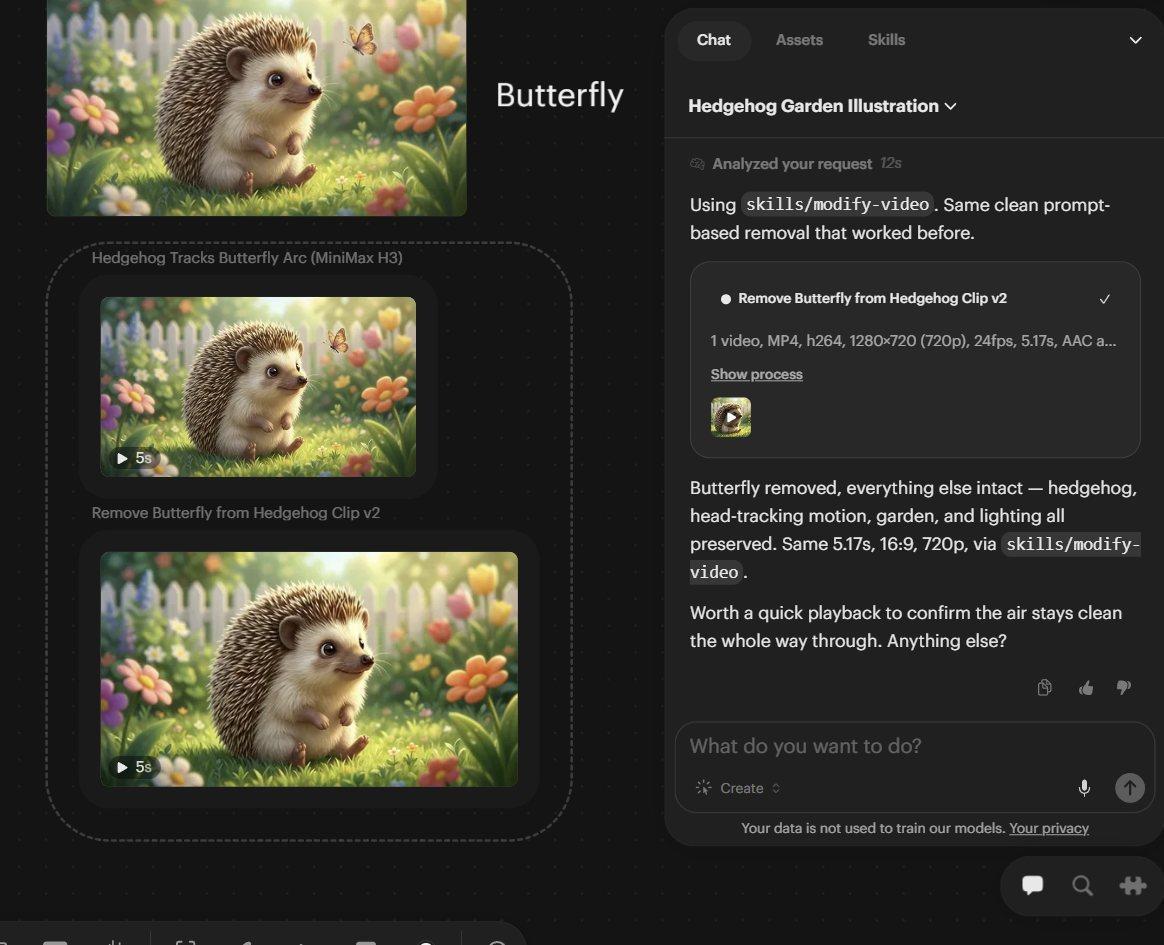
The new video with the Butterfly removed
The end result should be a hedgehog looking toward an unseen subject moving in an arc behind the camera. It may also look like he is looking at an invisible butterfly. Once we put this in an edit and combine the two scenes, a cinema term called “The Kuleshov Effect” will make it appear he is looking at the bunny.
Next: Part 9: Assemble and export in the Timeline editor
Back to the series overview: Migrating from Dream Machine to the Luma app