
Part 9: Assemble and export in the Timeline editor
Your first project in the Luma app · Part 9 of 9
You’ll need: The clips from Parts 6 and 8.
You can download individual clips and edit them externally, or use Luma’s built-in Timeline Editor for a simple sequence. We will cut to the hedgehog during the bunny’s jump, then cut back to the bunny as it finishes the jump.
Open both clips in one timeline
1. Select the bunny video containing the fence jump. Ctrl-click the finished hedgehog video to select it as well.
2. Right-Click either selected clip and choose Open in New Timeline from the right click menu. The editor appears on the canvas and loads them in the order they were selected.
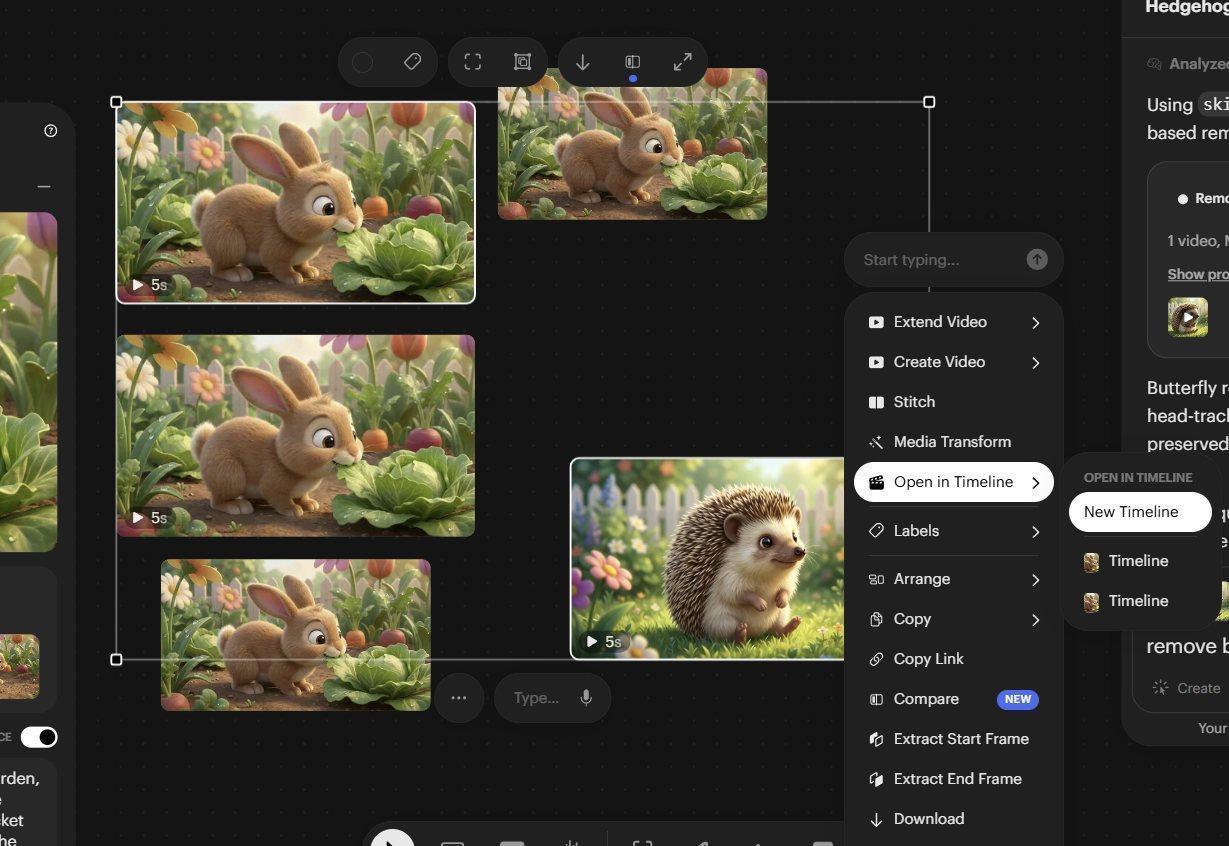
Selecting the two videos and then choosing the Timeline Editor in the right click menu
3. If necessary, close the Agent Chat and zoom into the editor so its Timeline is at a comfortable size to use.
Split and insert the reaction shot
1. Find the vertical red Playhead at the left of the Timeline editor. Drag it right until the main viewer shows the bunny just beginning its arc over the fence.
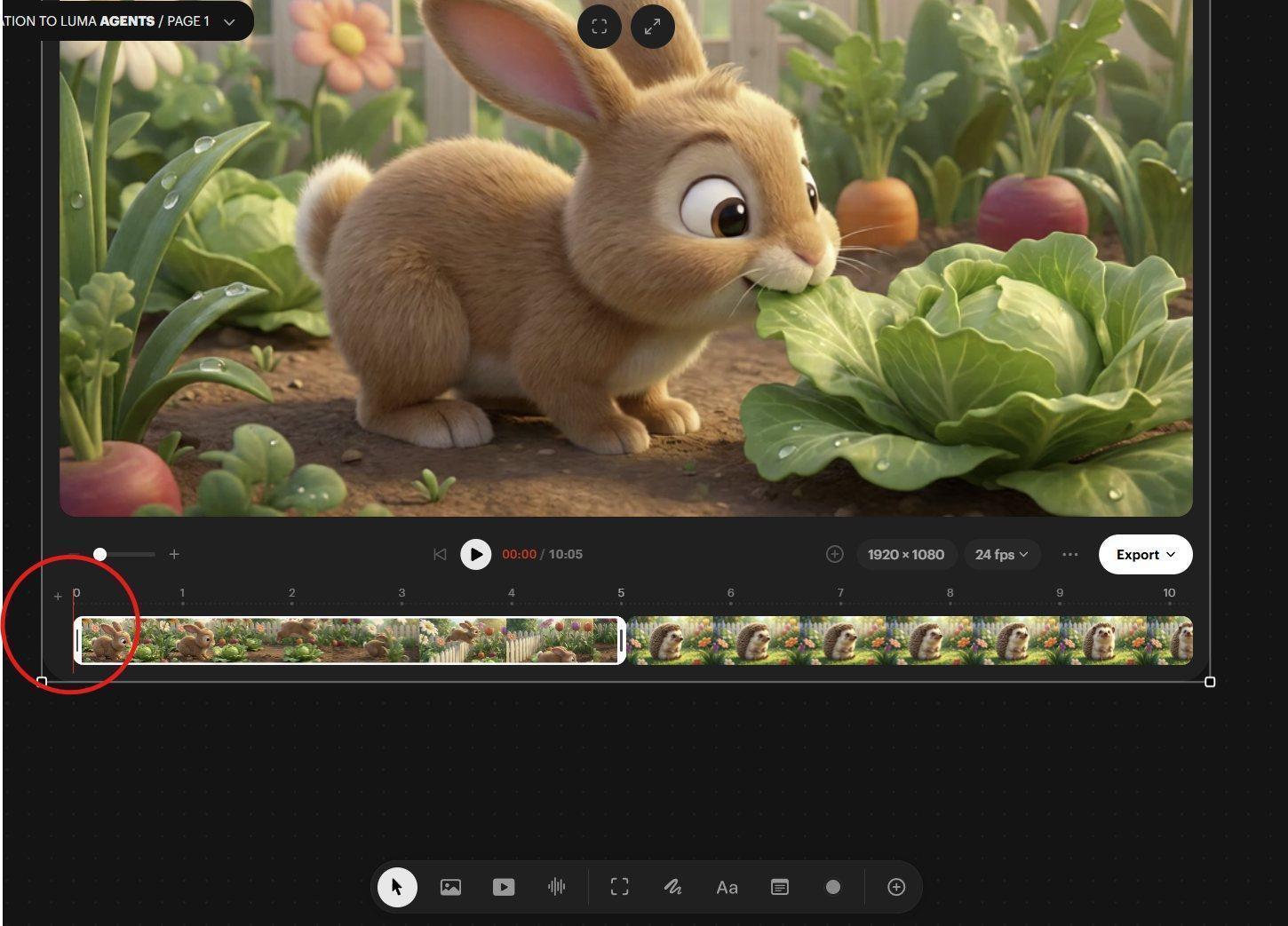
The red Playhead line and the large Editor Viewer area above the timeline
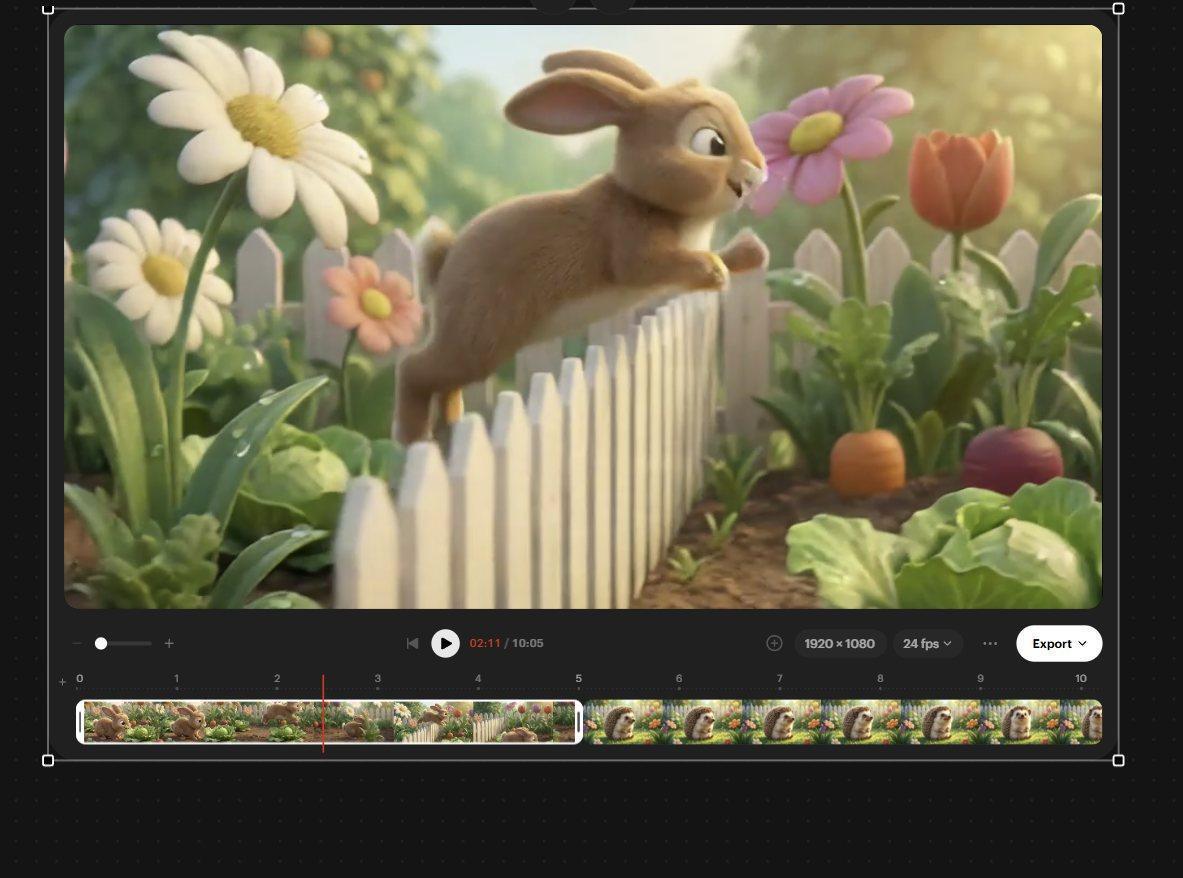
The red Playhead line moved to where the bunny is starting his arc over the fence
2. Right-Click the bunny clip in the Timeline and choose Split at Playhead.
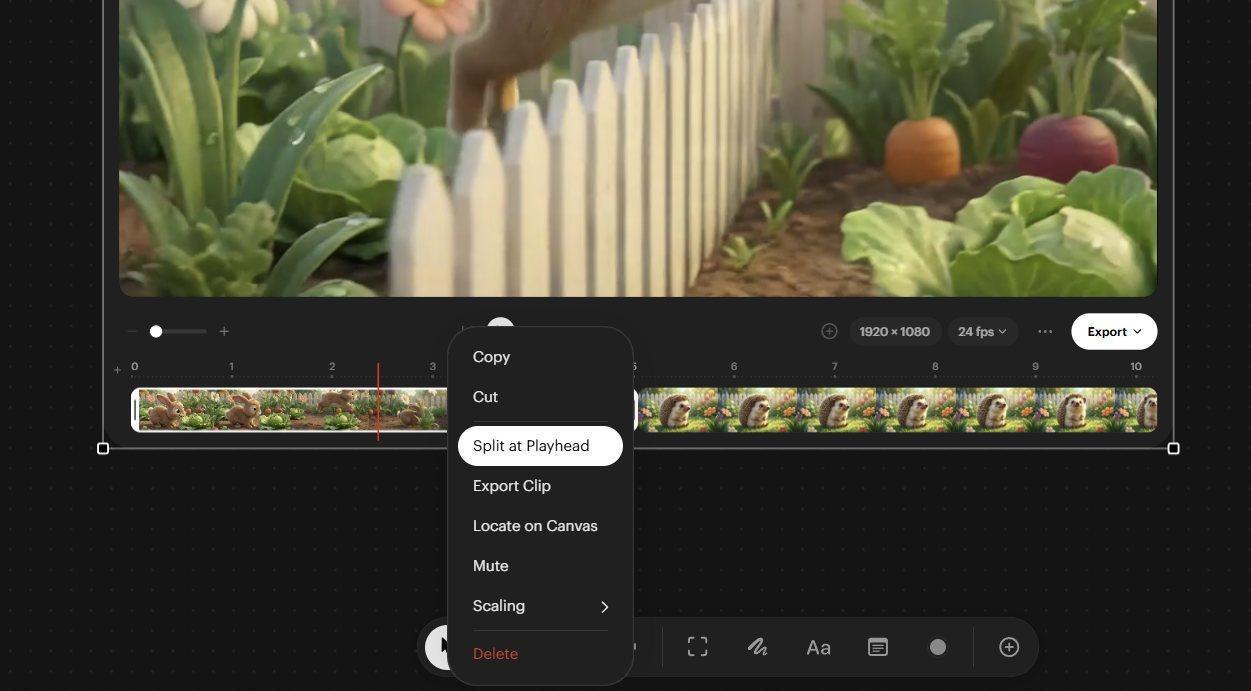
Choosing the Split Clip at Playhead command with the right click menu
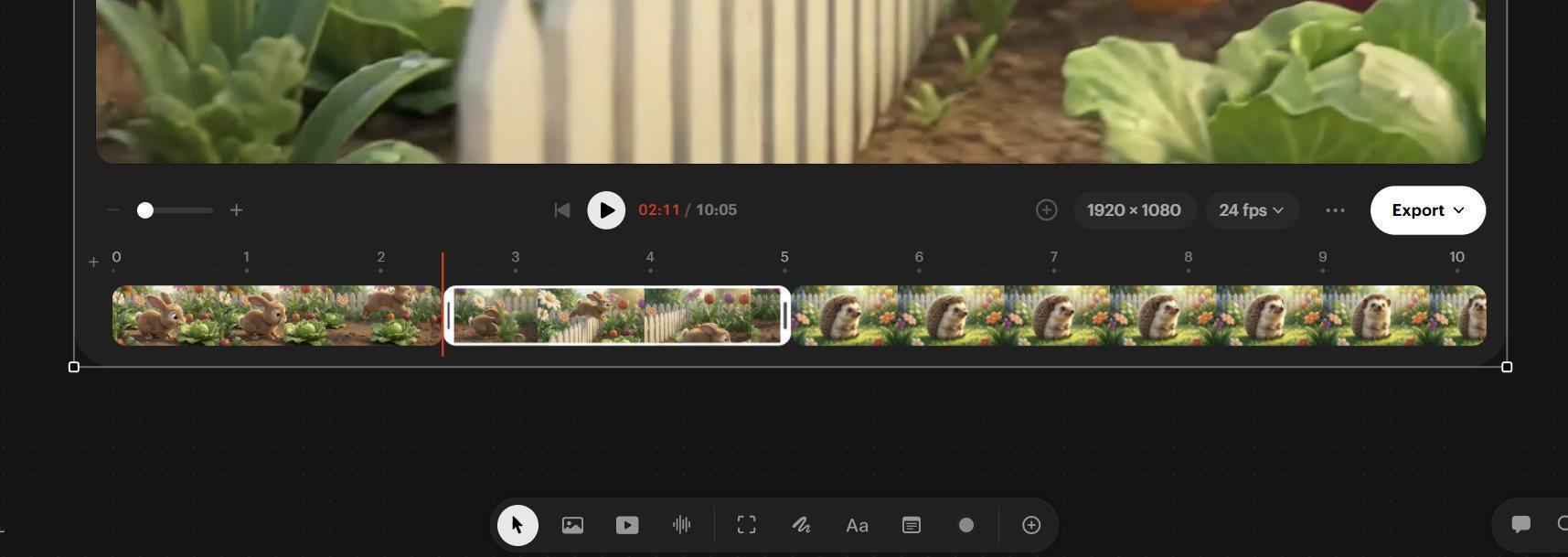
Once the clip has been split
3. Drag the hedgehog clip into the space between the two bunny sections (where the red Playhead line was when you split the bunny clip). Use the +/− Timeline zoom slider (on left) if the clips are too small to manipulate.
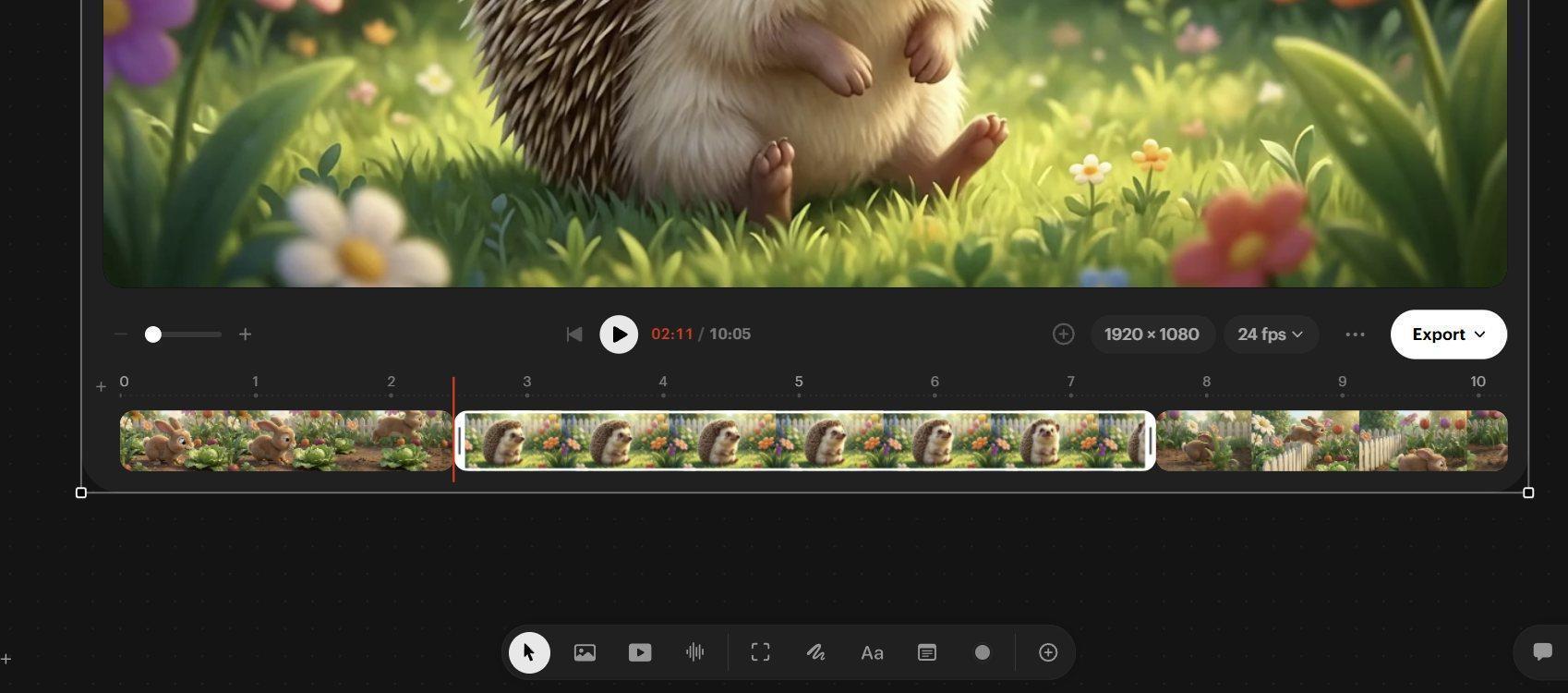
The Hedgehog clip moved in between the two halves of the bunny clip
4. Select Play to review the edit. Playback stops at the end; select Play again to repeat.
Trim the reaction and resume the jump
Initially, there will probably be more hedgehog reaction and remaining bunny jump than we need. Trim using the handles at each end of the selected Timeline clip:
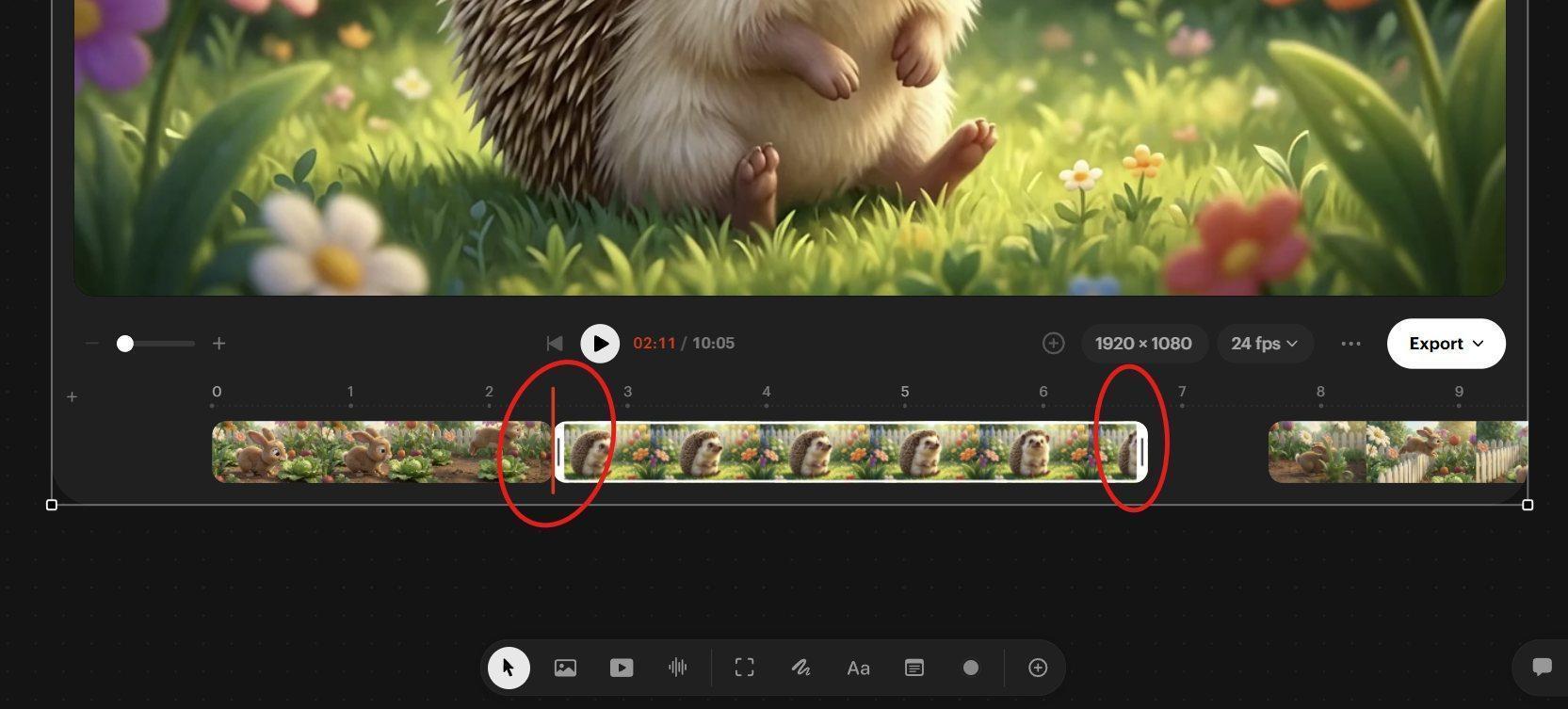
The trim handles of the hedgehog clip
1. Select the hedgehog clip. Drag its left “in” trim handle right until the hedgehog is looking at roughly the 1 o’clock direction in the Viewer.
2. Drag the hedgehog clip’s right “out” trim handle to the left until the hedgehog is looking at about 11 o’clock.
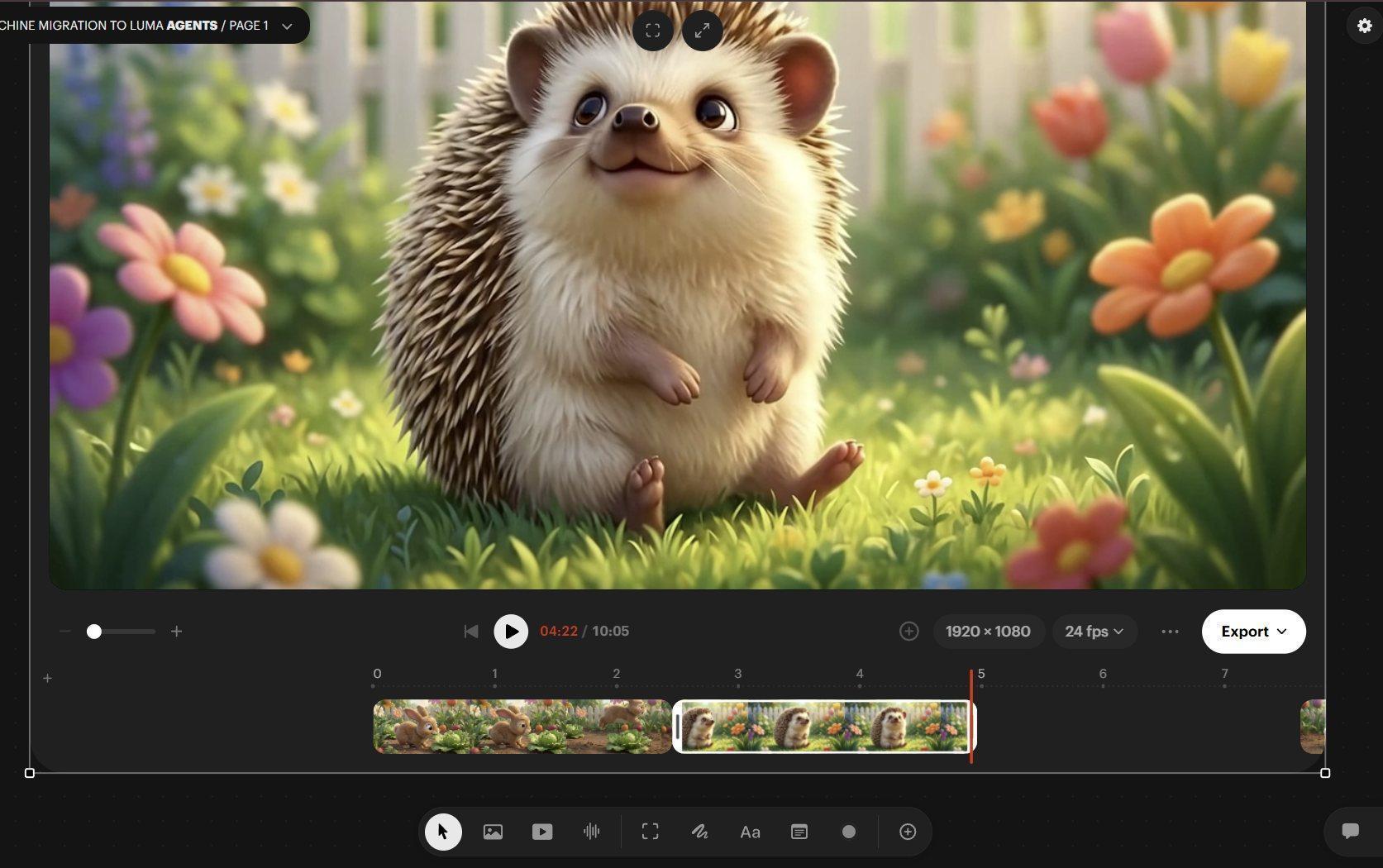
Dragging the “out” hedgehog clip handle to the left
3. Slide the second bunny section left to close the gap after the hedgehog reaction shot.
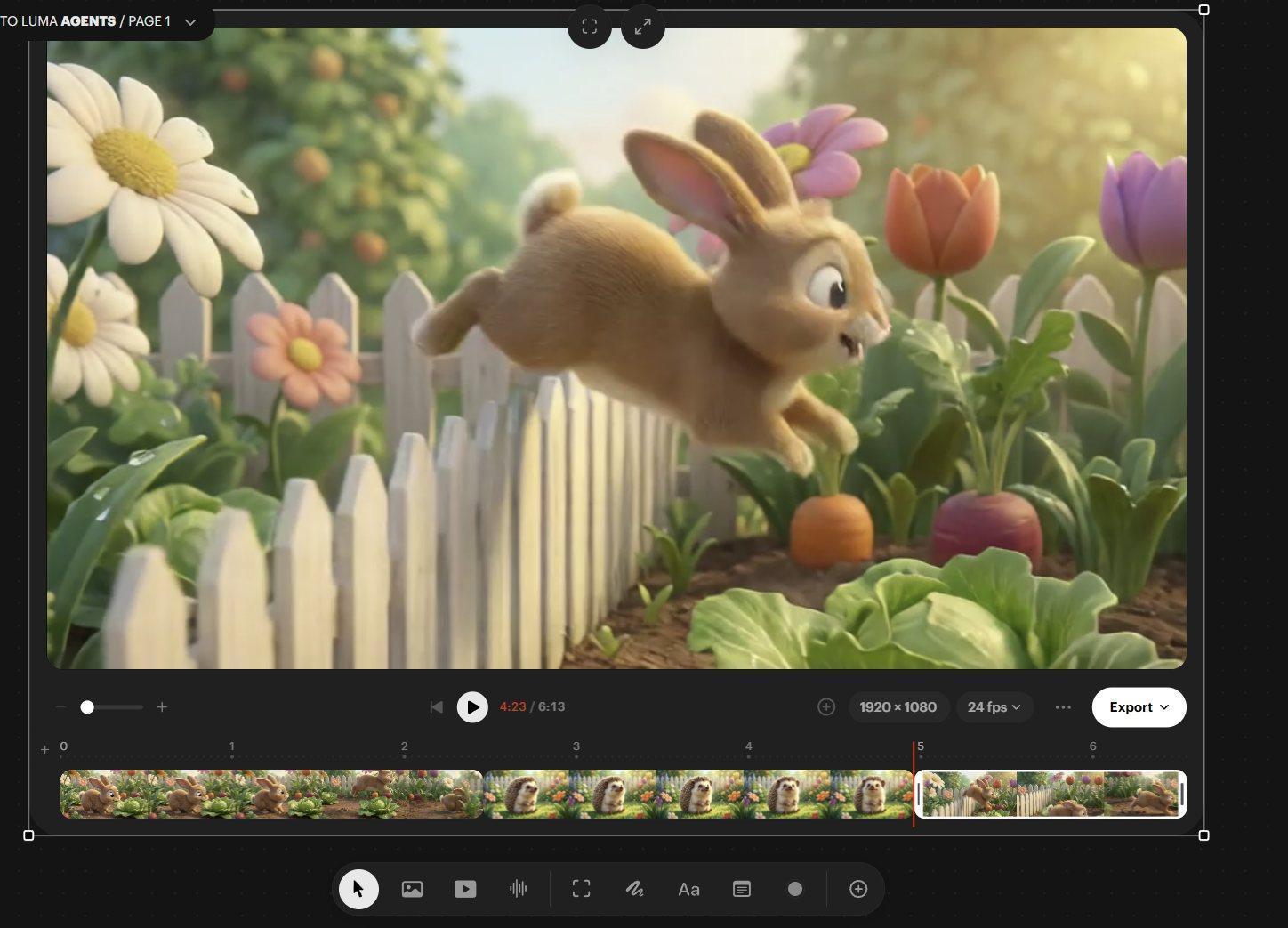
The second half of the bunny clip moved left to close the gap
4. Drag the left “in” trim handle of that second bunny section right until the bunny is about three-quarters of the way through its slow-motion arc.
5. Play the edited sequence. If you need to zoom out to see the whole editor, position your pointer over an empty Canvas area before using Ctrl + mouse wheel. The Editor panel has its own internal zoom function.
Export the edit
Set the Timeline editor Resolution to match the clips: 960 × 540. You can then export the full edit as a single video, export the edited clips individually, or export an EDL (Edit Decision List). An EDL lets you reproduce your edit from the original downloaded clips in a professional editing application without manually rebuilding every cut.
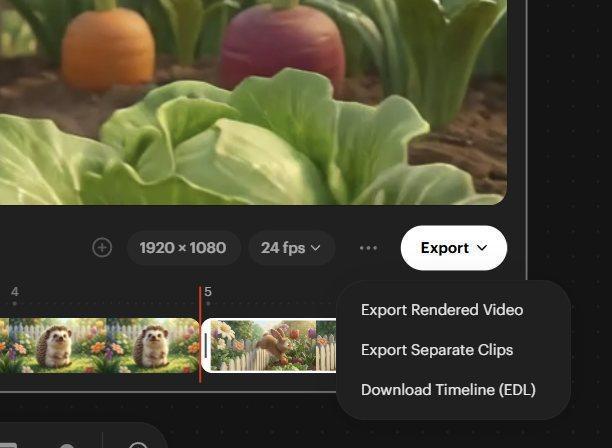
The Export dialogue
You are ready to keep building
You have now moved from a new Board to a small multi-shot sequence: creating images, animating a StartFrame, using two and three Keyframes, reusing references, guiding motion with Annotations, giving the Agent instructions and assembling a simple Timeline edit. The same Canvas can hold further examples, alternate takes and new scenes right next to the materials used to make them.
You can choose to start a new board to make another shot or continue in this board. You can choose to start a new project in another board.
You can also stay in the same board but choose another Canvas or “Page” to work on for other material related to this project.
The name of the Board appears at the top left of the Canvas area. Click it and select the plus sign + to add another Canvas or “Page” to this board. This is why a board is not called a Canvas, because a Board can contain a Canvas within each Page. You can also rename your Board in this menu.
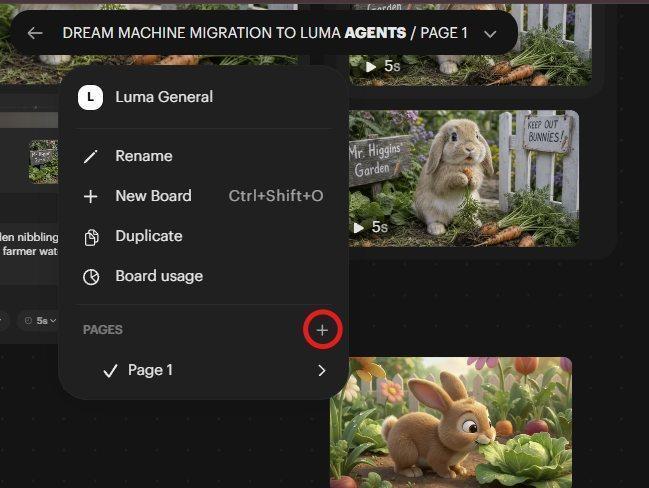
The Add Page button and the Rename option in the Board name menu
You’ve finished the series. See Which model should I use? to pick models for your own projects.
Back to the series overview: Migrating from Dream Machine to the Luma app